Packing a Project
In Workbench, you can export the configuration of a project's applications in a single package.
To pack a project for export:
-
Open Workbench and on the Home ribbon, select Pack Project. A Create a package for the project dialog opens.
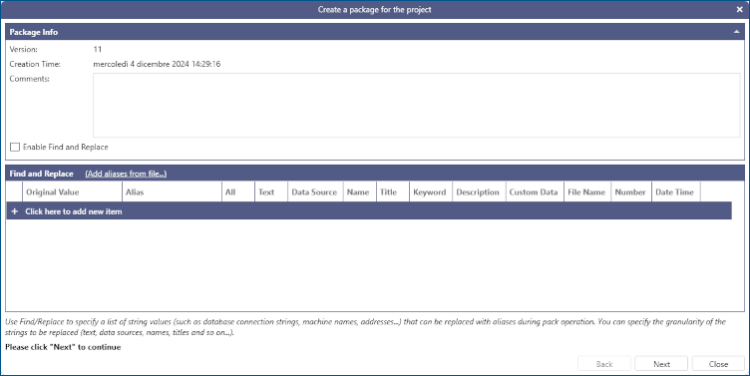
- In the Package Info section, select Find and Replace to enable replacing values with aliases during the packing process.
-
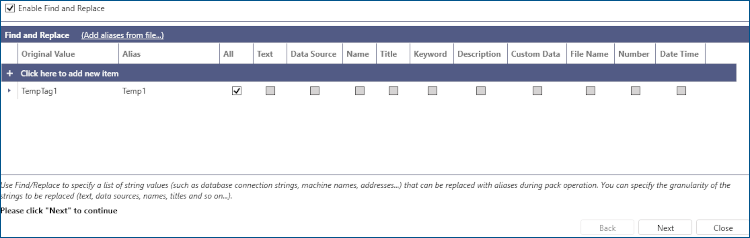
In the Find and Replace section, select one of the following options to add the desired string values and aliases, and then click Next.
- Add aliases from file to add aliases previously saved in a file.
- Click here to add new item to manually add aliases one by one.
The aliases are included in the package and can be replaced when unpacking the project.
-
In the next dialog, specify the encryption and compression settings.
- Select Compress Files to enable project compression.
-
In Package Encryption, select one of the following options.
- None to set no password or encryption on your project.
- Protected to protect your project with a password. The password protection can be challenged with the help of our customer support, but provides only limited security as the package is not encrypted.
-
Encrypted to set a password and encrypt your project. Remember that passwords are case sensitive.
If you lose or forget the password for encryption, it cannot be recovered. We recommend keeping a list of passwords and their corresponding package names in a safe place.
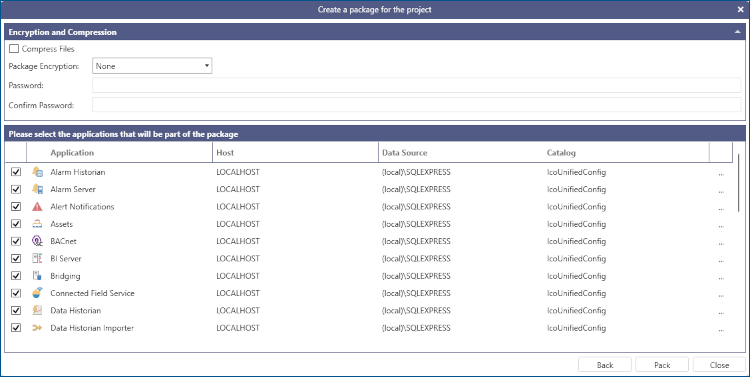
- When the Protected or Encrypted option is selected in Package Encryption, use the Password and Confirm Password boxes to specify the password for your project.
-
In the bottom section, select the components (applications) to be included in your project package by selecting or clearing the checkboxes on the left.
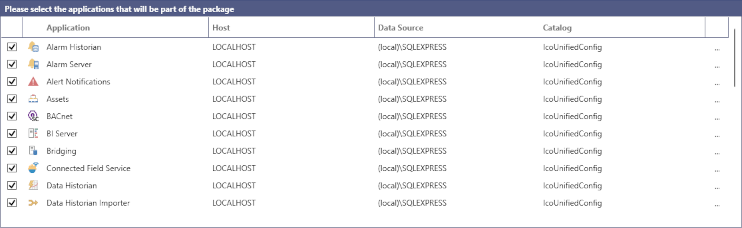
- (Optional) Click
 in the last column to select or exclude specific elements of each component , and then click OK. The dialog closes.
 - When finished, click Pack. Follow the notifications at the bottom-left of the Workbench screen to monitor the task progress.
-
When the Pack is completed notification is displayed, go to the Recent Tasks pane, right-click the task with your packed project, and select Download Package. The downloaded file has the .pkgx extension.
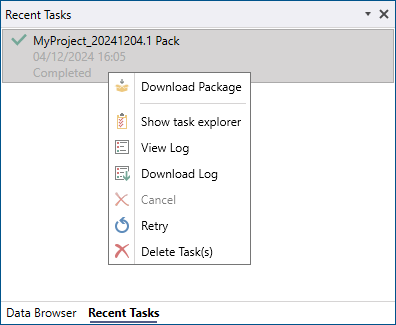 To view the log of the operation, right-click the task and select View Log.