Creating a Register
A register holds a value and exposes it as a tag that any GENESIS client can use. This topic creates a bridging register, which reads an input tag and writes its value to a different output tag. To create a holding register instead, set the input to none and make the register writable. Learn more
To create a register:
-
Open Workbench. In Project Explorer, expand your project > Platform Services > Unified Data Manager, right-click Registers and select Add Register. The register form opens.
To organize registers, right-click Registers and select Add Folder first, and then add the register to the folder. The folder name becomes part of the register tag.
-
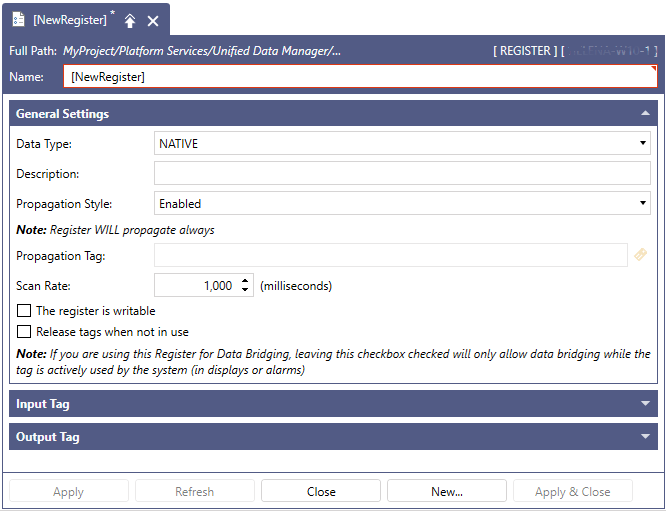
In Name, enter a name for the register. Use only letters, numbers, and the underscore (
_) character. -
In the General Settings section, do the following:
-
In Data Type, select the data type of the register value, or keep Native to use the data type of the input tag.
-
In Propagation Style, select Enabled.
-
In Scan Rate, enter how often the register reads the input tag, in milliseconds.
-
(Optional) Select Release tags when not in use to release the input, output, and propagation tags while no client is subscribed to the register. When selected, a bridging register copies data only while a client, such as a GraphWorX display, uses the register. This setting is cleared by default.
-
-
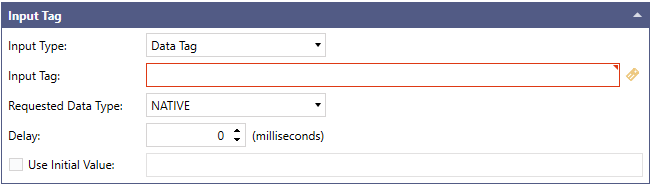
In the Input Tag section, select Data Tag in Input Type, and then click
 and select the tag that the register reads. Input Type has the following options:
-
Data Tag—The register reads the input tag.
-
None—The register has no input tag. It holds the value in Initial Value, which is optional, or a value written by a client. Select None to create a holding register.
-
-
In the Output Tag section, select Use Output Tag, and then click
and select the tag that the register writes to.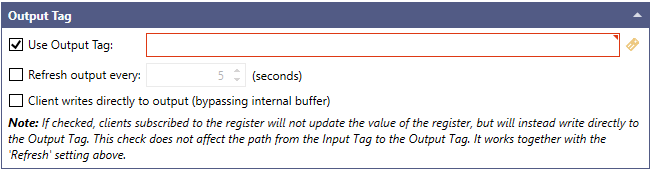
-
Click Apply. The register is saved and starts to copy the input value to the output tag.
-
To confirm that the register works, add a process point to a GraphWorX display and browse to Platform Services > Registers in the Data Browser. Select the register, whose tag is
reg:<folder>.<name>, and check that it shows the input tag's value in runtime.