Finding and Editing Point Manager Parameters
GENESIS uses point managers, which are services installed with GENESIS to perform tasks specific to the point managers function. Point managers have parameters that can be used to adjust the behavior of the service.
To find and edit point manager parameters:
-
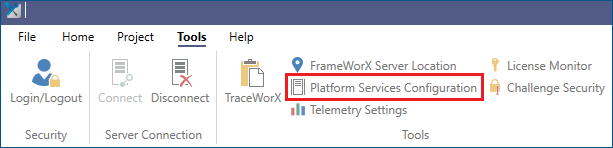
Open the platform services configuration. Do one of the following:
-
In the Windows Start menu, select GENESIS Tools > Platform Services Configuration.
-
In Workbench, go to the Tools ribbon and select Platform Services Configuration.
-
-
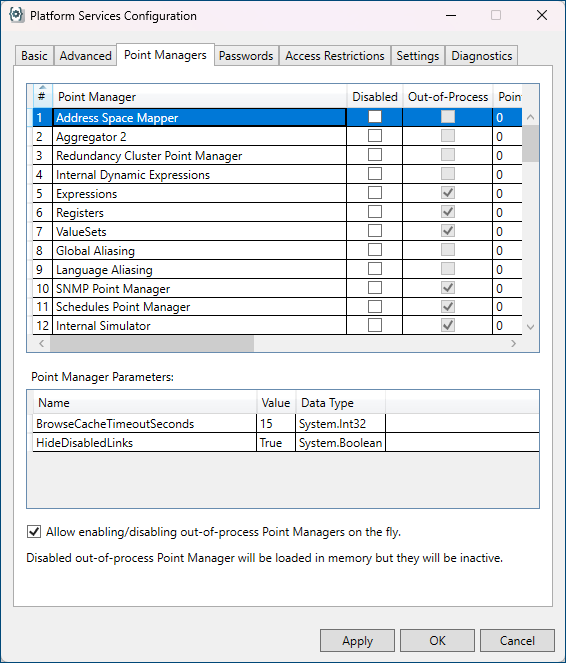
Select the Point Managers tab.
-
Select the desired point manager from the table at the top of the dialog. Any parameters related to that point manager are displayed in the bottom section.
-
In the Value column of the Point Manager Parameters table, select and edit the desired parameter(s), and then click OK.
-
Restart the edited point manager service.
The parameter change may trigger a FrameWorX Server restart if necessary, but it is best practice for you to restart any service after making changes to its parameters.
Reverse Network Point Manager
|
Parameter Name |
Default Value |
Description |
|---|---|---|
|
BrowsingDisabled |
False |
|
|
DisableRecursiveNetworkBrowsing |
False |
|
|
MaxForwardedRequestsPerCall |
40000 |
|
|
ConnectionTimeoutSeconds |
30 |
|
|
ConnectionTestRateSeconds |
15 |
|
|
PendingRequestTimeoutSeconds |
120 |
Makes it possible to ignore updates with Bad Quality for a specified amount of time. |