Verifying the Helm Chart Installation in Rancher
When the process of installing the Helm chart using Rancher ends with a success message, it only indicates that Helm completed successfully; it does not necessarily mean that all workloads started correctly. You need to verify the status of the pods to make sure that they have been correctly installed.
To verify the Helm chart installation in Rancher:
-
In your cluster view, go to Workload > Pods and verify that it contains several pods starting with names such as ico-webhmi-…, ico-ingress-haproxy-…, and ico-metallb-….
-
Wait until all pods show a Running status (some may briefly show Pending or Init during startup). The only exception is the job pod ico-ingress-haproxy-crdjob-..., which will briefly appear with the status of Completed before being automatically removed once it finishes.
If some pods remain in a non-ready state, refer to the troubleshooting topic for diagnostic commands and common fixes.
-
Open a web browser and enter the URL containing the Kubernetes ingress hostname—for example, https://webhmi.example.com.
-
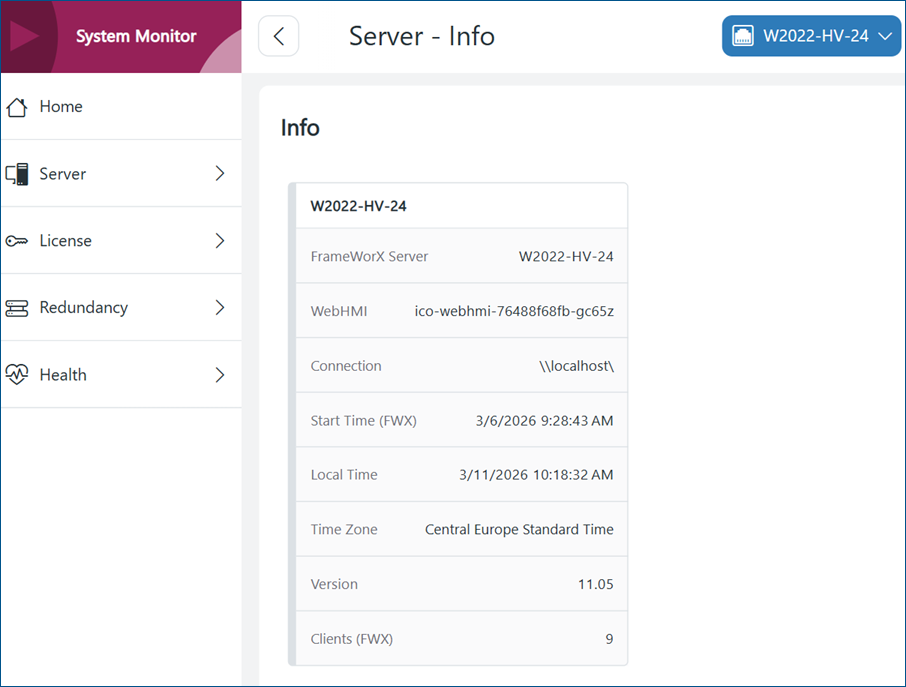
On the welcome page, click System Monitor to open the System Monitor display, and then click Server/Info to view general information about the server. The WebHMI row displays the name of the WebHMI pod to which you are connected.