Using Unit Conversion in a GraphWorX Display
This topic describes how to use unit conversions defined in Language Aliasing in a GraphWorX visualization.
The following instructions assume that you already have unit conversions configured in Workbench. The steps provided in this example use the sample Language Aliasing data installed with GENESIS.
To use unit conversions in a GraphWorX display:
-
Open GraphWorX in the configuration mode (default). Make sure that GraphWorX is in the
 Desktop App mode.
-
On the Dynamics ribbon, select Data Entry, and then drag the mouse diagonally across the canvas to make a rectangle for inserting the control. The data entry is added to the screen and in the Dynamics pane on the right, a property grid with a preselected DataSource box is displayed.
- Browse for a language conversion.
In the DataSource property, click
 to open Data Browser.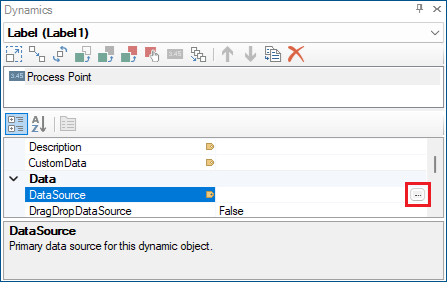
- In Data Browser in the Data Points tree structure, expand Platform Services > Server Internal Simulator > static and select datatype name.
Switch to the Language Conversions tab. You should see the text svrsim:static datatype name in the edit field. Modify this text to specify the datatype and name for the variable, for example: svrsim:static double PackageWeight.
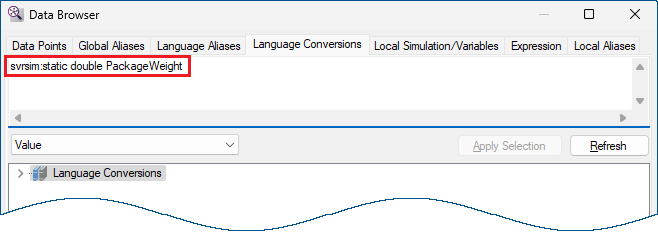
In this example, this simulator variable represents the weight of a package in kilograms. The value of this simulator variable is always in kilograms. However, the subsequent steps show how to display this variable converted to different units, and how to enter new values in different units and automatically convert them to kilograms.
In the tree structure, expand Language Conversions > Mass and double-click FromKg. The unit conversion prefix is added to the data source in text field above the tree. The resulting data source is =Mass\FromKg:Value=svrsim:static double PackageWeight.
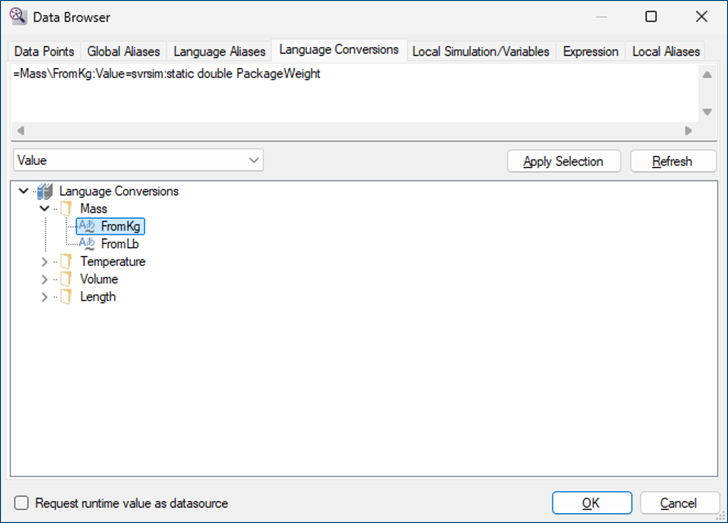
Click OK to close the dialog. The DataSource property for the data entry is now be set to the desired data source.
In the right pane, notice that several other properties of the dynamic have been automatically set:
- DecimalPlaces = {{=Mass\FromKg:DecimalDigits}}
- DigitGrouping = {{=Mass\FromKg:DigitGrouping}}
- PrefixLabel = {{=Mass\FromKg:PrefixUnit}}
- PostfixLabel = {{=Mass\FromKg:PostfixUnit}}
These properties use the settings configured for the unit conversion in Workbench to optionally provide language-specific number formatting and unit text for the visualized value in runtime.
- In the upper right corner of the GraphWorX screen, click
 , or press CTRL+M. GraphWorX switches to the runtime mode
. Assuming your current language is English, the data entry field displays the text 0.00 lb (zero pounds).
, or press CTRL+M. GraphWorX switches to the runtime mode
. Assuming your current language is English, the data entry field displays the text 0.00 lb (zero pounds). - Click the data entry field and enter 2 as the new value, and then press Enter. The data entry field now displays 2.00 lb.
-
Switch to a different language.
-
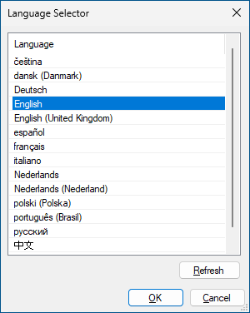
On the Runtime ribbon, select Language. The language selector opens.
-
Select a different language, such as français (French), and then click OK to close the dialog. The data entry field now displays 0,91 kg.
French uses comma as the decimal separator.
-
- Enter 1 into the data entry field. The value changes to 1,00 kg.
- Repeat step 6 to switch the language back to English. The data entry field now displays 2.20 lb.