Connecting to Azure Maps
The Map Control supports connections to Azure Maps as the source for mapping tiles. You can configure the control to load map tiles from this cloud service.
To connect to Azure Maps:
-
Browse the Azure Marketplace for "Azure Maps" and select the resource to create it in the Azure Portal.
-
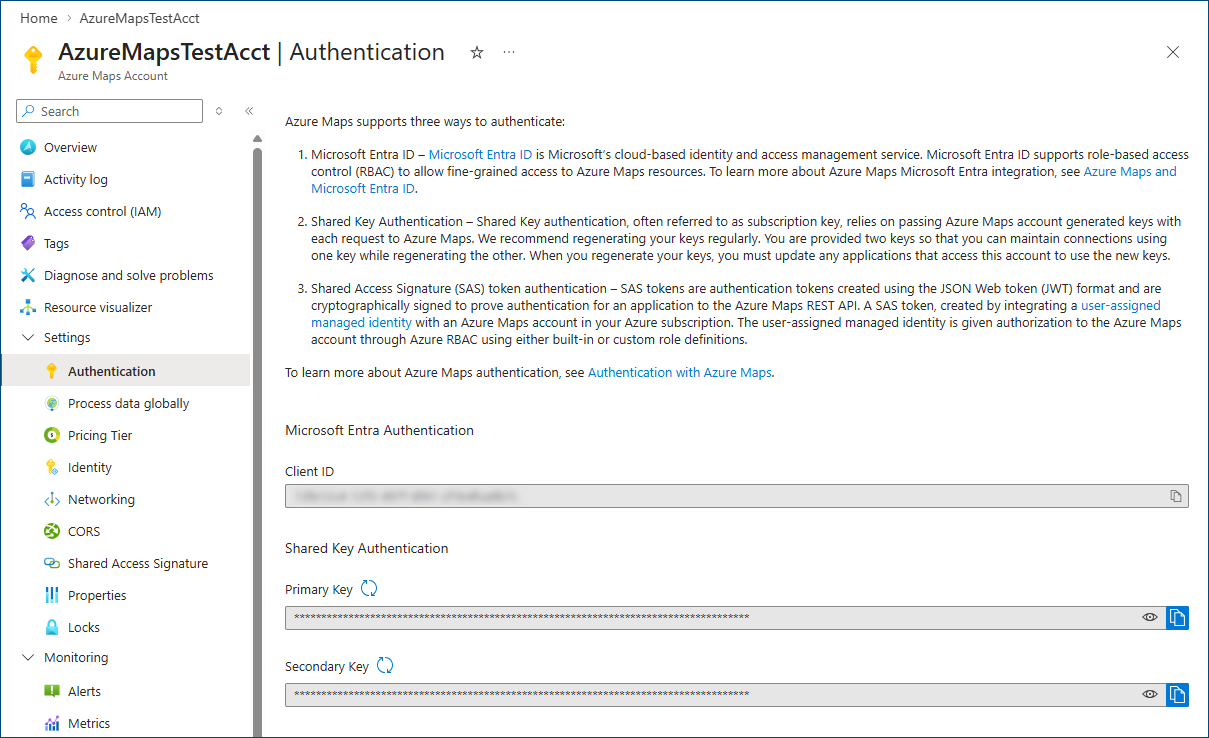
Once created, browse to the Azure Maps Account resource. In the menu, expand Settings, select Authentication, and copy either the Primary Key or Secondary Key.
-
Open Workbench and in Project Explorer, expand your project > Security > Users. Create a new user, or select an existing user to which you want to apply the Azure credentials.
-
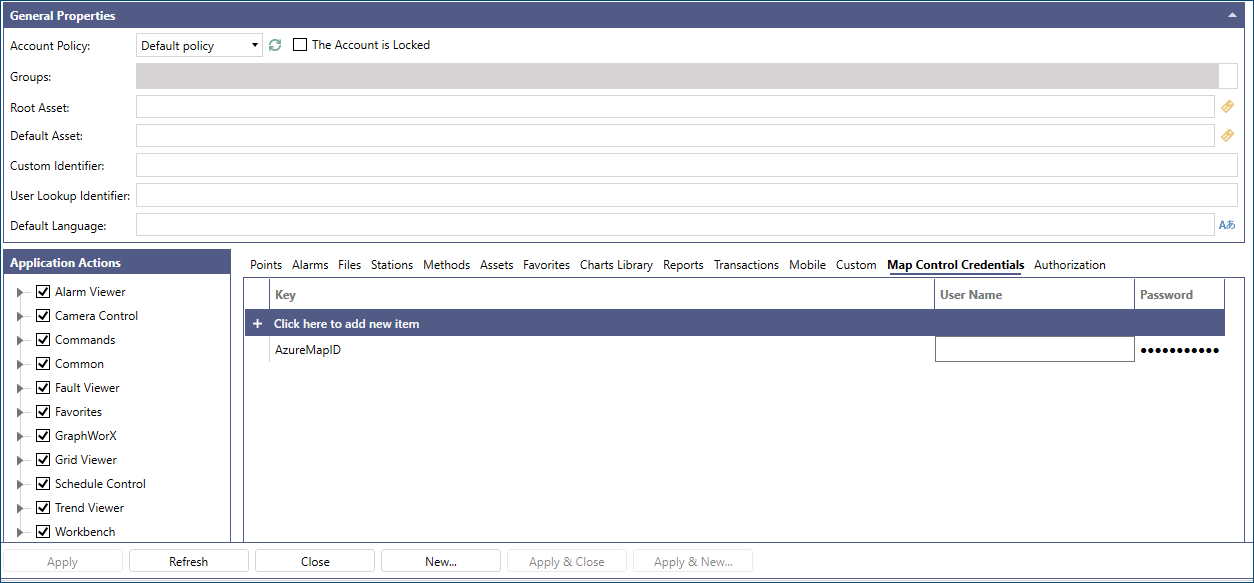
Select the Map Control Credentials tab, and enter a new row. Give the Key a name that you choose, and for Password enter the Primary Key or Secondary Key you copied from the Azure Portal. User Name is not used in this configuration.
-
Open GraphWorX in the configuration mode (default). On the Controls ribbon, select Map Control, and then drag the mouse diagonally across the canvas to make a rectangle for inserting the viewer.
-
A warning message appears, informing you that the display is not using the standard Map Control size, and asking if you want to display the standard size.
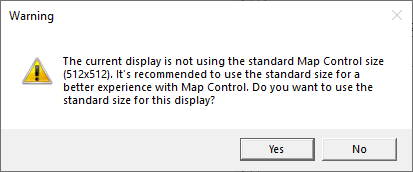
Do one of the following:
-
Click Yes to create a standard-size map (recommended). The display size will be adjusted to perform optimally with the tiled map layers. This formatting ensures good performance when zooming the map in or out in runtime while allowing map tiles and objects to scale correctly.
-
Click No to create a space around the edge of the map where you can add objects that are independent on the map. Keep in mind that objects added outside the map become very large and unusable when you zoom in on the map, so we do not recommend this option. However, you can use it to add an object such as a trend or alarm viewer on a map that you do not zoom in on.
-
-
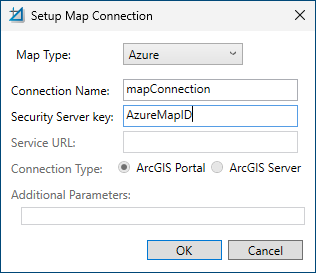
On the Map Control Configuration ribbon, expand Setup Connection and select Add New Connection to open the Setup Map Connection dialog.
-
Select Azure as the Map Type and provide a Connection Name. The Security Server key should be the Key that you gave the credential in the Security Server configuration in step 5 above.
-
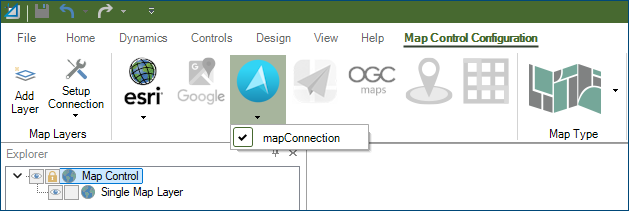
In the ribbon, select the Azure Maps option and pick your newly created connection. You can now add layers from your Azure Maps subscription.