Using a Keypad
You can use a configurable keypad interface in various user interfaces in GraphWorX to enter values into writable items in runtime. You can use the keypad for:
The keypad will scale automatically to your display resolution in desktop or to your browser resolution in Web Browser.
Data Entry
You can use the keypad to interact with the numeric value of a process point data entry.
To open a keypad for data entry:
-
In a GraphWorX display, select a process point, such as a data entry box. The Dynamics panel opens on the right.
-
In Keypad, select True to use the default keypad in runtime.
-
(Optional) You can use a custom keypad instead of the default keypad. After enabling Keypad to True, the CustomKeypadLayout field appears. You can choose between the options Browse Files and Data Browser to select a custom layout from either the File Explorer or data browser.
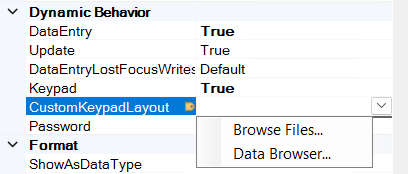
When using a custom keypad layout, you can select from the directory of preset keypad layouts that is available in
C:\Program Files\ICONICS\GENESIS64\Clients\GraphWorX\Layouts\KeyPad, or you can use these layouts as a reference to create your own. -
After a keypad layout is selected, switch to runtime and select the data entry field to open the keypad.
Alarm Viewer
The keypad in Alarm Viewer is available by default for acknowledging alarms and events.
To access a keypad in Alarm Viewer:
-
Open a GraphWorX display with an Alarm Viewer.
-
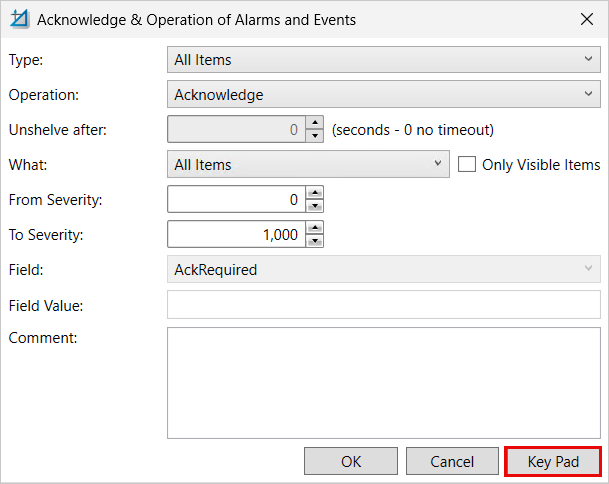
Switch to runtime and right-click the viewer. Select Acknowledge & Operation.
-
At the bottom right of the acknowledge dialogue, click Key Pad.
Grid Viewer
You can use a keypad to enter or change data in writable Grid Viewer fields in runtime.
To access a keypad in Grid Viewer:
-
Open a GraphWorX display with a Grid Viewer and double-click into a writable field to open the control configuration.
-
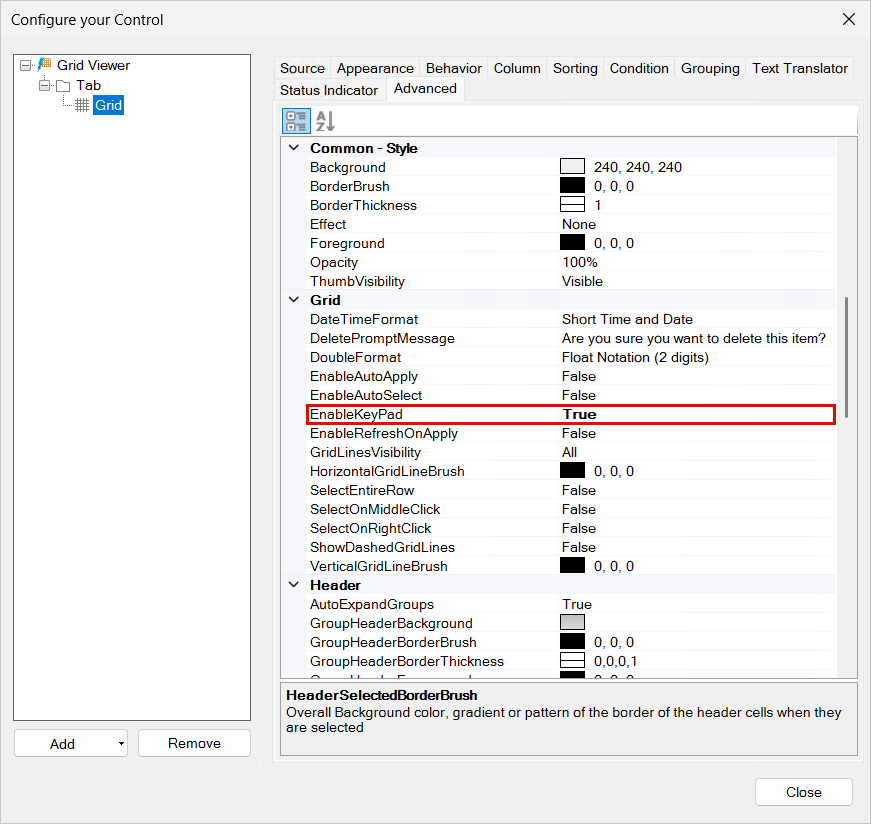
In the panel on the left side, select Grid, and then select the Advanced tab.
-
Go to the Grid section. In EnableKeyPad, select True and click Close.
-
Switch to runtime and double-click a writable field. After selecting a field, a keypad appears.