Converting Smart Symbols to Groups
You can convert existing smart symbols in GraphWorX displays to groups, either individually, or in bulk.
To convert an individual smart symbol, open the desired display in GraphWorX configuration mode, and then right-click the smart symbol and select Convert Smart Symbol to Group. To revert the action, right-click the group and select Convert to Smart Symbol.
To convert smart symbols to groups in bulk:
-
Open GraphWorX in the configuration mode (default).
-
On the top ribbon, click File, expand Tools, and select Convert Smart Symbols to Groups.
-
In the new dialog, click
 to add the displays in which smart symbols will be converted.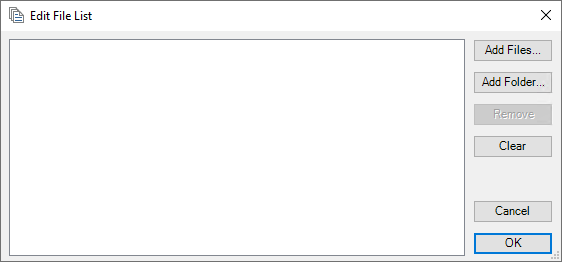
-
Do one of the following:
-
Click Add Files and select the desired displays.
-
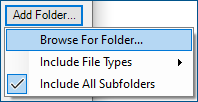
Click Add Folder > Browse for Folder to select an entire folder. Before you do that, you can customize the selection:
-
Click Include All Subfolders to toggle this option. When enabled (default), it is indicated by a checkmark.
-
Click Include File Types and select the desired option.
-
-
-
When you complete your list, click OK to close the dialog, and then click Update to convert the smart symbols in the selected files.