Importing 3D Files
GraphWorX 3D Viewport supports importing 3D models from various editors in multiple file formats (XAML, 3DS, DAE, OBJ, and IFC). Import options vary depending on the file format and may include asset creation and applying dynamics to geometries.
It is a good idea to simplify the complexity of your 3D model before import. See the topic on steps to take before importing a 3D model for more information.
To import a 3D model:
-
Open GraphWorX in the configuration mode (default).
-
On the Home ribbon, select 3D View, and then drag the mouse diagonally across the canvas to insert the 3D Viewport.
-
In the main menu, click File > Import.
-
Browse for the desired 3D model, select it, and click OK.
The browser only displays files that can be imported. You can apply the file filters to show only 3D files of a certain format.
-
In the Import Options dialog that appears, specify the details of the import process, and then click OK.
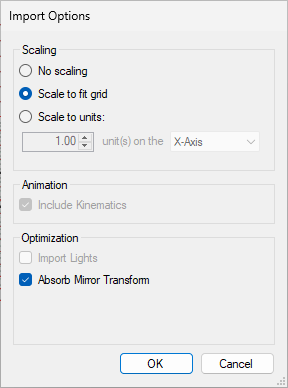
Some import options are available to all supported files, but certain formats have their own specific options. Learn more
The general import options are the following:
-
Scaling: Determines the final size of the imported model.
-
No scaling: Preserves the original model dimensions.
-
Scale to fit grid: Automatically resizes the model to match the GraphWorX 3D grid dimensions. (Selected by default.)
-
Scale to units: Adjusts the model to a specific length in a chosen direction.
-
-
All scaling options keep the aspect ratio of the original model.
-
Absorb mirror transform: Resolves rendering issues where mirrored objects appear black in fast rendering mode by absorbing mirroring transforms without visual changes. (Selected by default.)
Format-Specific Options for Collada Files
Collada ( .dae) files have the following specific import options:
-
Include Kinematics: Converts Collada kinematics into GraphWorX dynamics.
-
Import Lights: Imports light objects from the source file into GraphWorX.
Import Options for Building Information Models (BIM)
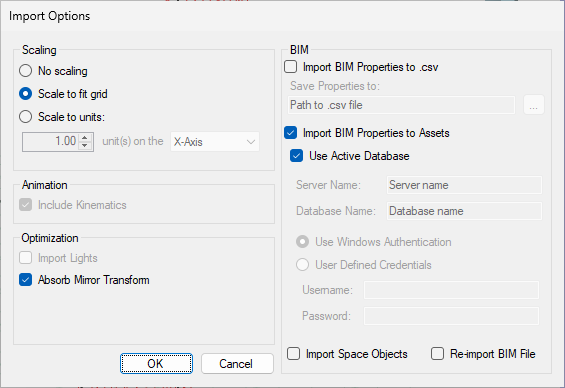
Building Information Models (.ifc files) contain detailed architectural data about buildings and their components. Due to their complexity, BIM imports allow for additional configuration options.
-
Import Space Objects: Includes empty spaces (such as room volumes) as geometry.
-
Model Properties Import: All parts of the building information stored in a BIM file are described by properties. These properties can be imported either into a .csv file or directly into Assets.
-
To import the data to a .csv file, select Import BIM Properties to .csv and specify the output file location.
-
To import the data to Assets, select Import BIM Properties to Assets and select the desired data database connection.
-
Active Database connection (recommended)
-
Manual connection: Enter the server name, database name, and credentials.
-
Re-import BIM File: Helps with updating a previously imported BIM model that is now changed without modifying the rest of the 3D. For instance, if you add dynamics, annotations, or change the material of the model, you can opt to re-import it. This process updates, adds, or deletes any parts that are different in the model file, but it keeps the changes made in GraphWorX.
-
-