Custom Bridging Blocks
Sample code projects are available for the Bridging Activity Extensibility: Sample Project
Overview
Bridging is a server within the GENESIS product suite that executes sequential workflows consisting of interconnected activities. Each activity is designed for a specific well-defined task, such as reading values from OPC tag(s), writing values to OPC tag(s), retrieving a Dataset from a database or Web Service, executing a Data Manipulator against a database table, and so on. All those activities appear as individual blocks in the Bridging workflow designer.
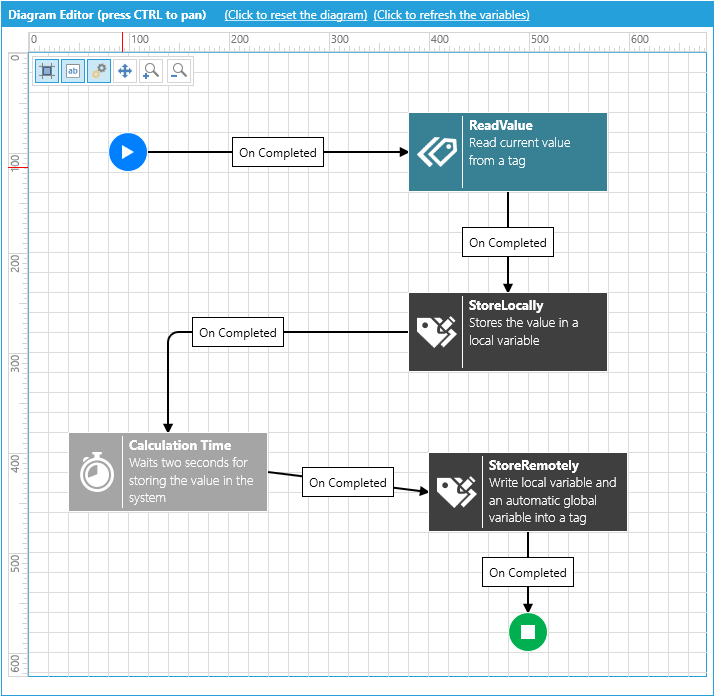
The following section describes steps to build a Custom Bridging activity by creating a DLL containing custom code that executes user-defined logic and performs required custom action(s).
Creating a Simple Custom Bridging Activity
Use Visual Studio 2026 to create a Bridging Custom Activity in C#. Two classes need to be created:
-
Activity Class, derived from
Ico.Workflow.Activities.Custom.CustomActivityBase(defined in IcoWorkflowCore.dll). -
Activity Class Editor, a plug-in for the Transaction Diagram Designer, derived from
Ico.Workflow.Controls.CustomActivityEditor(defined in IcoWorkflowEditor.dll).
We recommend that you implement these two classes in different assemblies, as this provides the most efficient runtime operation. Bridging runtime does not need to load the Editor class, so keeping it in a separate assembly speeds up loading and scheduling the execution of a transaction with custom activity.
Typically, you would start by creating a blank solution in Visual Studio, then you would add two Class Library projects. In our sample solution (CustomBridgeWorX64Activities\BwxCustomActivityExample1), they are named MyActivity1 and MyActivity1Design. Please note which GENESIS assemblies they reference.
For the Editor project, you need to add a new "WPF User Control", then change its base class from "UserControl" to Ico.Workflow.Controls.CustomActivityEditor.
For the Activity project, just add a new Class item and indicate Ico.Workflow.Activities.Custom.CustomActivityBase as its base class.
There are several properties that you need to override in your Activity Class:
-
CompanyName
-
ProductName
-
ActivityVersion
-
Category
-
TypeName
-
TypeDescription
Then you can add any additional configuration properties for your custom activity class. They should be public read/write properties of serializable data types (or arrays of serializable data types). In the Editor Control, you would need to create corresponding UI elements and data bind those to set your custom configuration properties.
For example, a FilePath property is added to MyActivity1 class:
And corresponding controls to set this property in MyActivity1Design class:
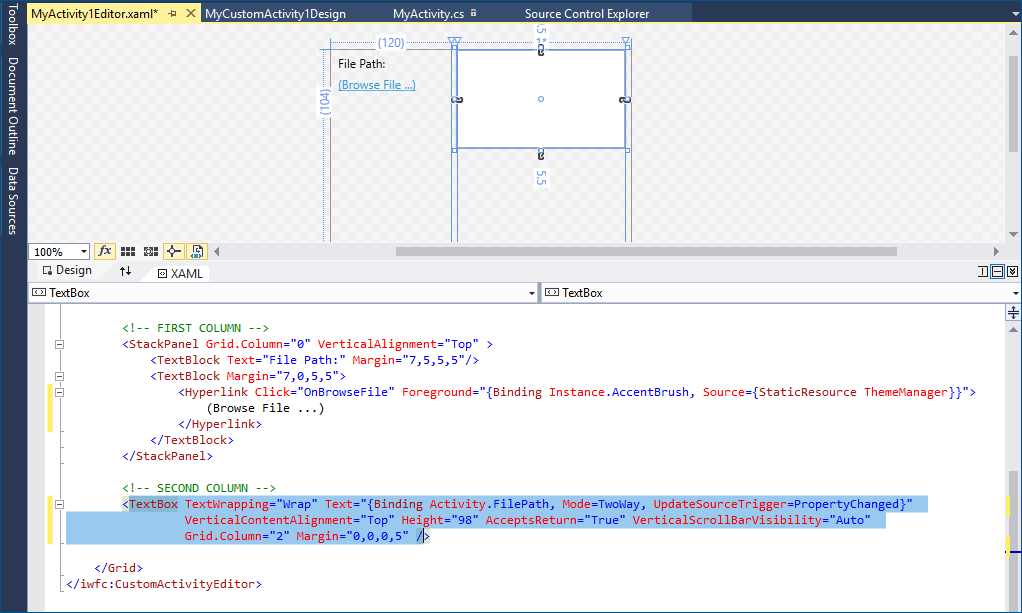
The Custom Activity Class should be decorated by the CustomActivityEditor attribute which associates it with the corresponding editor class:
Most important method to override in Custom Activity Class is
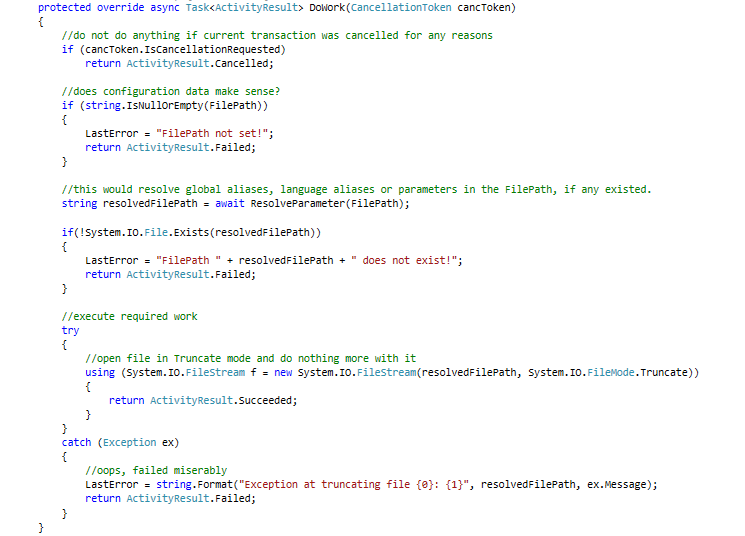
This is where you would implement all custom operation(s) and logic that your activity needs to execute.
View our sample solution [CustomBridgeWorX64Activities\BwxCustomActivityExample1]{.mark}. There, the MyActivity1 class implements truncating a given file: it deletes all content of a specified file making it of zero size:
After you compile and build MyCustomActivity1.dll and MyCustomActivity1Design.dll, copy them both into C:\Program Files\ICONICS\GENESIS64\Clients\Workbench_Client, and copy MyCustomActivity1.dll in C:\Program Files\ICONICS\GENESIS64\Services\BridgeWorX
Locate the BwxActivityDefinition.xml in C:\Program Files\ICONICS\GENESIS64\Clients\Workbench_Client and C:\Program Files\ICONICS\GENESIS64\Services\BridgeWorX. Then add a reference to your Custom Activity class:
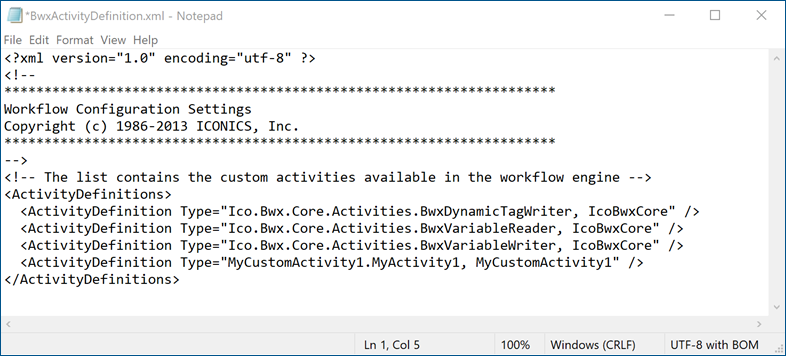
As you can see, BwxDynamicTagWriter and BwxVariableReader/Writer are also implemented as custom activities.
Now, restart the GENESIS Bridging Point Managers service (FwxBridgingService) and Workbench; then you should be able to see your custom activity in the diagram designer's Activity Library and Bridging runtime will be able to execute it:
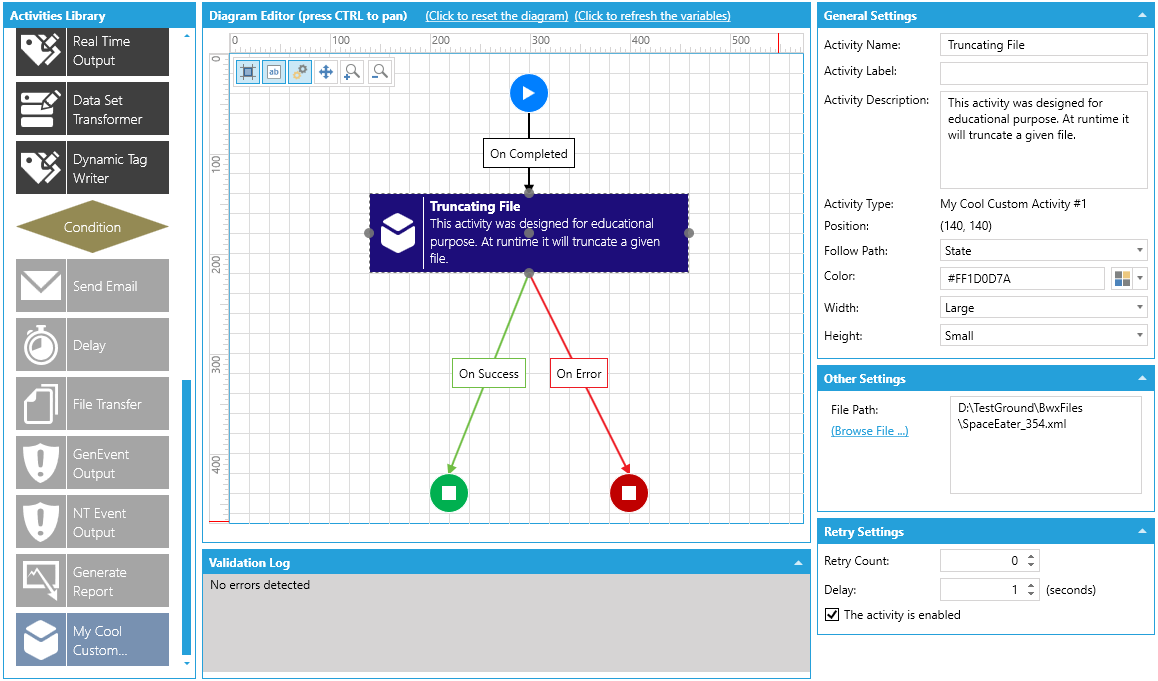
Custom Bridging Activity that Returns Some Output
Next, the sample project demonstrates how to create a Custom Bridging Activity that produces an Output DataSet, similar to that of several built-in Bridging activities (CSV File Reader, Real Time Input, or DataSet Reader). Output DataSet is a collection of DataRow objects that an activity might expose. Other activities in the same transaction diagram might use the output of previous activities in expression calculations of any kind or consume this DataSet directly (for example, XML File Output, Bulk Data Manipulator, or CSV File Output).
CustomBridgeWorX64Activities\BwxCustomActivityExample2 contains a solution file BwxCustomActivityExample2.sln with two projects:
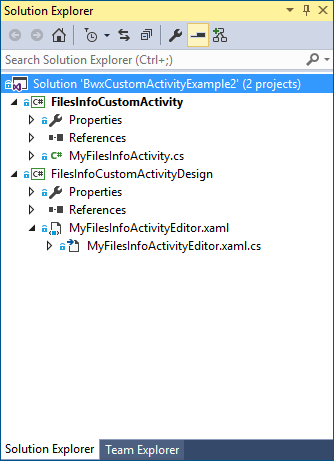
This custom activity reads the content of a specific directory on disk and provides an output listing information about the files within.
As in the previous example, begin by deriving an activity class from CustomActivityBase. To support Output DataSet, it also needs to implement interface IHasOutputActivity2 :
Most important properties exposed by the custom activity through this interface are the following:
-
RowsFilter
-
Schema
-
Output
In FilesInfoCustomActivity, provide an output dataset with the following columns:
-
FileName (string)
-
ParentFolder (string)
-
IsReadOnly (bool)
-
Size (Int64)
-
Created (DateTime)
-
LastAccessed (DateTime)
-
LastWritten (DateTime)
In the FilesInfoCustomActivityEditor project, you do not need to add anything other than control(s) for custom ParentDir property. Transaction Diagram Designer in Workbench automatically adds Data Schema and Data Filter sections to the UI of the selected activity configurator when the activity is IHasOutputActivity2:
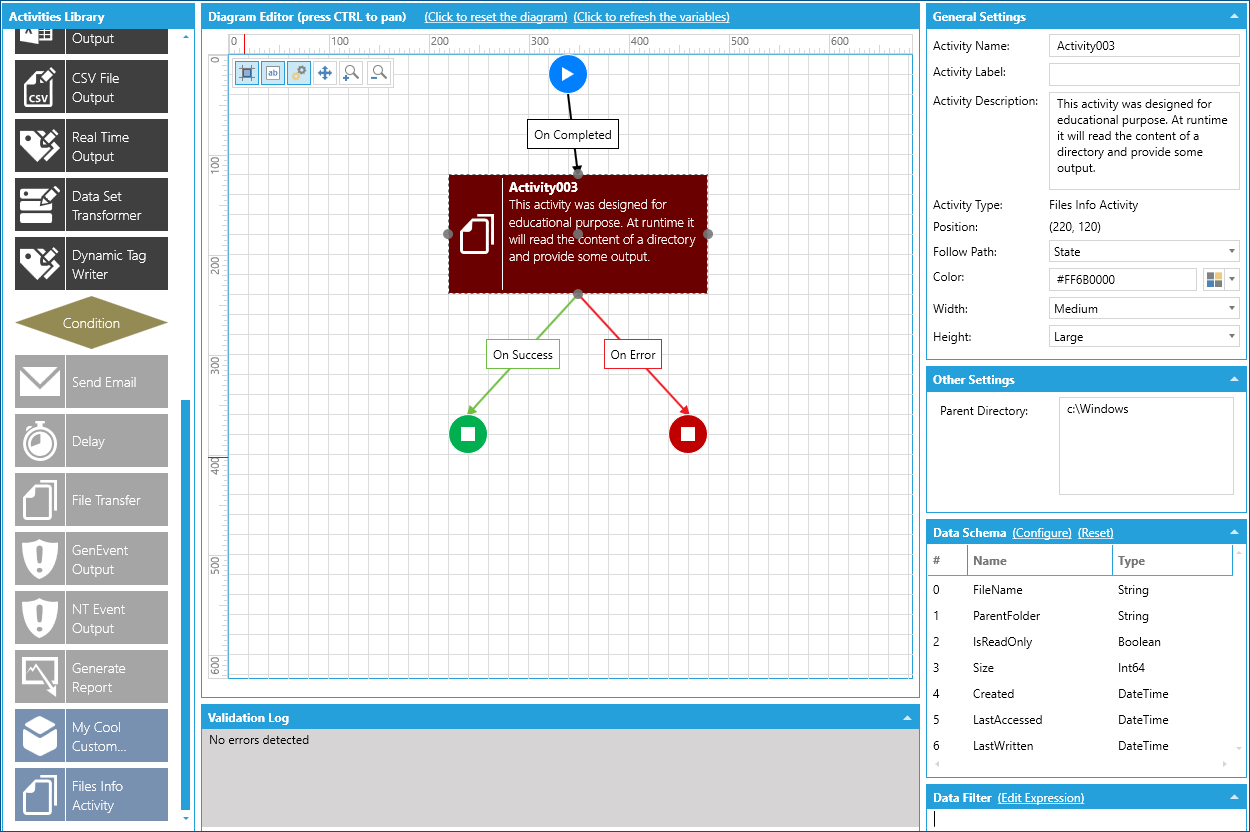
Debugging Custom Bridging Activity
To debug code in your Custom Activity Editor or trace the behavior of a custom activity in the design environment of a Workbench application, attach a debugger to a running instance of the WB.exe process.
If you want to debug a runtime operation, place a breakpoint in the DoWork override and attach a debugger to the FwxBridgingService.exe process. Then trigger transaction execution. Your Visual Studio instance should be running as administrator.