Viewing Tag History in Workbench
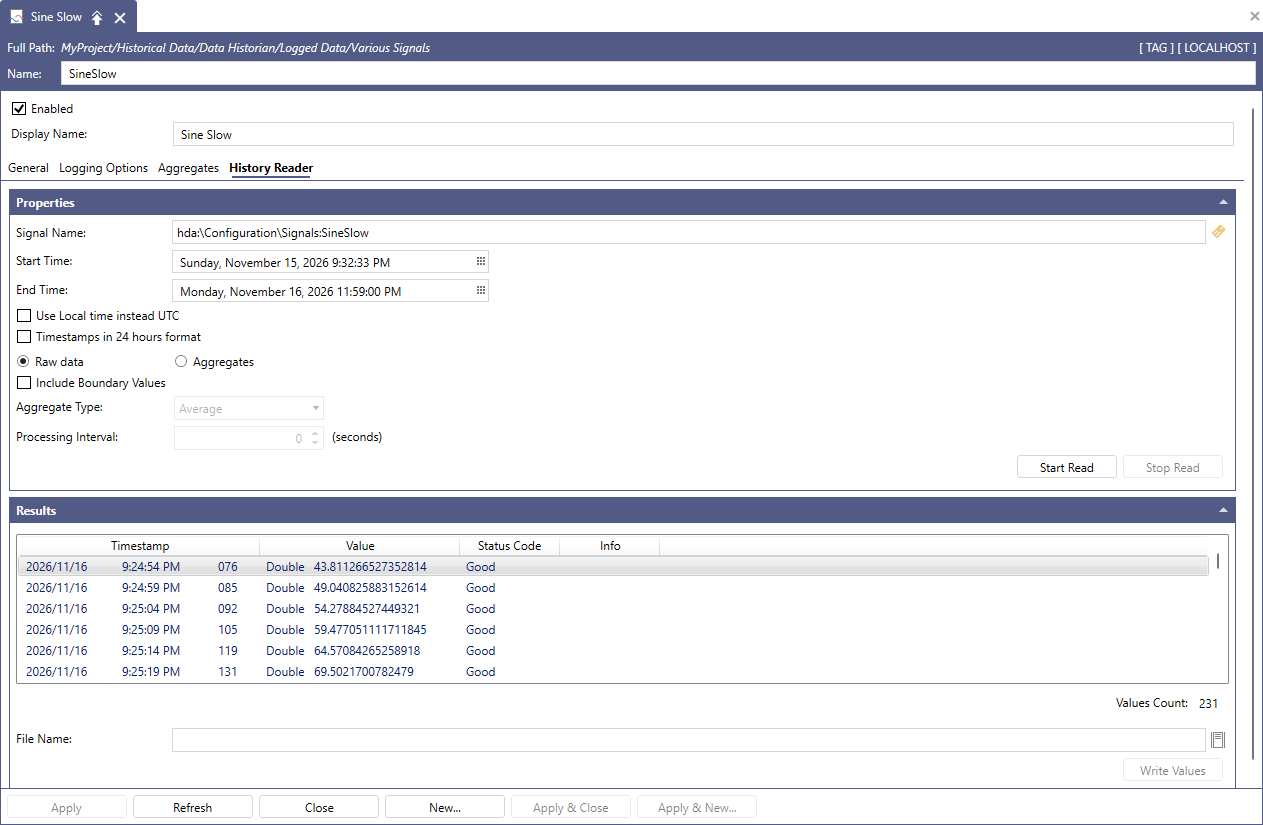
You can check the logged history of a Data Historian tag without leaving Workbench. The History Reader tab reads raw or aggregated values for a time range and lists them in a grid, which is useful when you build or troubleshoot calculations. You can also write the results to a file.
The History Reader tab is available in the configuration of Data Historian tags, calculated tags, and merged tags. It is also available for equipment properties in Assets that log their data in Data Historian as a historical tag, a calculated tag, or a merged tag.
To view the history of a tag:
-
Open Workbench and in Project Explorer, expand your project > Historical Data > Data Historian > Logged Data, and double-click the desired tag.
For an equipment property in Assets, expand your project > Assets > Equipment, double-click the desired equipment property, and select the Historical Data tab.
-
Select the History Reader tab. By default, Signal Name shows the tag you opened. To read a different Data Historian point, or if Signal Name is empty, click
 and select it in Data Browser.
-
In Start Time and End Time, enter the time range to read. By default, the range covers the last 24 hours.
-
Set how timestamps are shown:
-
Select Use Local time instead UTC to enter and display times in local time.
-
Select Timestamps in 24 hours format to show timestamps in 24-hour format.
-
-
Select the type of data to read:
-
Raw data reads the values as they were logged. Select Include Boundary Values to also return the boundary values of the time range.
-
Aggregates calculates values from the raw data. Select an Aggregate Type and enter a Processing Interval in seconds. An interval of 0 returns one value for the whole time range. Learn more
-
-
Click Start Read. The values appear in the Results section with their Timestamp, Value, and Status Code, and Values Count shows the number of values returned. A message confirms when the read is complete.
To end a long read early, click Stop Read. The values returned so far remain in the results.
-
(Optional) To save the results, click
next to File Name, select a location and file name, and click Write Values.