Creating a Reverse OPC UA Connection
This topic explains how to create a reverse connection to OPC UA servers in the following situations:
-
GENESIS acts as a client reversely connecting to another server. Learn more
-
GENESIS acts as a server allowing a reverse connection. Learn more
Prerequisites
Before connecting, ensure the following conditions are met:
-
GENESIS is installed and properly licensed.
-
The GENESIS OPC UA Point Manager Windows service is running.

-
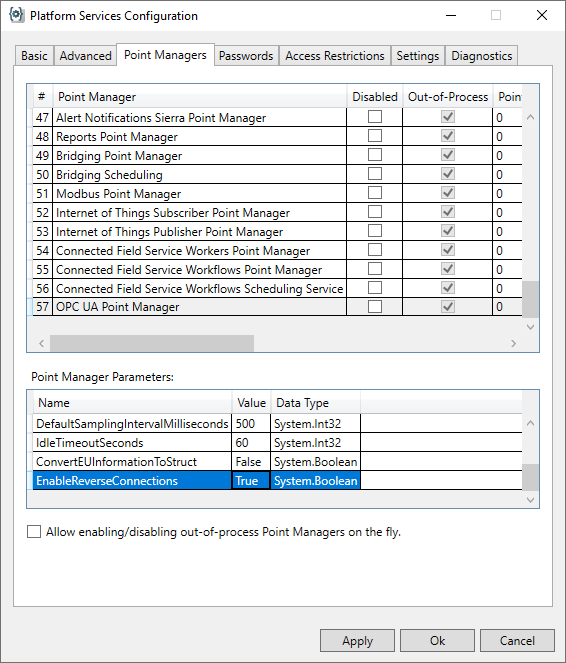
The EnableReverseConnections parameter of the OPC UA Point Manager is set to True.
 Learn more
-
In Workbench on the Tools ribbon, select Platform Services Configuration.
-
On the Point Managers tab of the Platform Services Configuration dialog, select OPC UA Point Manager to display its parameters.
-
In the Point Manager Parameters section, set the Value of the EnableReverseConnections parameter to True. Then click Apply.
-
GENESIS as a Client
The OPC UA client has a configured client endpoint in the following configuration file: ProgramData\ICONICS\11\FwxServer.OpcUa.config.
The client endpoint must be specified under <ReverseConnect> in the </ClientConfiguration> section:
This setting is prepared in the file and commented out. Delete the <!-- characters at the beginning of the section and --> at the end to include the setting in the configuration. In EndpointURL, replace <client-address> with the actual address and <port> with the desired port number; for example, opc.tcp://localhost:65300.
You must also set up the server to accept reverse connection from our client. This is typically done through the server’s UI interface or by modifying its configuration file.
To create a reverse connection to an OPC UA Device:
-
Open Workbench and in Project Explorer, expand your project > Data Connectivity and double-click OPC UA Connections to open the configuration dialog.
-
In the Connections section in the left panel, select Click here to add a new item to create a new connection.
-
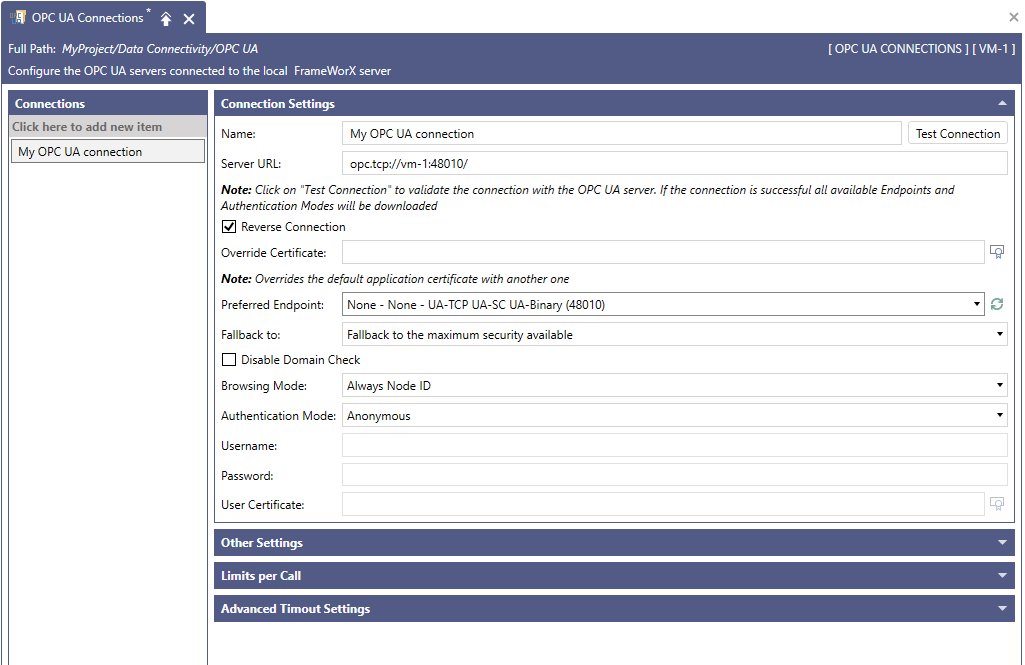
In the Connection Settings section, enter the Name and Server URL for the connection and select the Reverse Connection checkbox.
-
Click
 next to the Preferred Endpoint field to display available endpoints depending on the OPC UA server configuration. Then select the appropriate OPC UA endpoint for reverse communication.
 -
Click Test Connection to verify the connection. If the connection is successfully established, click Apply.
-
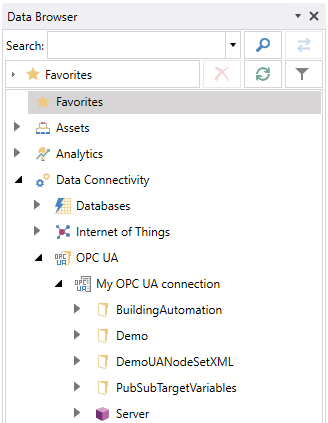
In Data Browser, verify that your new connection (My OPC UA connection in the example images) appears in Data Connectivity > OPC UA.
You have now successfully established a reverse connection to an OPC UA server.
GENESIS as a Server
The OPC UA server must be configured to support reverse connections on the defined client endpoint. This is typically done through the server’s UI interface or by modifying its configuration file.
In our case, you must modify both the ClientConfiguration and ServerConfiguration sections in the OPC UA server configuration file, ProgramData\ICONICS\11\FwxServer.OpcUa.config:
</ClientConfiguration>
</ServerConfiguration>
These settings are prepared in the file and commented out. Delete the <!-- characters at the beginning of each section and --> at the end to include the settings in the configuration. In EndpointURL, replace <client-address> with the actual address and <port> with the desired port number; for example, opc.tcp://localhost:65300. Do not use the same endpoint URL in the Client and Server section; at least the port must differ.