Subscribing to a BACnet Historical Alarm
If you have configured historical alarms for a BACnet channel or for individual devices, you can visualize the logged data by subscribing to the event logs in an Alarm Viewer configuration in GraphWorX.
To subscribe to a BACnet historical alarm (event log):
-
Open GraphWorX in the configuration mode (default).
-
Open the Alarm Viewer configuration settings:
-
On the Controls ribbon, select Alarm Viewer, and then drag the mouse diagonally across the canvas to make a rectangle for inserting the Alarm Viewer control.
-
Double-click anywhere in the viewer to open the configuration settings.
-
-
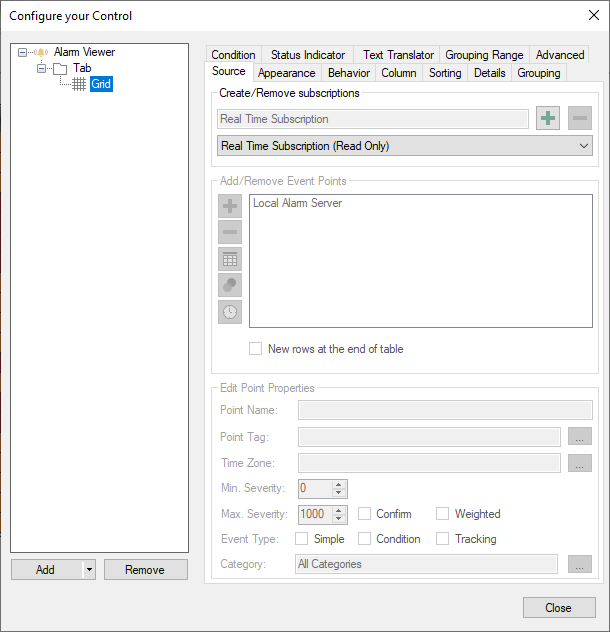
In the left panel of the Configure Your Control dialog, select Grid.
-
In the right panel on the Source tab, click
 in the Create/Remove Subscription section, and then select Historical Subscription from the drop-down list.
 -
Add a new event point:
-
In the Add/Remove Event Points section, select the preconfigured Local Alarm Server event point, and then click
 on the left to remove this default subscription.
 -
Click
in the Add/Remove Event Points section to open the Data Browser dialog. -
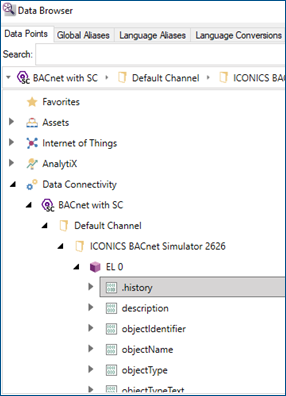
On the Data Points tab, expand Data Connectivity > BACnet.
-
Expand the desired channel, device, and event log object, and then select the .history event point.
-
Click OK to add the selected event point to the Alarm Viewer subscription. The new event point is displayed in the Add/Remove Event Points section.
-
-
Configure the fields for the BACnet alarm subscription.
-
Click
 to display the edit options.
 -
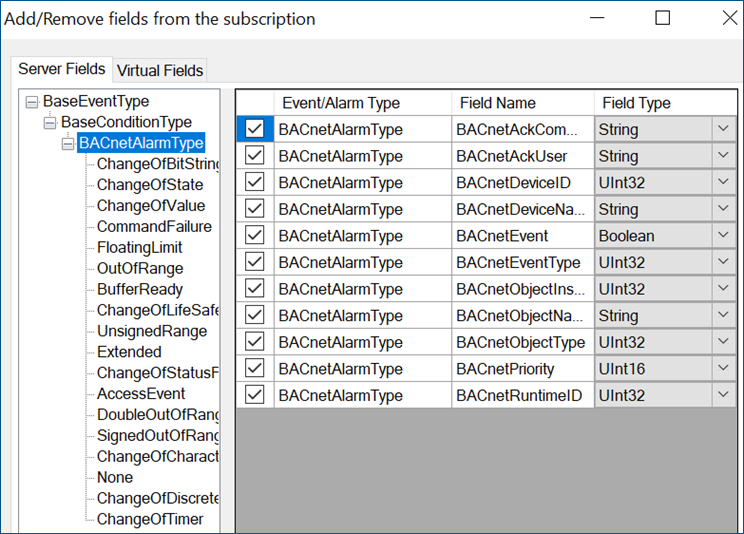
In the left panel of the new dialog, select BACnetBaseAlarmType.
-
In the right panel, select the checkbox next to each event/alarm type field that you want to enable, or use the Select / Unselect all checkbox at the bottom. Then click OK.
-
-
Repeat steps 5 and 6 to add multiple points. After listing all desired historical event points, click Close.
-
On the Alarm Configuration ribbon, click
 to save the configuration.
What's Next?