Using a Custom Device ID and Name
When you add a new channel, it is represented by a virtual BACnet device that has an automatically assigned device ID and name. In the channel settings, you can customize this ID and device name. You might want to do that, for example, to distinguish this "channel" device from other devices and easily recognize it in the network structure.
Please note that in a redundancy setup, where both GENESIS servers access the same configuration database, this device ID property should NOT be set to a specific/static value. Doing so would result in both BACnet runtime instances using the same Device ID, which causes network conflicts and communication issues with BACnet devices, including instability and data freezing.
To set up a custom device ID and name:
-
Open Workbench and in Project Explorer, expand your project > Data Connectivity > BACnet > Channels.
-
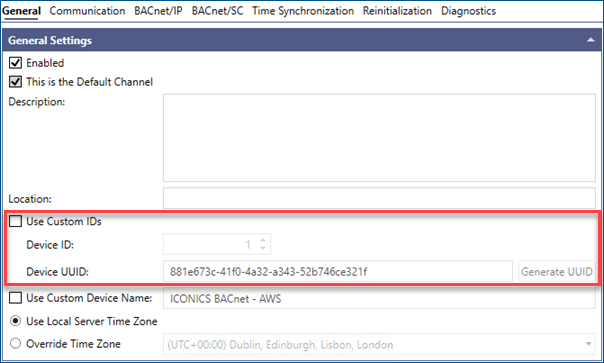
On the General tab, select the Use Custom IDs checkbox to activate the device ID settings.
-
In Device ID, set the desired identification number. Make sure that the ID is unique within the channel.
-
Enter the Device UUID (Universally Unique Identifier, also known as GUID). To create one, click Generate UUID.
-
Select the Use Custom Device Name checkbox and enter the desired name in the adjacent text field.
-
Click Apply and continue with setting up the next section, Read and Write Settings.