Adding a Worker Group
A worker group is a named set of workers. These groups can be used flexibly to filter notifications to the correct recipients, such as according to their trade, shift, team, or escalation tier. Groups are how a workflow template asks for the right people: a Worker Lookup takes a group name and returns its members. A group can also carry an availability schedule of its own, so that a whole team can be taken off duty at once.
Groups defined locally can be given any membership as desired. Groups that arrive with workers imported from Active Directory, Microsoft Entra ID, or a maintenance system are read-only, and their membership has to be changed in the originating system. Learn more
To add a worker group and configure its membership:
-
Open Workbench. In Project Explorer, expand your project > Alarms and Notifications > Connected Field Service, right-click Groups, and select Add Group.
-
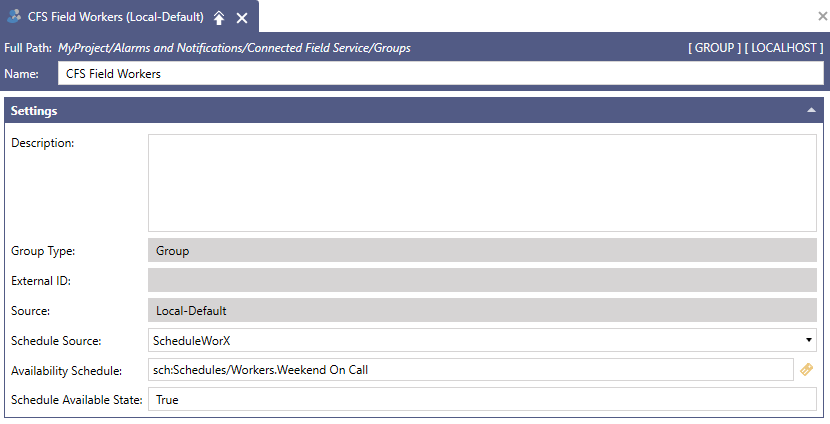
In the new group configuration dialog, enter the name of the group.
-
(Optional) To give the whole group a shared availability schedule, do the following:
-
In Schedule Source, select ScheduleWorX. A group's availability always comes from a GENESIS schedule, even when the group itself was imported from a maintenance system.
-
In Availability Schedule, browse for the schedule that describes when the team is on duty.
-
In Schedule Available State, enter the schedule state that counts as available.
When a worker and their group both have a schedule, the worker is available only when both schedules are available. When only one of the two has a schedule, that schedule decides. When neither has one, the worker is always available. Learn more
-
-
Click Apply, and then close the group. The new group appears in Project Explorer under Connected Field Service > Groups.
-
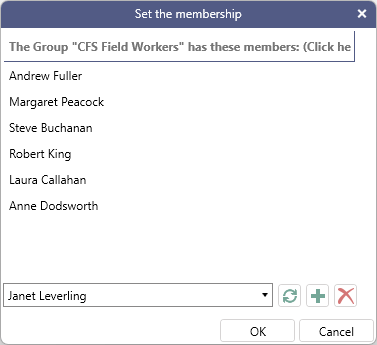
Right-click the group and select Membership. The dialog lists the workers that belong to the group.
-
To add a worker to the group, select the worker's name in the drop-down list at the bottom of the dialog and click
 . To remove somebody, select the name in the list of members at the top and click
  .
.
-
Repeat to add or remove all desired workers, and then click OK.
What's Next?