Using Bridging to Call a Command Line Activity
The Command Line Activity lets a transaction reach outside GENESIS and run something on the operating system. It can start an external program, or run a command line as the shell would, and it can capture what the program writes to standard output and hand that back to the workflow as a dataset. That makes it the bridge to anything that has no GENESIS interface of its own—a vendor utility, a Python or PowerShell script, a legacy export tool, or a housekeeping command.
Allowing the Activity to Run
Command Line Activity and File Transfer Activity are treated as security-critical, because they act on the host operating system. Both are disabled by default, and the transaction engine must be given permission for each node on which they are to run. An activity that is not permitted does not execute, and the engine writes a message of the form Activity '<name>' of type '<<span class="italic">type>' will not run: not allowed on node <node></span> to the trace log.
To allow the Command Line Activity to run on a node:
-
On the node that runs the transaction engine, open
C:\ProgramData\ICONICS\11\Servers\Bridging.xmlin a text editor. -
In the CommandLineActivity entry, change the Allow attribute from 0 to 1:
<?xml version="1.0" encoding="utf-16"?> <BridgingConfiguration> <SecurityCriticalActivities> <Activity TypeName="CommandLineActivity" Allow="1"/> <Activity TypeName="FileTransferActivity" Allow="0"/> </SecurityCriticalActivities> </BridgingConfiguration> -
Save the file and restart the GENESIS Bridging Point Managers service so the new permission takes effect.
A permitted Command Line Activity runs whatever the transaction tells it to run, with the rights of the identity it executes as. Grant the permission only on nodes where it is needed, keep the program and its arguments under your control rather than derived from operator input, and prefer a dedicated account over the transaction engine's own identity.
Using the Command Line Activity Block
To run an external program from a transaction:
-
Open Workbench and in Project Explorer, expand your project > Bridging > Templates, select your template, and open the Template Designer.
-
On the Template Diagram tab, drag Command Line from the Activities Library onto the Diagram Editor.
-
In Target Type, select Start External Process.
-
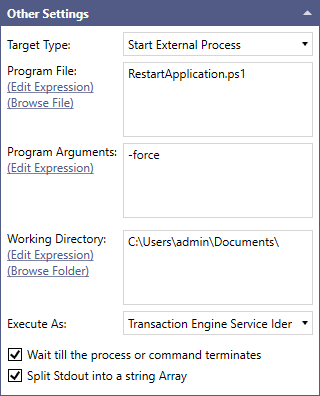
Configure what to run:
-
In Program File, click (Browse File) and select the executable, including its path. To build the path at run time instead, click (Edit Expression).
-
In Program Arguments, enter the arguments to pass, or an expression that evaluates to them.
-
In Working Directory, click (Browse Folder) and select the folder the program should run in.
-
-
Select Wait till the process or command terminates so the activity blocks until the program exits and its standard output can be collected.
-
Select Split Stdout into a string Array to place each line of output in its own row of the output dataset. Leave it cleared to receive the whole output as a single value.
-
In Execute As, choose the identity to run as:
-
Transaction Engine Service Identity—The program runs as the account of the transaction engine service.
-
Specific User Account—Enter a User Name and Password, and the program runs as that account. Use this to run with only the rights the program actually needs.
-
-
Add additional activity blocks that consume the output of this activity as appropriate to your transaction requirements.
Running a Command Line Instead of a Program
Select Execute Command Line in Target Type when you need shell behavior—a built-in command, a redirection, or a wildcard—rather than a single executable. The Program File and Program Arguments fields are replaced by a single Command Line field, which also accepts an expression.
For example, to list the contents of a folder and pass the names into the workflow, enter the following in Command Line:
Then set Working Directory to the folder to list, and select both Wait till the process or command terminates and Split Stdout into a string Array.