Point Manager Parameters
The BI Server makes use of point managers, which are services installed with GENESIS to perform tasks specific to the point managers function. Point managers have parameters that can be used to adjust the behavior of the service.
 Finding and Editing Point Manager Parameters
-
To open the platform services configuration, do one of the following:
- In the Windows Start menu, select GENESIS Tools > Platform Services Configuration.
- In Workbench, select the Tools ribbon, and then select Platform Services Configuration.
-
Select the Point Managers tab.
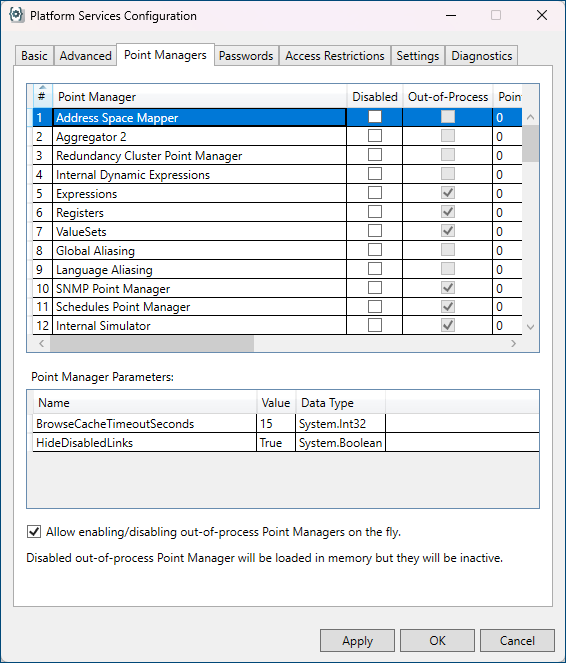
- Select the desired point manager from the table in the top of the dialog. Any parameters associated to that point manager will be displayed in the bottom section.
- In the Value column of the Point Manager Parameters table, select and edit the desired parameter(s), and then click OK.
-
Restart the edited point manager service.
The parameter change may trigger a FrameWorX Server restart if necessary, but it is best practice for you to restart any service after making changes to its parameters.
BI Server Point Manager
|
Parameter Name |
Default Value |
Description |
|---|---|---|
|
GCCollectScheduleMinutesAfterMidnight |
-1 |
Instructs the server to manually run a forced Garbage Collection with Large Object Heap compaction. When set to a negative value (default) this feature is disabled. A value greater than or equal to 0 specifies the number of minutes after local midnight to wait before scheduling the garbage collection. This forced garbage collection should not be necessary for most systems. .NET Framework should be managing the memory usage, and releasing the memory as needed over time. However, some systems may want to use this daily check to prevent the perception that the AnalytiX-BI engine is leaking memory or to better manage a high-memory system. |
|
NumberOfConcurrentLoadingTasks |
4 |
Each data table in an online data model triggers a loading task to ingest the table’s data when the server starts up. This setting defines how many loading tasks the BI Server can run concurrently. |
|
DataflowBoundedCapacity |
16384 |
Defines how many rows are requested at the time from the data source associated with the data table. |
|
GCCollectDelayOnDataLoadingMins |
5 |
Defines the delay after which the BI Server will perform a full garbage collection with Large Heap compaction when some runtime operation has caused table data to change. Such operations include: loading data into a table (either on start up or via trigger), changes to the table schema that require a data reload or changes to the data model (going offline, deleting or adding tables). Configuring this setting to a negative value disables this behavior. |
|
MaxCacheSizeItems |
1000 |
Defines how the maximum number of query results to keep in the AnalytiX-BI Server cache. If the cache is full, existing results are evicted from the cache by LRU (Least Recently Used). |
|
ItemCacheSlidingExpirationMins |
10 |
Defines a sliding window of inactivity. If a cached query result is not accessed in inactivity window, it will be dropped from the cache. |
|
DataLoadRetryCount |
3 |
Defines how many times to retry a loading task if the task fails (returns an error or has an exception). |
|
DataLoadRetyDelayMsec |
10000 |
Defines the amount of time to wait, in milliseconds, after a loading task failure before retrying. |
|
DataLoadTimeoutSec |
120 |
Defines the time, in seconds, after which a loading task will be considered timed out and then aborted. Loading tasks process the data in chunks of rows (see DataflowBoundedCapacity parameter) and this timeout value applies to reading a single chunk of data from the dataflow, after which it will reset to read the next chunk. Please note that there is a notable exception for data flows using the Transpose Step, as this step must consume the entire input before producing its output which means that this parameter value must be made large enough for the Transpose step to have the time to consume the entire input data source. A loading task that times out is not retried. The retry count and retry delay below do not apply to loading tasks that have timed out. |
|
False |
When true, exposes single column datasets as FrameWorX arrays. |
|
|
False |
When true, the @@LastError point will be available in runtime for Data Tables under the @@Diagnostics folder. |
|
| ForwardOnlyInactivityTimeoutSeconds | 30 |
This setting only applies when ReportWorX64, BridgeWorX64, or AnalytiX-BI are clients to a dataflow. This value determines how long the server waits for the next read operation from a client before closing the connection. Longer values may reduce overhead of opening and closing the connection, but may keep connections active longer than required. Shorter values may cause unnecessary repeated closing and reopening of the connection. |
|
EnableQueryPlanCache |
False |
When true, the server will cache query execution plans after they are generated the first time. Caching query plans might improve execution times of small queries, where the time spent in building the execution plan is comparable – or greater – than the time spent executing the query. |
|
EnableColumnStatistics |
False |
When true, the server will keep track of columns involved in predicates of executed queries. Based on usage, statistics will be automatically created for frequently used columns and, for the most used columns in predicates, an index may be created as well. Statistics help the query optimizer in reordering predicates to improve query execution times. Indexes are used, when applicable, in place of table scans to improve query execution times. |
|
DisableCompatibilityPointNameParsing |
True |
|
| IntraQueryMaxDegreeOfParallelism | -1 | Defines the max level of parallelism applied to individual operators inside a query. When set to the default value of -1, the applied value is 1, which disables parallelism at the operator level. The default value is appropriate for systems that are expected to execute a large number of queries simultaneously. |
| QueryThreadPoolSize | -1 | Defines the size of the threadpool used by AnalitiX-BI to execute query. When set to the default value of -1, the threadpool size is not specified and handled dynamically by the system. Setting to a value greater than 0 will limit the number of threads available to execute queries to the specified value. |
| TableRefreshAggregationIntervalSec | 0 | Defines an interval, in seconds, after receiving the signal to refresh a data table, where the AnalytiX-BI Server waits for additional signals to refresh other tables. After the interval has passed, AnalytiX-BI will update all the clients connected to the tables that were signaled within a single operation. When set to the default value of 0, clients will be updated immediately after the table they are connected to is refreshed. This means that, if a client is connected to multiple tables (i.e.: its query joins multiple tables), it will receive an update for each table that is refreshed. When set to a value greater than 0, such a client may receive a single update if all the tables that it is connected to refresh within the configured interval. However, this also means that the configured interval also represents the minimum amount of time necessary for a client to be updated after one of its connected tables is refreshed. |