Creating Relationships Between Data Tables
BI Server Data Models are based on similar concepts to those of a relational SQL database. The Data Tables are similar to relational database tables, and they support similar concepts such as primary keys and relationships. Defining data relationships in your Data Model has a number of benefits.
- Data Model Performance: Relationships between Data Tables relate data columns and therefore reduce the time the BI Server consumes in fetching the data of a query spanning more than a single Data Table.
- Data Model Views: Having relationships in your Data Model makes authoring Data Views much easier and provides flexibility in shaping the data schema of a query result.
To add relationships to your Data Model, you will need to launch the Model Diagram, where all the Data Tables are displayed.
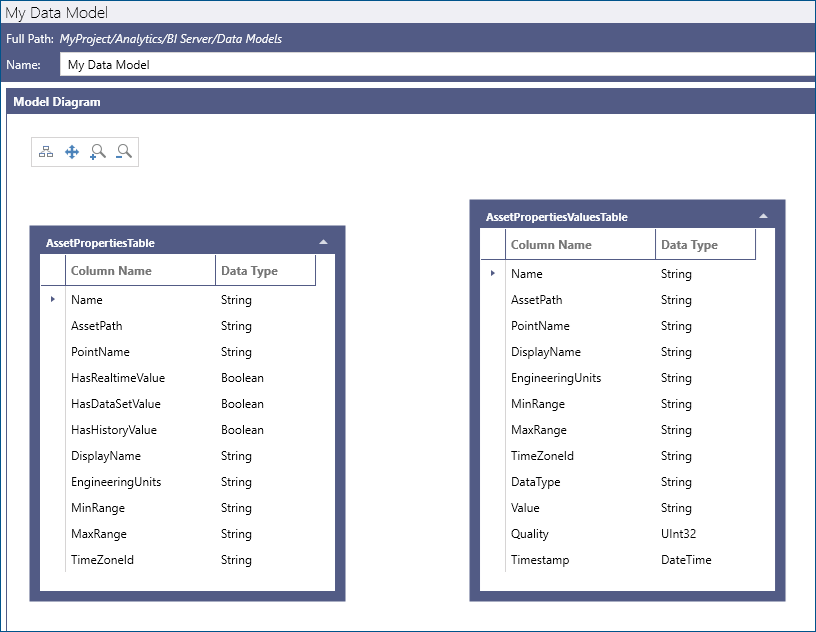
To create a relationship between two tables in the model diagram:
-
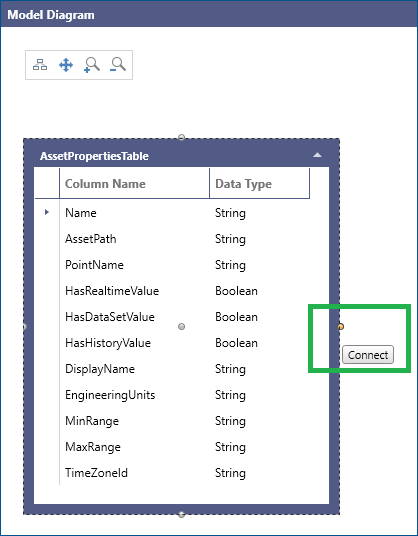
Select the outline of one Data Tables to have the connection points appear along the edge of the table.
-
Select a connection point and drag it over to the Data Table you want to create the relationship with.
-
Drop the connection on the destination Data Table, or one of its connection points.

-
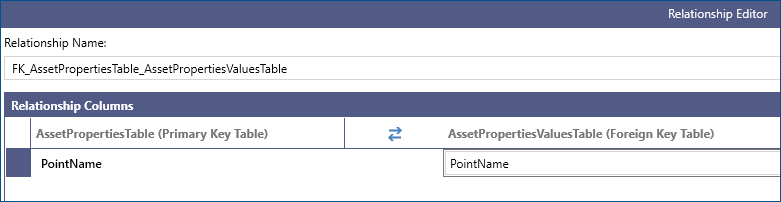
When a connection has been made, the Relationship Editor will appear. There, you will need to choose the source and target Data Table columns to create the relationship.
-
Finally, click the OK button to exit the Relationship Editor or the Apply button to save the changes in the Data Model.
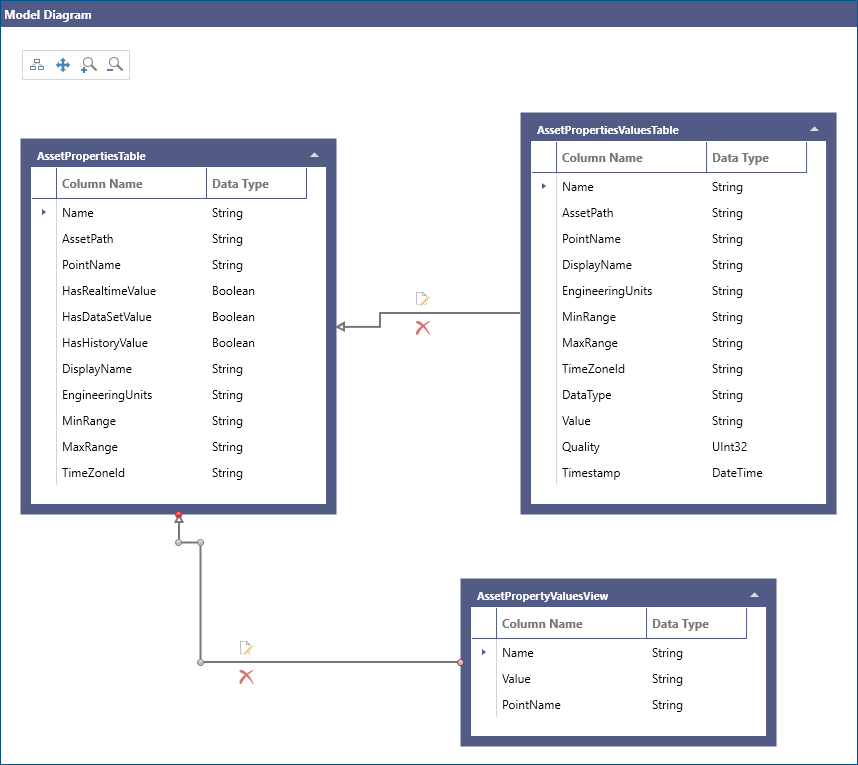
In our example above, the AssetProperties table has a primary key defined on the PointName column, and the AssetPropertiesValues table has a primary key column, also called PointName, with the same data type. BI Server uses this information to infer that AssetProperties is the primary key table and AssetPropertiesValues is the foreign key table.
Note: BI Server tries to automatically identify Primary and Foreign key tables based on both tables’ primary key definitions and column names, and will use this information to pre-fill the Relationship Editor.
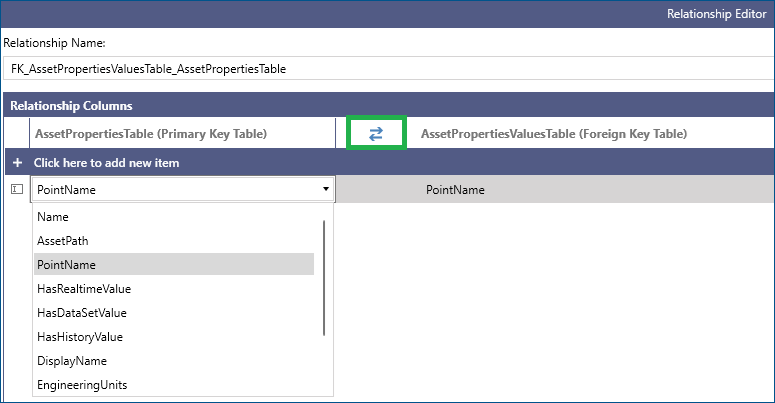
You can always modify the automatically generated relationship name and specify which columns in the primary and foreign key tables should be used to create the relationship. In the Relationship Editor, you can use the double arrows (Swap Tables) button to switch primary and foreign key tables. You can also select candidate columns for primary and foreign keys by expanding the column selection dropdown controls.
Relationships are only used by the BI Server runtime as hints to automatically perform implicit JOINs between the specified tables. The BI Server runtime does not enforce referential integrity in relationships. To visualize information about a relationship, select the relationship arrow in the Model Diagram panel.
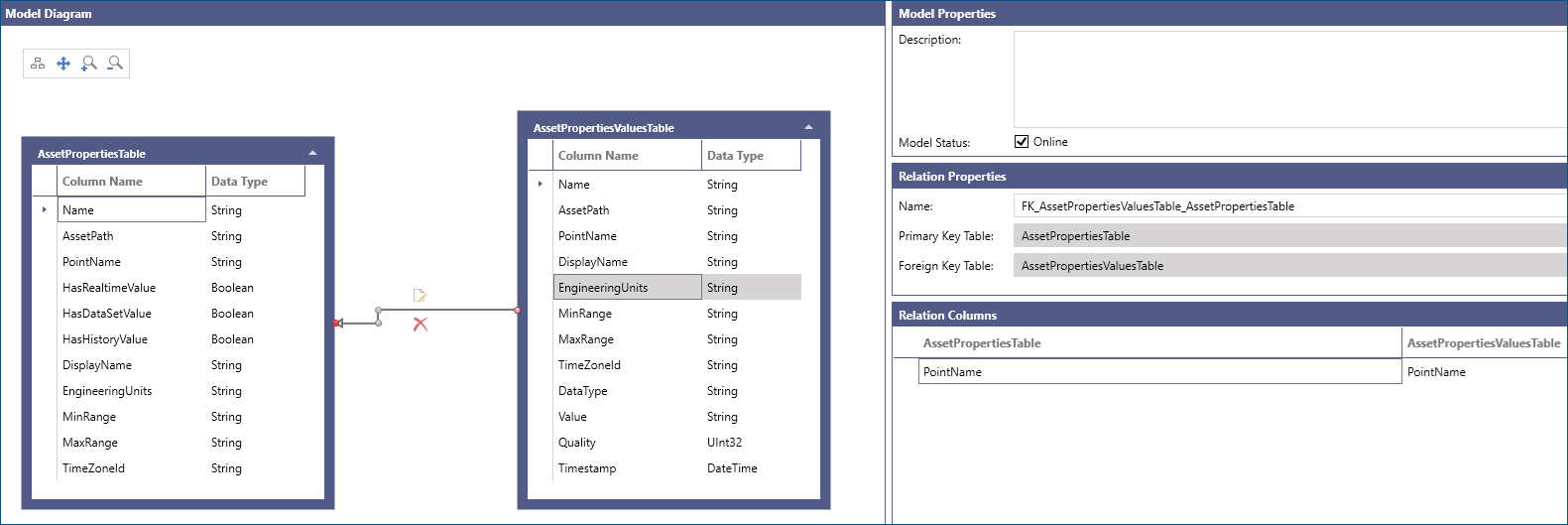
-
To Edit a relationship select the Edit Relationship button on the relationship arrow.
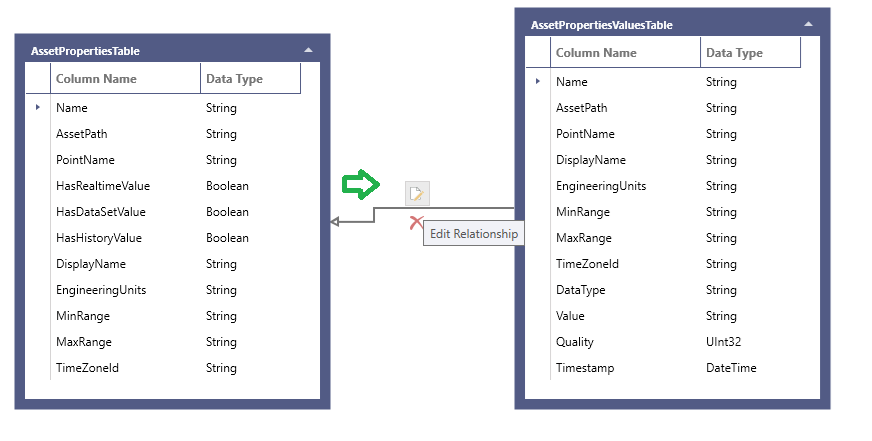
-
To Delete a relationship select the Delete Relationship button on the relationship arrow.
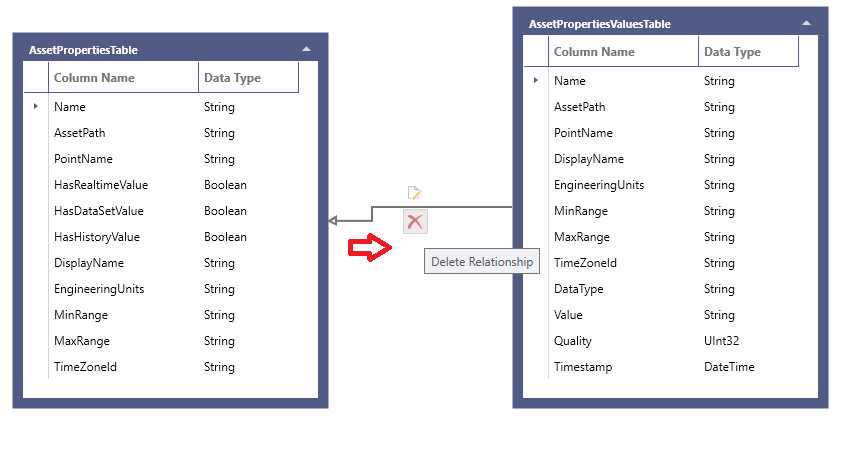
Data Views, when added to a Data Model, are also displayed in the Model Diagram panel:
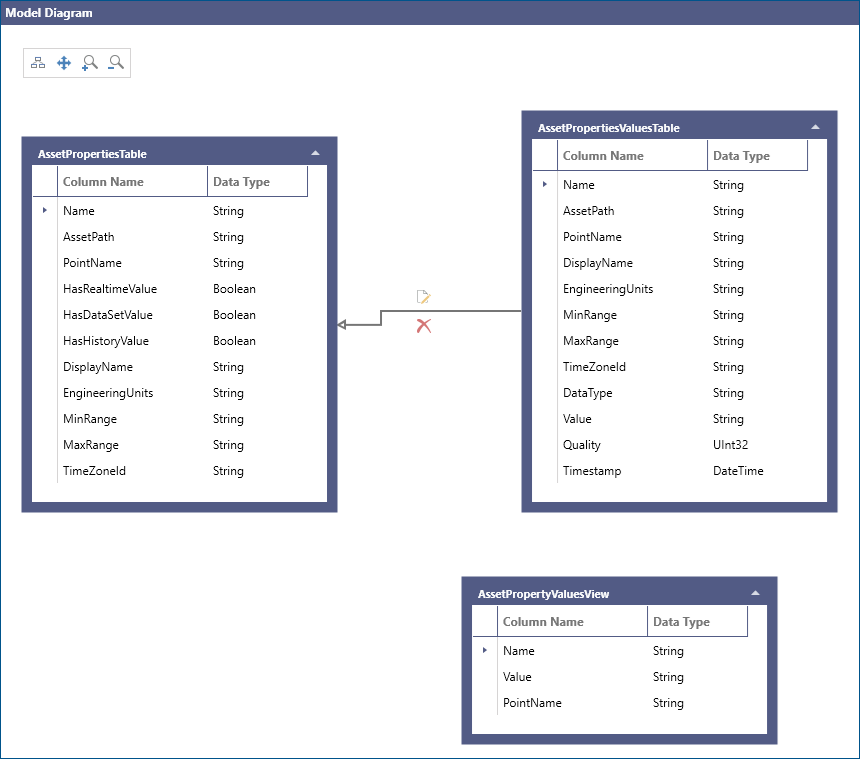
It is possible to create relationships between Data Tables and Data Views or even between Data Views. As mentioned above, the BI Server runtime uses relationship information to perform implicit JOINs between related Data Model entities.
For more information on Data Views, refer to Configuring Data Views.