Creating a Data View
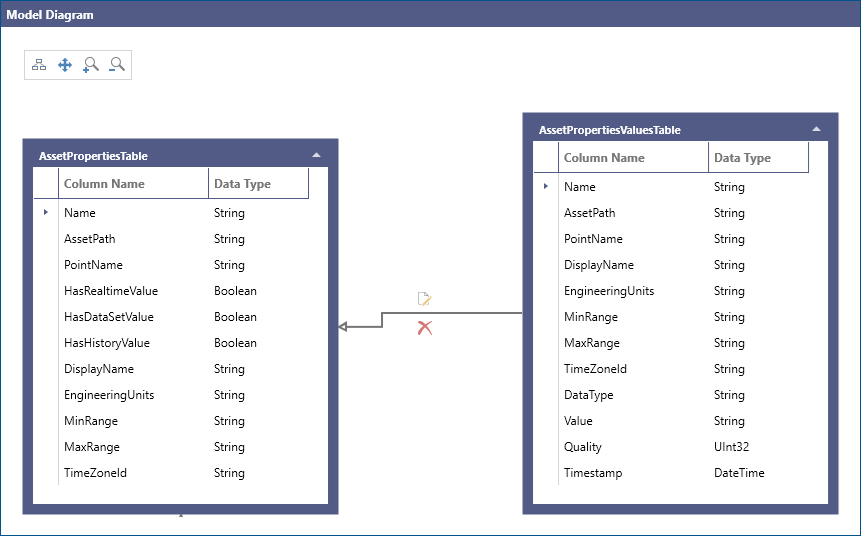
In this section we will create a simple Data View. For our example, let's assume that we have created a Data Model with (2) Data Tables and a relationship
between them.
-
AssetPropertiesTable: This table holds the sample Assets properties data.
-
AssetPropertiesValuesTable: This table holds the sample Assets properties values data.
To create a data view:
-
Open the Workbench, then expand Analytics, then BI Server, then Data Models (and, optionally, a Data Model folder), then select
Add Data View, as shown below.
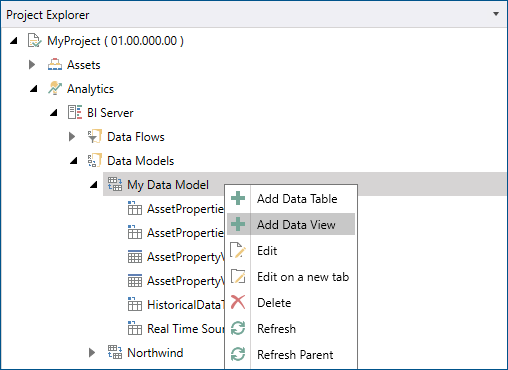
You can also select a Data Model or a Data Model folder then select Add Data View, shown below, in the Edit section of the
Home Ribbon in the Workbench.

-
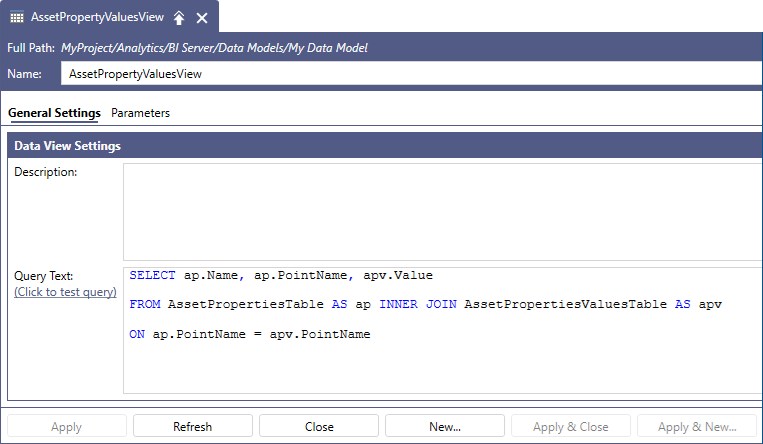
When the New Data View form opens in Workbench, enter a Name for your Data View
-
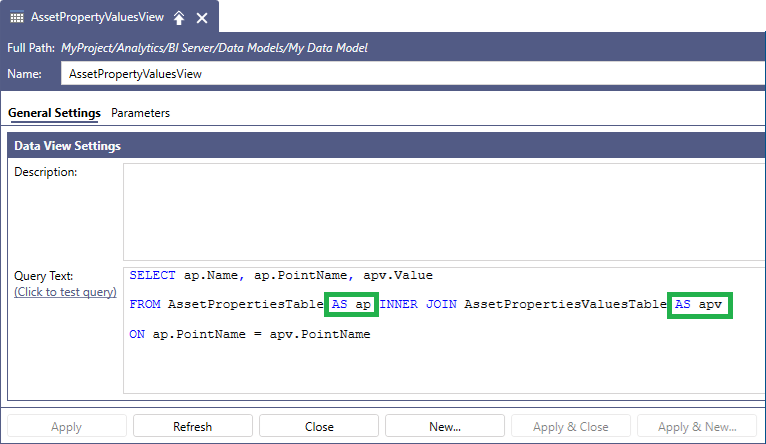
Next, author your data query - in our example, we would like to join the two Data Tables, AssetPropertiesTable and AssetPropertiesValuesTable
in our example Data Model to create a data query which returns the Assets property Name, PointName and Value fields.
-
Once you create your Data View, you can test it and preview the results by clickig on the Click to test query button
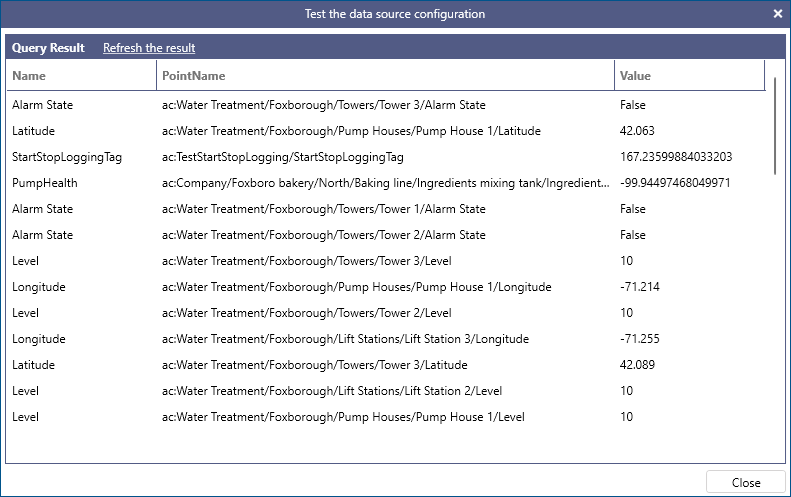
Queries from Data Views can reference tables or other views, but only from the sameData Model.
If your newly cretaed Data View has an error, this will be displayed when you preview the results.
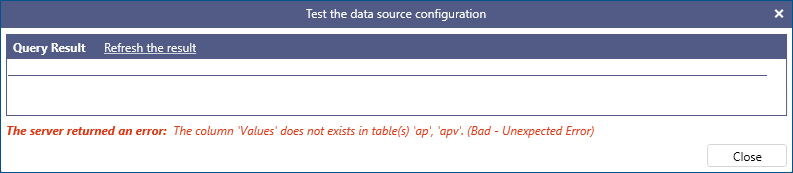
When authoring Data View queries, please keep in mind that they are equivalent to stored procedures or user views in an SQL relational
database. Therefore the same SQL query syntax applies and same best practices apply in both cases. For example, in our example data query, we
are using table aliasing to author a readable and easily-maintained data query.