Creating a Data Model
A Data Model is the organizational entity that contains a BI Server's Data Tables, Data Views, and Relationships. All data to be queried from the BI Server will originate from a Data Model.
To create a data model:
-
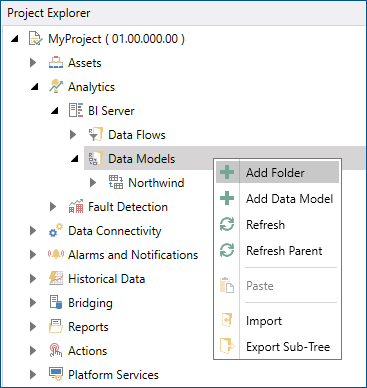
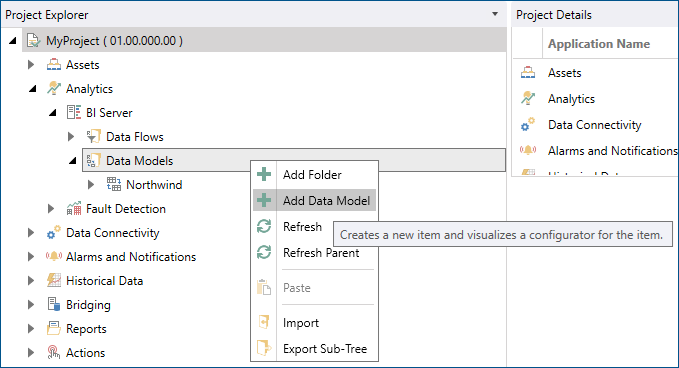
Open the Workbench, then expand Analytics node in Project Explorer and then expand the BI Server node. Right-click on Data Models (or a Data model folder), then select Add Data Model, as shown below.
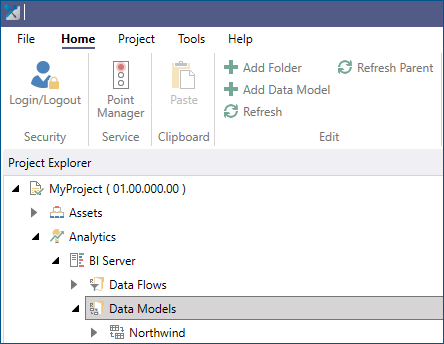
You can also select Data Models (or a Data Model folder), then select Add Data Model (shown below) in the Edit section of the Home tab in the Workbench.
-
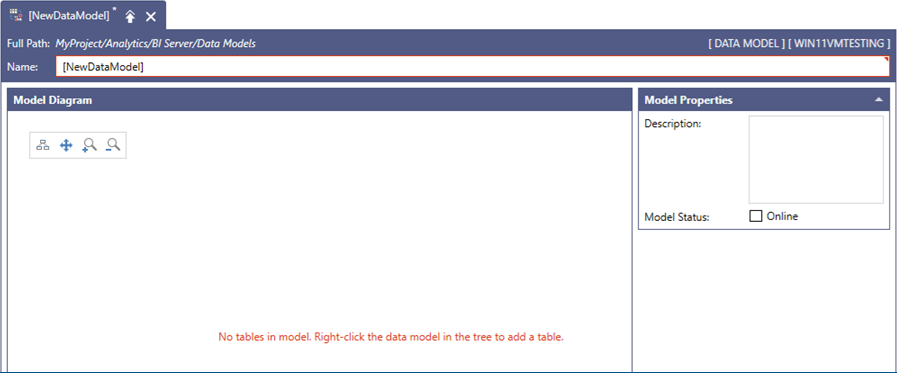
This opens the New Data Model Properties window, shown below.
-
Enter a name for the Data Model and click on the Apply button to save the Data Model you created.
The Model Diagram section will appear blank until data tables are added to the Data Model in the Project Explorer tree. Once Data Tables have been added, the Model Diagram is where relationships between those tables are defined. Select Refresh after adding Data Tables to see them appear in the model diagram.
The Model Properties panel can be used to specify a description for the Data Model and whether the Data Model should be online or offline. Newly created Data Models are offline by default. Offline Data Models are not loaded by the BI Server runtime and are not available to clients.
When your model is ready to be used by clients, it should be put online. All the Data Flows associated with the tables in the model will be executed, and the output datasets loaded in the Data Model’s tables.