Cached Data Considerations
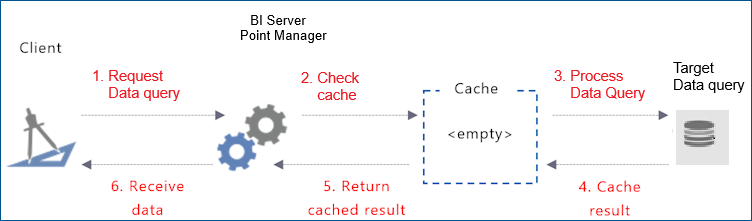
To avoid duplicate data retrievals each time a data query is posted by a client, the GENESIS BI Server Point Manager temporarily caches a client's query results in memory along with all the necessary information required to identify the client's data query. When a data query is posted by the same or another client, the cache is checked. If there is no data, the client's data query is processed, and the result is cached before being returned to the client:
If a client requests the same data query, with the exact same parameters, the GENESIS BI Server Point Manager will return the data from the cache:
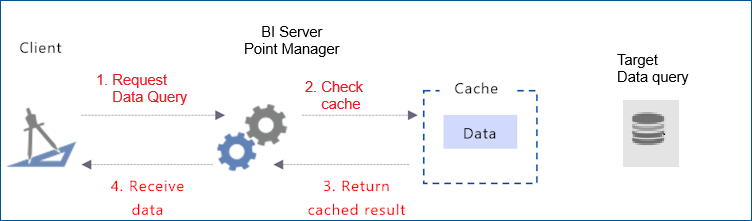
The use of the cache improves the performance of the module and reduces the load on the BI Server query processing module. The following sections detail caching mechanisms, to better explain its impact on performance.
How data is cached by the BI Server Point Manager
Caching happens on a data query basis. The first client to request a data query will trigger a call to fully process the query to retrieve the data: all other requests for the same data query will receive the cached data.
Calls to the BI Server are only executed when there are clients connected to the BI Server Point Manager. When no client is connected, the service will not make any calls.
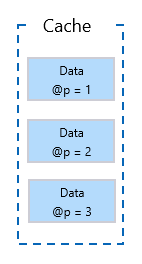
If a data query has parameters, the combination of the parameter values will factor in to determine if there is a cached result or not. For example, assume that a data query has a parameter named @p, which accepts integer values. If a client requests the data query for @p = 1, @p = 2 and @p = 3, each of the results will be cached as a separate item:
Cache size
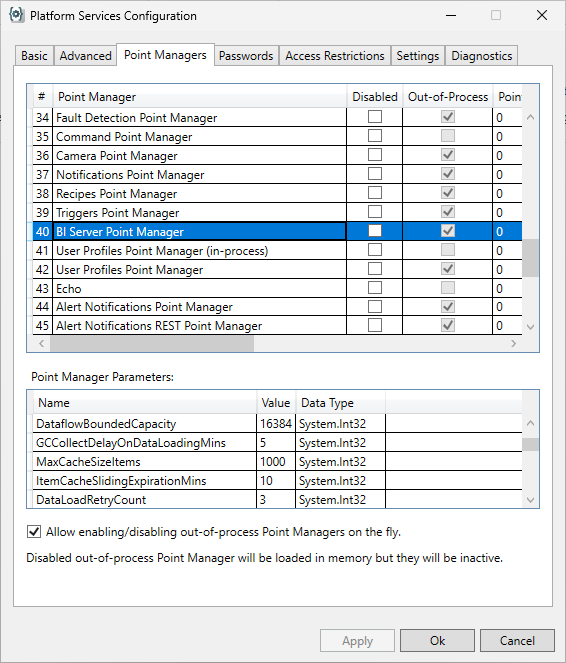
The size of the cache is specified using the Platform Services Configuration utility.
To configure the size of the BI Server Point Manager cache:
-
Launch the Platform Services Configuration utility.
-
Select the Point Managers tab. In the list, select the BI Server Point Manager item.
the list can be sorted alphabetically by clicking on the Point Manager column header.
-
Under the Point Manager Parameters section, identify the parameters that drive the cache size and behavior:
Parameter Name
Description
CacheMaxSizeItems
Defines the size of the cache, in number of items. Default is 1000.
ItemCacheSlidingExpirationMins
Defines how long an item stays in the cache if it not accessed by any client. Default is 10 minutes.
-
Enter the desired value for the parameters, and click OK to close the Platform Services Configuration utility. You must restart the GENESIS BI Server Point Manager service for the changes to take effect.
Cache behavior
When a call to a data query is made, the result is stored in the cache. Each result counts as one item in the cache, regardless of the size of the result itself.
Items are evicted from the cache using the Least Recently Used (LRU) algorithm. When the cache is full, the server will evict some of the least-accessed items to make space for new items. If an item is not accessed within the sliding window defined by the ItemCacheSlidingExpirationMins, it will be removed from the cache.
it is a good idea to size the cache accordingly to your application to ensure best performance.
Refreshing the Cache
The BI Server Point Manager provides several mechanisms to control the cache refresh. Typically, you would configure a Data Table to either refresh periodically, or based on a trigger.
If a Data Table is refreshed, all data queries referencing that table will be dropped from the cache.