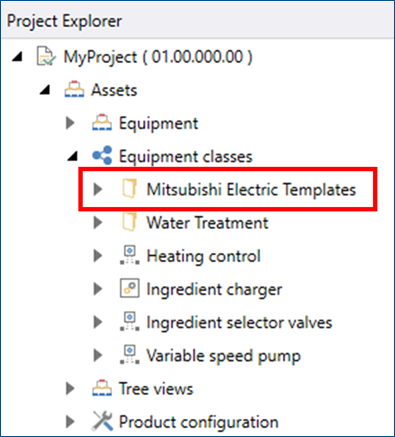
Install the Template Equipment Class for Asset Builder
This procedure has to be executed only when Asset Builder (for each Assets setup database) is used for the first time. If the following configuration database is created in the same database when GENESIS is installed, the template equipment classes will be automatically installed.
- Assets
- Alarm Server
- Data Historian
- Mitsubishi Electric FA
If you already have the template equipment class installed, proceed to the next step.
-
Launch Workbench from Start > GENESIS > Workbench.
-
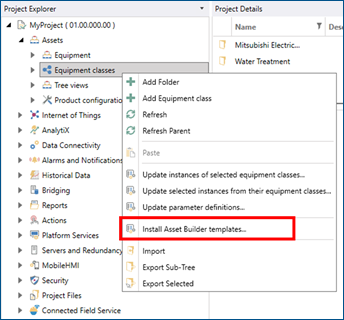
Under Assets, right-click Equipment classesand select Install Asset Builder templates.
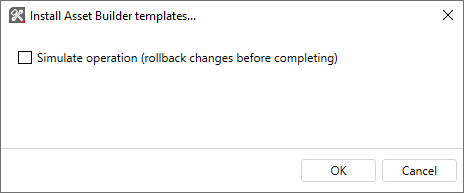
- Select OK when Simulate operation (rollback changes before completing) is unchecked. If you select this item and then select OK, you can run the installation of the equipment classes template as a simulation and confirm whether it can be installed in the current configuration database.
-
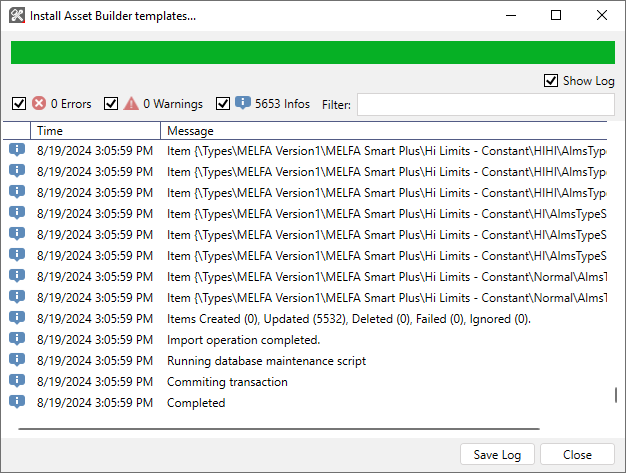
Installation of the template device class is executed.
-
If the installation is successful, you will see a Mitsubishi Electric Templates folder under Equipment classes.