Configure and Execute Asset Builder
-
Select a MELFA template from the Select Template list.
If you start Asset Builder from the MELFA device menu, MELFA Version 1 will already be selected.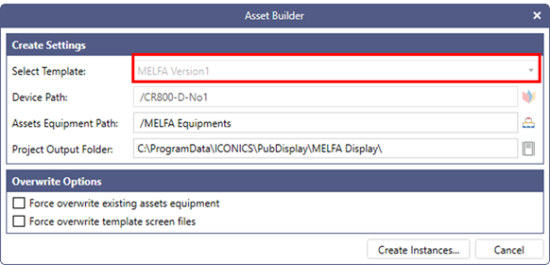
-
Select the path to the MELFA device in Device Path.
If you start Asset Builder from the MELFA device menu, the path to the selected MELFA device will already be selected.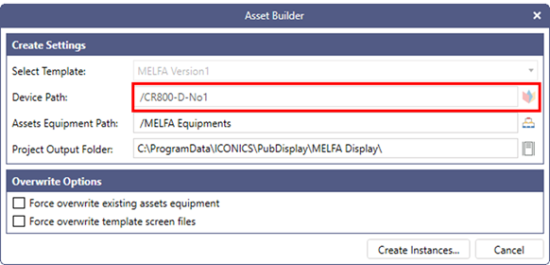
-
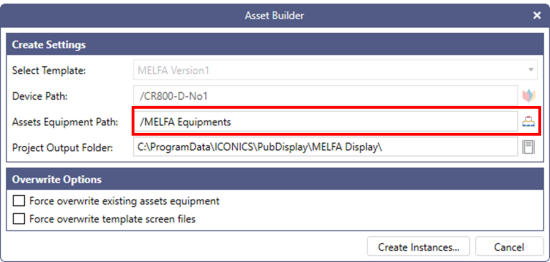
Select the hierarchy of equipment to be generated in Assets Equipment Path.
-
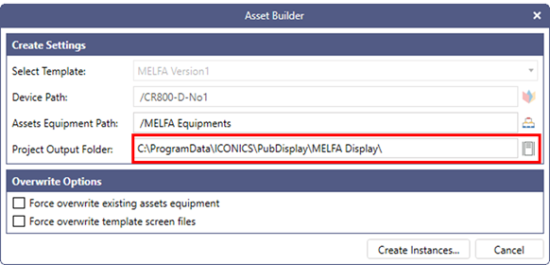
Set the destination folder for the display files in Project Output Folder.
If you plan to use this template in GraphWorX Runtime, select any folder on your PC.
If you plan to use these displays in WebHMI, select any folder under C:\ProgramData\ICONICS\11\PubDisplay.
-
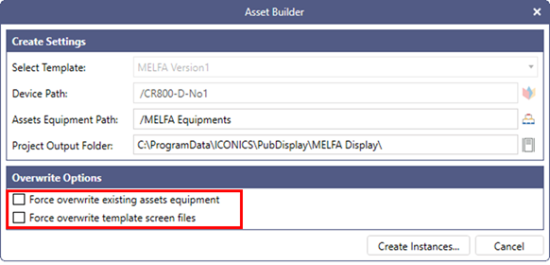
If you want to delete existing asset equipment or template screens and regenerate them, select the appropriate options in Overwrite Options.
-
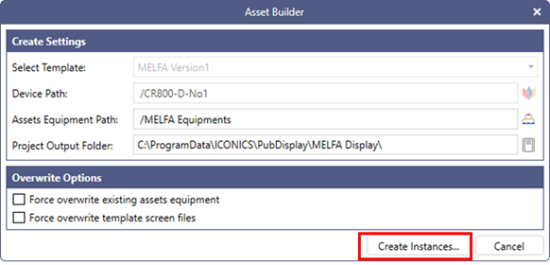
Select Create Instances to start the instance generation process.
-
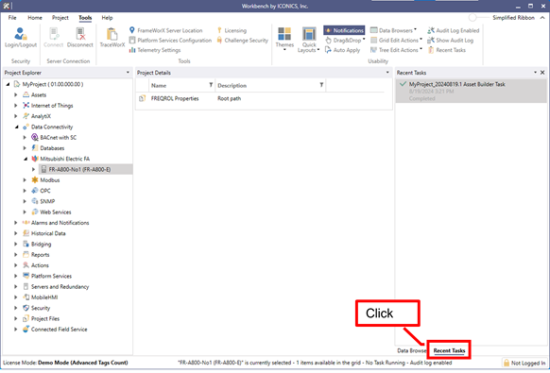
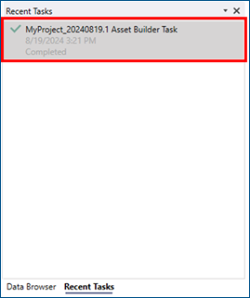
Once generation is complete, the status of the Asset Builder yask in Recent Tasks will change to Completed. To view recent tasks, select the Recent Tasks tab at the bottom of the right pane.