Creating a Message Template
When configuring outgoing alert notifications, you can create a template of subject and message combination that you can use in multiple Email or SMS configurations.
To create a new message template:
-
To open the Message Templates dialog, do one of the following:
-
Open Workbench and in Project Explorer, expand your project > Alarms and Notifications > Alert Notifications and double-click Message Templates.
-
When configuring an Email node or SMS/text node in Alarms and Notifications > Alert Notifications, switch to the Message Settings tab and in the Notification Message section, click
 next to the Template box.
To activate the button, you must select the Enable alarm subscription and send a message for every incoming alarm checkbox in the Alarm Filter section.
-
-
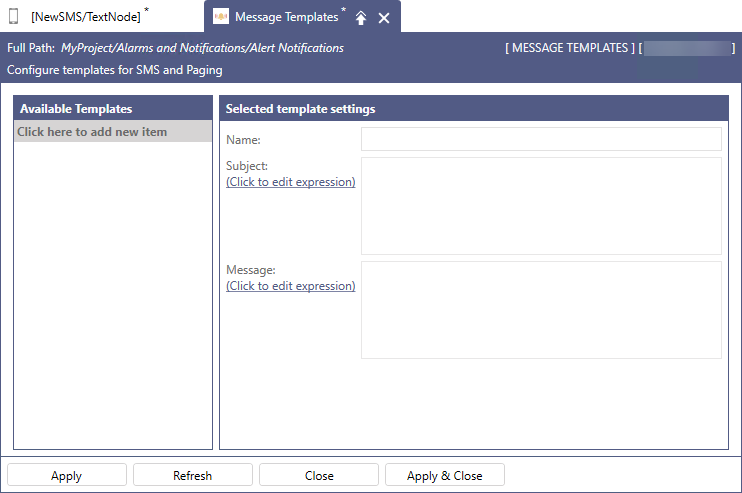
In the left panel, select Click here to add new item.
-
In the right panel in Name, enter the name of the template.
-
In Subject and Message, use the Click to edit expression links to open the expression dialog.
-
Create the desired string expression for the message subject or body.
-
Double-click the desired parameter in the left panel to include it to your expression.
-
Click the element type button in the right panel, such as Arithmetic, Relational, or Logical, to display and select the expression elements.
-
Enter the value or description.
-
Example 1: Use the raw field to send string alarm data.
x={{field:Message}}
-
Example 2: Use the tostring function to convert numerical alarm data to strings.
x={{field:Message}}+tostring({{field:NewState}}).
Examples:
-
-
Click
 to test the expression. When it returns "No errors", click OK to close the expression dialog, and then click Apply & Close.
 -
In the SMS/text node dialog in Template, click
 to refresh the list of message templates, and then select the new template from the drop-down list.