Configuring the Call Method Command for Alert Notifications
You can send alert notifications from GraphWorX using the Call Method command as a pick action on a button.
To set up a button with a Call Method pick action:
-
Open GraphWorX in the configuration mode (default). Optionally, open an existing GraphWorX display.
-
On the Dynamics ribbon, click
 and place the button on the canvas. You can edit the button text to identify the method.
 -
In the right panel on the Dynamics tab, select Command in the Dynamic Behavior section, and then select Call Method in the Global Commands section of the drop-down list.

-
In CommandParameters, click Name, and then select Browse/Edit in the drop-down list to open Data Browser.
You can also enter the name directly in the text box. -
In Data Browser, navigate to Alarms and Notifications > Alert Notifications REST and expand the desired Alert Notifications folder and configuration. It contains a list of the available methods for that configuration.
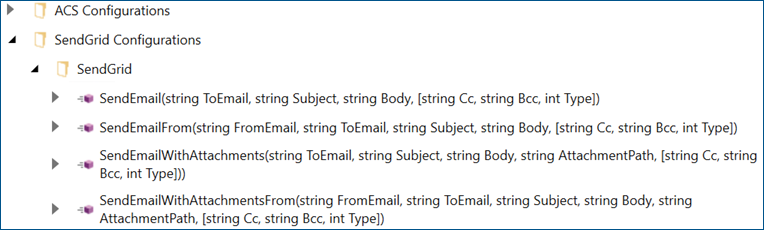
Each method's name is followed by its parameters in parentheses, with optional parameters enclosed in square brackets. For example, in the SendEmail method, the minimum required parameters are ToEmail, Subject, and Body. Cc, Bcc, and Type are optional parameters.
-
Select the desired method, and then click OK to close the dialog. The selected method name is entered in the Name field in the CommandParameters as arpm:{methodname}.
-
In the CommandParameters section, click Parameters and then
 to open the call method data collection editor.
 -
To create a parameter collection, do the following:
- Click Add under the Members section to display the method parameter properties in the right panel.
- In Value, enter either a static value of the parameter, or a local sim variable.
- In ValueType, select the data type from the drop-down list. (String is pre-selected.)
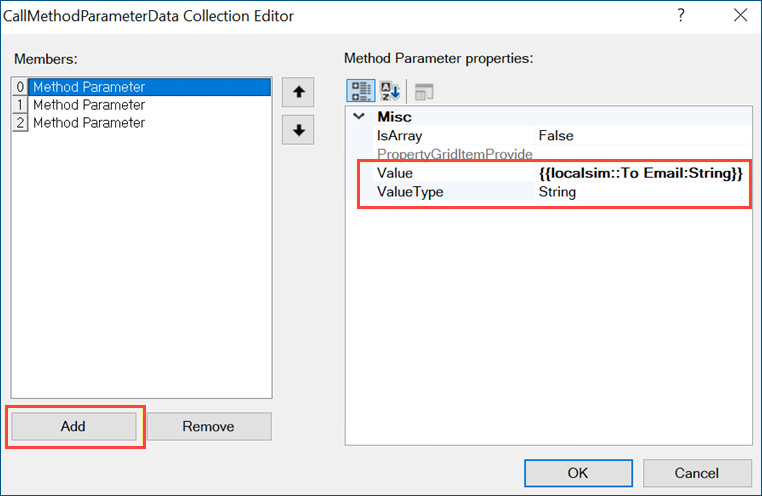
Repeat the procedure to add the desired parameters, and then click OK. The method parameters must be in the same order as they are displayed in Data Browser. Optional parameters can be left empty, but they should be at the expected place and defined with the correct type.
- Use the options on the upper right of the GraphWorX screen to switch to the runtime mode
 or to open the display in a web browser
  . Click the newly created button to trigger the command that you have set on the pick action dynamic of the button.