Storing Audit Event History
A limited message history for audit events is stored in the History folder, located in Data Browser under Alarms and Notifications > Audit Events.
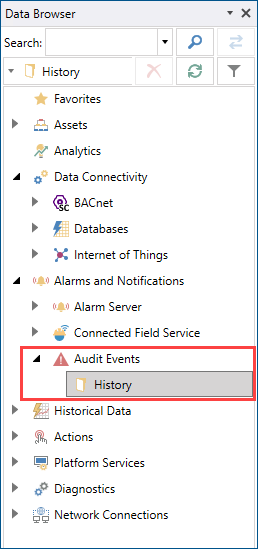
Logging runs automatically and does not require setup. However, you can edit the parameters in Platform Services Configuration.
To configure the settings for the History folder:
-
Open Workbench and on the Tools ribbon, select Platform Services Configuration.
-
In the Platform Services Configuration dialog, go to the Point Managers tab and select Audit Events in the Point Manager list.
Click the Point Manager column header to sort the list alphabetically.
-
In the
Name
Description
MaxLogSize
The maximum number of messages to keep in this folder before dropping older events.
MinLogSize
The minimum number of messages to keep when dropping older events.
CreateCompatibleNotifications
When
When the maximum log size is reached, the process removes all events that exceed the minimum log size. For example, if MaxLogSize is 250 events and MinLogSize is 50 events, only the 50 most recent messages are kept when the 251st message is logged.
You can also configure what kinds of messages are logged to the audit event log. The settings are available in Workbench > Servers and Redundancy > Server Settings > Audit Event Settings.
This does not affect what is logged in Audit Log, which is accessible in Workbench on the Tools ribbon.
To store audit events more permanently or to accommodate a larger volume of messages, use Alarm Historian and subscribe to the Audit Events data point.