Configuring a Digital Alarm
This topic explains how to configure an alarm based on the Digital alarm type. Digital alarms switch between Normal and Active states based on a Boolean source signal. The alarm remains in its Normal state as long as the source value is False and switches to the Active state when the source value becomes True. The alarm is evaluated each time the source signal changes.
To create and configure a digital alarm:
- Open Workbench and in Project Explorer, expand your project > Alarms and Notifications > Alarm Server, and then right-click Alarms and select Add Alarm.
- In the Name field of the configuration dialog, enter a unique identifier for the alarm.
-
(Optional) On the General tab, enter a Display Name and Description.
Click next to Display Name to set up language aliases.
 - On the Inputs tab, click
 next to Type.
 -
In the next dialog, select Digital and click OK.

-
In the General Settings section, specify the Data Source. You can manually enter the address or use the
 button to find the source in your project.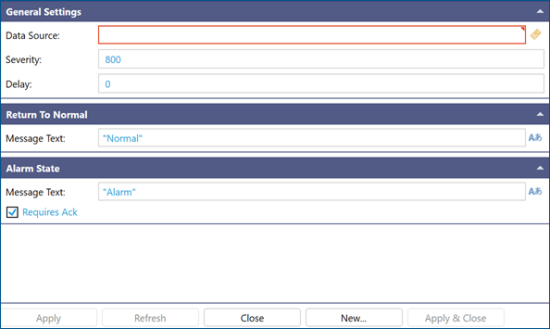
-
(Optional) Configure the additional alarm settings as needed, and then click Apply to create the alarm and immediately start evaluating the source signal.
Field
Description
Severity
This is the alarm's priority. The valid severity range is 1 to 1000.
Delay
The time to hold off reporting a change of state. When the alarm switches states, the change is only reported if the alarm remains in the new state after the delay period.
Return to Normal > Message Text
This is the text displayed in the Message field of a reported alarm event when the alarm is in its Normal state.
Alarm State > Message Text
The text displayed in the Message field of a reported alarm event when the alarm is in its Active state.
Requires Ack
When selected, the alarm requires user acknowledgment. When cleared, the alarm enters its Active state as already acknowledged.