Multiple Shared Axes
Instead of each pen having its own axis, pens can share the same axis. You can configure multiple shared axes and decide which pen uses which axis.
-
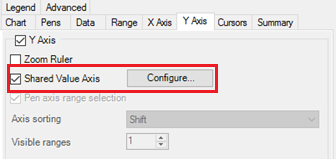
To enable the shared value axis, configure the TrendWorX64 Viewer within GraphWorX64, select your chart in the tree, then go to the Y Axis tab.
Configuring Shared Value Axis within the Y Axis Tab
-
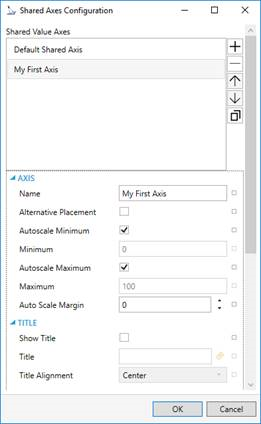
Check the Shared Value Axis box, then select Configure. In the dialog that opens, you will see a pre-created axis named Default Shared Axis. Pens that do not use an explicit axis will use these settings.
-
Use the plus [+] and minus [-] buttons to add one or more shared axes. Select the axis and choose your axis settings below, such as the title and style.
-
When you are done configuring your axes, select OK.
Shared Axes Configuration Window
-
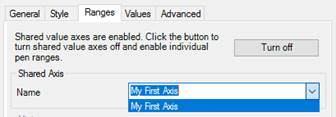
Select your pen in the tree and go to the Ranges tab. In the Shared Axis section, select the name of the axis you would like to use for this pen.
Shared Axis Properties in the Ranges Tab
-
The Create Pen and Edit Pen commands can now set a shared axis for the pen.
See Also: