Configuring TrendWorX64 Viewer
Configuring the TrendWorX64 Viewer Chart allows the user to define key aspects that appear in runtime mode.
It is recommended that the user connect their trend using the Hyper Historian located within the Workbench. This is allows for the synchronization of historical data with the TrendWorX64 trend.
Creating a TrendWorX64 Viewer Chart:
-
Open GraphWorX64.
-
Click the Controls tab at the top of the Ribbon.
-
Select the TrendWorX64 Viewer button. Your cursor becomes a cross hair.
-
Click and drag the cursor to create a TrendWorX64 Viewer Chart. Ensure that the chart is large enough to adequately display a satisfactory amount of data.
-
Double-click the chart "graphic" drawn with the crosshair. This will open the Configure your Control window, shown below.
Configure your Control Window - Properties for TrendWorX64 Viewer
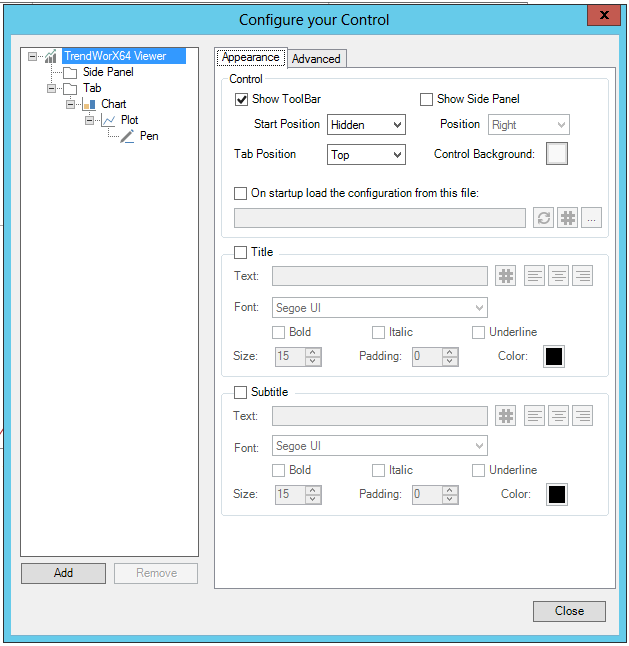
Each level of the Control allows you to set its individual properties. In the example above, you would be able to set properties for the TrendWorX Viewer itself, for the Side Panel, for the Tab, for the Chart, for the Plot, and for the Pen.
TrendWorX Viewer Properties
Appearance
Control
-
Show Toolbar -Show or hide the toolbar.
-
Start Position - Set the starting position of the toolbar. Use the pulldown menu to select from Top, Bottom, Left, Right, Float, or Hidden.
-
Tab Position -Set the tab position. Use the pulldown menu to select from Top, Bottom, Left, or Right.
-
Show Side Panel -Show or hide the side panel.
-
Position -Set the position of the side panel. Use the pulldown menu to select from Top, Bottom, Left, or Right.
-
Control Background -Click the box near this property to open the Color window, to set either a Solid Color, Gradient, Image, or Global Color.
-
On startup load the configuration from this file -Click this checkbox in order to load a TrendWorX Viewer confguration file upon startup. Note: If you specify a link to an external file, all the configuration changes to the control will be ignored when the display is saved. You can enter a location in the text entry field or click on the (
 )
button to open the Data Browser to navigate to your saved TrendWorX
Viewer configuration file. You can also click on the ellipsis (...)
button to open a file browser to navigate to your saved TrendWorX
Viewer configuration file. You can click on the refresh button (
)
button to open the Data Browser to navigate to your saved TrendWorX
Viewer configuration file. You can also click on the ellipsis (...)
button to open a file browser to navigate to your saved TrendWorX
Viewer configuration file. You can click on the refresh button ( )
to check if your entered file destination is valid.
)
to check if your entered file destination is valid.
Title
-
Title -Click this checkbox if you intend to include a Title with your TrendWorX Viewer control.
-
Text -Enter the text you wish to include as a title for your TrendWorX Viewer control in the text entry field. You can also click on the (
)
button to open the Data Browser to navigate to your selected text.
You can then apply one of the text justification buttons ( ) to left align, center,
or right align the entered text for the TrendWorX Viewer title.
) to left align, center,
or right align the entered text for the TrendWorX Viewer title. -
Font -Use the pulldown menu to select a font for the title from the included installed fonts.
-
Bold -Click to set the bold style for the entered title.
-
Italic - Click to set the italic style for the entered title.
-
Underline - Click to set the underline style for the entered title.
-
Size -Enter a font size in the text entry field or use the up/down buttons.
-
Padding -Enter an area of text padding in the text entry field or use the up/down buttons.
-
Color -Click the box near this property to open the Color window, to set either a Solid Color, Gradient, Image, or Global Color.
Subtitle
-
Subtitle -Click this checkbox if you intend to include a Subtitle with your TrendWorX Viewer control.
-
Text -Enter the text you wish to include as a subtitle for your TrendWorX Viewer control in the text entry field. You can also click on the (
)
button to open the Data Browser to navigate to your selected text.
You can then apply one of the text justification buttons () to left align, center,
or right align the entered text for the TrendWorX Viewer subtitle. -
Font -Use the pulldown menu to select a font for the subtitle from the included installed fonts.
-
Bold -Click to set the bold style for the entered subtitle.
-
Italic - Click to set the italic style for the entered subtitle.
-
Underline - Click to set the underline style for the entered subtitle.
-
Size -Enter a font size in the text entry field or use the up/down buttons.
-
Padding - Amount of space between the boundaries of the object and its content. Enter an area of text padding in the text entry field or use the up/down buttons.
-
Color -Click the box near this property to open the Color window, to set either a Solid Color, Gradient, Image, or Global Color.
Advanced
Common
-
(Name) -Unique string identifier for this object.
-
AllowChartDrag -Enables dragging charts from this viewer.
-
AllowChartDrop -Enables dropping charts into this viewer.
-
Show Runtime Ribbon -Show ribbon in runtime mode.
-
Visibility -Overall Visibility state of the object.
Common - Behavior
-
AliasLifeTime -Specifies the time (in milliseconds) after which the unused Global/Language Aliases are released from the cache.
-
ConfigurationFilePath -Gets or sets the configuration file path that must be used to load the configuration during startup.
-
Focusable -Gets or sets a value that indicates whether the element can receive focus.
-
InitializeWhenHidden - True to initialize the viewer when hidden.
-
IsEnabled -Indicates whether the object is enabled in the user interface.
-
IsHitTestVisible -Indicates whether this object can receive mouse input.
-
IsTabStop -Indicates whether the user can use the TAB key to give focus to this object.
-
ScanRate -The ScanRate (in milliseconds) used to update the real-time tags requested by the control.
-
ShouldLoadConfiguration -True to load the control configuration file.
-
TabIndex -Determines the index in the TAB order that this object will occupy.
Common - Style
-
Background -Overall Background color, gradient or pattern of this object.
-
BorderBrush -Overall Background color, graident
-
BorderThickness -Width of the border of this object.
-
ClipToBounds -True to clip the content of this object to its bounds.
-
Effect -Overall Visual Effects (3D-edge, shadow, glow, blur) applied to this object.
-
EnableSilentMode -Enable silent mode if you want to hide all the MessageBoxes shown by this control in runtime. All the errors will be notified using the NotifyError event. All the confirmation dialogs will be silently approved.
-
Foreground -Overall Foreground color, gradient or pattern of this object.
-
HeaderText -Gets or sets the text used for the Header.
-
NotifyingBrush -The brush used to blink the tab header when there is a notifcation.
-
Opacity -Overall Opacity of the objects. Range: 0% (fully transparent) - 100% (fully opaque).
-
SubHeader -Gets or sets the text used for the SubHeader.
-
ToolBarBackground - Overall Background color, gradient or pattern of the toolbar.
Measurements
-
Height -Height of the object.
-
HorizontalAlignment - Horizontal alignment can be Left, Center, Right, or Stretch.
-
Margin -Amount of space between the boundaries of the object and its container.
-
MaxHeight -Specifies the Maximum Height constraint of the object.
-
MaxWidth -Specifies Maximum Width constraint of the object.
-
MinHeight -Specifies the Minimum Height constraint of the object.
-
MinWidth -Specifies the Minimum Width constraint of the object.
-
Padding -Amount of space between the boundaries of the object and its content.
-
VerticalAlignment -Indicates where an element should be displayed on the vertical axis relative to its parent element.
-
Width -Width of the object.
Misc - Commanding
-
CommandingDisplayName -User friendly control name.
-
CommandingEnabled -Determines whether commands are enabled for this display. Use the CommandingName setting to specify a registration name.
-
CommandingName -Name used for registering the control for commanding.
-
DragAndDropCommandingEnabled -True to enable receiving commands by drag and drop.
-
MaxCommandScope -Indicates whether commands sent and received by this display affect the current process only (Process) or all processes that are currently opened (Machine). For inter-process commanding, use the Machine option.
Printing
-
Use Economy Printing -Specifies whether to apply economy settings when printing the viewer and its content.
Side Panel
-
Show Side Panel -True to show the Side Panel, else hidden.
-
Side Panel Dock -Specifies the dock position of the Side Panel in the viewer.
Text
-
FontFamily -Specifies the name of the default font used to render text for the entire object.
-
FontSize -Specifies the size of the font used to render text for this object.
-
FontStretch -Specifies Degree to which a font is condensed or expanded on the screen.
-
FontStyle -Specifies the style of the font used to render text (italic).
-
FontWeight -Specifies the thickness of the font used to render text (bold).
ToolBar
-
IsToolBarAllowed -If set to False, the ToolBar is always hidden, despite its visibility.
-
IsToolbarAlwaysVisible -Toolbar cannot be hidden.
-
IsToolBarFloating -Specifies if the ToolBar should be visualized in a floating window.
-
ToolBarPlacement -Specifies the position of the ToolBar when it's docked.
-
ToolBarVisibility -Show/hide the ToolBar.
Visual Quality
-
SnapsToDevicePixels -Determines whether rendering for this object should use device specific pixel settings during rendering.
Tab Properties
Appearance
Unselected Tab Properties
-
Background -Click the nearby box to open the Color window to set a Solid Color, Gradient, Image or Global Color for the unselected tab background.
-
Border -Click the nearby box to open the Color window to set a Solid Color, Gradient, Image or Global Color for the unselected tab border.
-
Foreground -Click the nearby box to open the Color window to set a Solid Color, Gradient, Image or Global Color for the unselected tab foreground.
Selected Tab Properties
-
Background -Click the nearby box to open the Color window to set a Solid Color, Gradient, Image or Global Color for the selected tab background.
-
Border -Click the nearby box to open the Color window to set a Solid Color, Gradient, Image or Global Color for the selected tab border.
-
Foreground -Click the nearby box to open the Color window to set a Solid Color, Gradient, Image or Global Color for the selected tab foreground.
Title
-
Text -Enter a title for the tab in the text entry field or click on the
button to open the Data
Browser to navigate to your selected text. -
Font -Use the pulldown menu to select a font for the tab title from the included installed fonts.
-
Bold -Click to set the bold style for the entered tab title.
-
Italic - Click to set the italic style for the entered tab title.
-
Stretch -Click to expand the text of the tab title.
-
Size -Enter a font size in the text entry field or use the up/down buttons.
-
Padding - Amount of space between the boundaries of the object and its content. Enter an area of text padding in the text entry field or use the up/down buttons.
-
Apply To All Tabs - Click this button to apply these settings to all tabs.
Advanced
Common
-
(Name) -Unique string identifier for this object.
-
Visibility -Overall Visibility state of the object.
Common - Behavior
-
Focusable -Gets of sets a value that indicates whether the element can receive focus.
-
IsEnabled -Indicates whether the object is enabled in the user interface.
-
IsHitTestVisible -Indicates whether this object can receive mouse input.
-
IsNotifying -Specifies if the object is notifying with a special behavior.
-
IsSelected -Specifies if the object is selected.
-
IsTabStop - Indicates whether the user can use the TAB key to give focus to this object.
-
TabIndex - Determines the index in the TAB order that this object will occupy.
Common - Style
-
Background -Overall Background color, gradient or pattern of this object.
-
BorderBrush -Overall Background color, gradient or pattern of the border of this object.
-
ClipToBounds -True to clip the content of this object to its bounds.
-
Effect -Overall Visual effects (3D-edge, shadow, glow, blur) applied to this object.
-
Foreground -Overall Foreground color, gradient or pattern of this object.
-
Opacity -Overall Opacity of the object. Range: 0% (fully transparent) - 100% (fully opaque)
-
SelectionBackground -Overall Background color, gradient or pattern of the object when it's selected.
-
SelectionBorderBrush -Overall Foreground color, gradient or pattern of the border of object when it's selected.
-
SelectionForeground -Overall Foreground color, gradient or pattern of the object when it's selected.
Measurements
-
Padding -Amount of space between the boundaries of object and its content.
Text
-
FontFamily -Specifies the name of the default font used to render text for the entire object.
-
FontSize - Specifies the size of the font used to render text for this object.
-
FontStretch -Specifies Degree to which a font is condensed or expanded on the screen.
-
FontStyle - Specifies the style of the font used to render text (italic).
-
FontWeight - Specifies the thickness of the font used to render text (bold)
VisualQuality
-
SnapsToDevicePixels -Determines whether rendering for this object should used device specific pixel settings during rendering.
Chart Properties
Plot Properties
The Plot properties allow you to select a Plot type based on Line, Area, Bars, Circular or Pie. To assist with selection, you can choose to Hide legacy plot types (Recommened) via checkbox at the bottom of the window. Users can also combine multiple plot types in a single TrendWorX64 Viewer chart. See HERE.
Plot
Plot type
Line
|
|
Line |
This plot type draws samples from a pen (data source) as a line. Sample's values are plotted against time stamps. |
|
|
Spline |
This plot type draws samples from a pen (data source) as a spline. Sample's values are plotted against time stamps. |
|
|
Stepped Line |
This plot type samples from a pen (data source) as a step-line. Sample's values are plotted against time stamps. |
|
|
XY |
This plot type samples from two pens (data sources) into a single line. Resulting samples in the current time window of the viewer are plotted against the X and Y axis. |


Area
|
|
Area |
This plot type draws samples from a pen (data source) as an area. Sample's values are plotted against time stamps. |
|
|
Spline Area |
This plot type draws samples from a pen (data source) as a spline area. Sample's values are plotted against time stamps. |
|
|
Stepped Area |
This plot type draws samples from a pen (data source) as a step-area. Sample's value are plotted against time stamps. |
|
|
Stacked Area |
This plot type draws samples from pens as areas stacked on each other. Sample's values are plotted against time stamps. |
|
|
Stacked Spline Area |
This plot type draws samples from pens as spline areas stacked on each other. Sample's values are plotted against time stamps. |
|
|
Stacked Stepped Area |
This plot type draws samples from pens as stepped areas stacked on each other. Sample's values are plotted against time stamps. |
|
|
100% Stacked Area |
This plot type draws samples from pens as areas stacked on each other and normalizes them to fill entire space. Sample's values are plotted against time stamps. |
|
|
100% Stacked Spline Area |
This plot type draws samples from pens as spline areas stacked on each other and normalizes them to fill entire space. Sample's values are plotted against time stamps. |
|
|
100% Stacked Stepped Area |
This plot type draws samples from pens as stepped areas stacked on each other and normalizes them to fill entire space. Sample's values are plotted against time stamps. |


Bars
|
|
Bar |
This plot draws samples from a pen (data source) as parallel bars. The height of each bar represents a sample's value. |
|
|
Stacked Bars |
This plot type draws samples from pens as bars stacked on each other. Sample's values are plotted against time stamps. |
|
|
100% Stacked Bars |
This plot type draws samples from pens as bars stacked on each other and normalizes them to fill entire space. Sample's values are plotted against time stamps. |
|
|
Histogram |
This plot draws samples from multiple pens (data sources) as parallel bars. The height of each bar represents a pen's value for the current instant. |


Circular
|
|
Circular |
This plot type draws samples from a pen (data source) as a line in a circular chart. Sample's values are plotted against time stamps. |

Pie
|
|
Pie |
This plot type draws samples from multiple pens (data sources) as slices of a pie. The size of each slice represents each pen's value for the current instant. |

Advanced
Appearance
-
Name -The name used to identify this object in the namescope.
-
Title -Custom title for the plot.
Pen
-
Pens -Click the ellipsis button [...] to open the TwxChartPen Collection Editor window.
Pen Properties
General
-
Name -Enter a name for the pen in the text entry field.
-
Data Source -Select a data source for the pen. Enter a data source in the text entry field or click on the ellipsis button [...] to open the Data Browser to navigate to your selected Data Source.
-
Connection -Select a connection. Click on the ellipsis button. You will have the option to either Autodetect the connection, to Configure it (via the Connection Configuration window) or Browse (via the Data Browser where you can navigate to your selected connection).
-
Is Enabled Tag -True to enable tag. Use the pulldown menu to select from true or false. You can also click on the ellipsis button [...] to open the Data Browser to make a selection to set this property.
-
Description -Select a custom description for the pen. It can be either a constant string, an alias, or an expression. Enter a description in the text entry field or click on the ellipsis button [...] to open the Data Browser to navigate to your selected description.
-
Units -Enter units in the text entry field or click on the ellipsis [...] button to open the Data Browser to set your selected units.
-
Numeric Format -Select, insert, or browse for a pattern string to format numbers. Standard formats are:
C (Currency) - adds the locale currency symbol to the value
D (Decimal) - converts integer values to decimal digits (0-9)
E (Exponential) - converts values to exponential format
F (Fixed - point) - shows a fixed number of decimal places
F (General) - converts different value types using default precisions
N (Number) - formats a value with group separators
P (Percent) - add the percentage symbol to the value
X (Hexadecimal) - converts values to hexadecimal format (0-9, A-F)
Click the ellipsis button [...] to open the Data Browser to navigate to your selected numeric format. -
Custom Data -User defined data or data source. Enter custom data in the text entry field or click on the ellipsis button [...] to open the Data Browser to navigate to your selected custom data.
-
Show Custom Data in Legend - Users can add custom data to a pen and show it in the legend. Configure the trend viewer, select your pen, and fill in this Custom Data field. This field can be static text, a global or language alias, a tag, or an expression. Once your pens are configured with their custom data, select your chart in the tree, go to the Legend tab, enable the legend, and move Custom Data from Available Columns to Selected Columns.
-
Preserve sample text values - Specifies whether to preserve string values for data samples and try to plot them as text elements rather than converting them to Y coordinates.
Notes:
-
The parameters in the Connection field are now automatically set when adding multiple pens at once or when changing the pen data source while the connection parameters are undefined.
-
The time zone and ideal pen settings have been moved into the "Time Settings" section on the General tab, along with the new time shift setting.
Time Settings
-
Time Zone - Time zone of data source (Examples: Eastern Standard Time, Central Europe Standard Time, UTC+01, UTC-0330, UTC+04:30, -06). Enter a time zone in the text entry field or click on the ellipsis button [...] to either Configure (via the Select Time Zone window) or Browse (via the Data Browser, to navigate to your selected time zone).
-
Ideal Pen -Enable to plot data from specific historical time range. When Ideal Pen settings is enabled, this property defines the start time of the interval. Enter an ideal pen in the text entry field or click on the ellipsis button [...] to Browse (via the Data Browser, to navigate to your selected Ideal Pen), Select Date/Time (via the Pick Date/Time window), Search Operator Comments (via the Select Operator Comment/Batch window) or Reset the setting itself.
-
Time Shift -When defined, current time interval is shifted by given value. Enter a time shift in the text entry field or click on the ellipsis button [...] to Browse (via the Data Browser, to navigate to your selected Time Shift), or set 1 Hour Before, 1 Day Before, 1 Week Before, 1 Month Before, or 1 Year Before, or Reset the setting itself.
Style
Appearance
-
Opacity -Select the opacity applied to all the visual elements used to represent the pen in the chart. Enter a number in the text entry field or use the up/down arrow keys. You can also set the opacity with the nearby slider.
-
Show pen markers -True to show pen markers.
Sample Style
-
Stroke -Select the brush used as stroke when the pen is displayed in the chart. THe way the brush is applied depends on the specific plot type in use. Click on the nearby box to open the Color window to set a Solid Color, Gradient, Image, or Global Color. The nearby text entry field allows you to select the stroke thickness used to represent the pen in the chart. How this setting affects the size of shape(s) representing the pen in the chart depends on the specific plot type in use. Enter a number in the text entry field or use the up/down arrow buttons. The pulldown menu allows you to select from Solid, Dashed, Dotted, Dotted-Dash, or Custom (Advanced).
-
Fill -Select the brush used as fill when the pen is displayed in the chart. The way the brush is applied depends on the specific plot type in used. Click on the nearby box to open the Color window to set a Solid Color, Gradient, Image, or Global Color.
-
Markers -Enter a number in the text entry field or use the up/down arrow buttons. Use the pulldown menu to select from None, Circle, Square, or Triangle.
Bad/Uncertain Quality Style
-
Automatic style -True for automatic style, else set properties for Stroke, Fill and Markers for Bad/Uncertain Style.
-
Stroke -Select the brush used as stroke when the pen is displayed in the chart. THe way the brush is applied depends on the specific plot type in use. Click on the nearby box to open the Color window to set a Solid Color, Gradient, Image, or Global Color. The nearby text entry field allows you to select the stroke thickness used to represent the pen in the chart. How this setting affects the size of shape(s) representing the pen in the chart depends on the specific plot type in use. Enter a number in the text entry field or use the up/down arrow buttons. The pulldown menu allows you to select from Solid, Dashed, Dotted, Dotted-Dash, or Custom (Advanced).
-
Fill -Select the brush used as fill when the pen is displayed in the chart. The way the brush is applied depends on the specific plot type in used. Click on the nearby box to open the Color window to set a Solid Color, Gradient, Image, or Global Color.
-
Markers -Enter a number in the text entry field or use the up/down arrow buttons. Use the pulldown menu to select from None, Circle, Square, or Triangle.
-
Inherit plot mode -True to inherit plot mode, else set properties for Uncertain quality and Bad quality.
-
Uncertain quality -Set mode for uncertain quality. Use the pulldown menu to select from Leave gap, Plot, or Span Over.
-
Bad quality -Set mode for bad quality. Use the pulldown menu to select from Leave gap, Plot, or Span Over.
Notes:
-
Items related to the pen style have been moved to a new Style tab.
-
Maker size is now available on the Style tab. Previously it was only available on the Advanced tab. A value of zero will make the marker size automatically
Ranges
-
Turn on - Pen ranges are enabled and individual pen axis will be displayed for plotting data. Click the button to turn shared value axes on instead.
Shared Axis
-
Name -Select a shared axis for this pen. Keep the name empty to use the default shared axis. Enter a name in the text entry field, which can also be used as a pulldown menu for further selection.
Minimum
-
Auto -Specifies that the minimum is retrieved from the server, if available.
-
Auto Scale -Specifies that the minimum is automatically calculated based on values which are visible on screen.
-
Manual -Specifies that the minimum is calculated from a user specified tag. If selected, enter a minimum number in the text entry field or click on the ellipse button [...] to open the Data Browser and navigate to your selected minimum.
Maximum
-
Auto -Specifies that the maximum is retrieved from the server, if available.
-
Auto Scale -Specifies that the maximum is automatically calculated based on values which are visible on screen.
-
Manual -Specifies that the maximum is calculated from a user specified tag. If selected, enter a maximum number in the text entry field or click on the ellipse button [...] to open the Data Browser and navigate to your selected maximum.
Axis
-
Auto Scale Margin (%) -Specifies a margin around the minimum and maximum when they are in auto scale mode.
-
Style -Shows the configuration for the pen's range axis. Click on the Style button to open the Axis Configuration window.
-
Major ticks -Enter a number in the text entry field or use the up/down arrow buttons.
-
Minor ticks -Enter a number in the text entry field or use the up/down arrow buttons.
-
Symmetric Auto Scale -If the Minimum or Maximum values are set to Auto Scale, the range of the axis is set to the highest value below and above zero.
Values
Limits
-
Limits -True to enable limits.
-
High High -Setting for High High. Enter in the text entry field or click on the ellipsis button to open the Data Browser and navigate to your selected High High. Click on the box below to open the Color window to select a Single Color, Gradient, Image, or Global Color. Enter a number in the next text entry field or use the up/down arrow buttons. The pulldown menu allows you to select from Solid, Dashed, Dotted, or Dotted-Dash.
-
High -Setting for High. Enter in the text entry field or click on the ellipsis button to open the Data Browser and navigate to your selected High. Click on the box below to open the Color window to select a Single Color, Gradient, Image, or Global Color. Enter a number in the next text entry field or use the up/down arrow buttons. The pulldown menu allows you to select from Solid, Dashed, Dotted, or Dotted-Dash.
-
Low -Setting for Low. Enter in the text entry field or click on the ellipsis button to open the Data Browser and navigate to your selected Low. Click on the box below to open the Color window to select a Single Color, Gradient, Image, or Global Color. Enter a number in the next text entry field or use the up/down arrow buttons. The pulldown menu allows you to select from Solid, Dashed, Dotted, or Dotted-Dash.
-
Low Low -Setting for Low Low. Enter in the text entry field or click on the ellipsis button to open the Data Browser and navigate to your selected Low Low. Click on the box below to open the Color window to select a Single Color, Gradient, Image, or Global Color. Enter a number in the next text entry field or use the up/down arrow buttons. The pulldown menu allows you to select from Solid, Dashed, Dotted, or Dotted-Dash.
Totalizer
-
Time Units -Use the pulldown menu to select from None, Second, Minute, Hour, or Day.
-
Divisor -Enter a divisor in the text entry field.
-
Eng. Units - Enter the Eng. Units to use with the Totalizer in the text entry field.
Cursors
-
Write first cursor value -Enable to store value of sample selected by chart cursor.
-
Data Source -Data source to store value of sample selected by chart cursor. Enter a data source in the text entry field or click on the ellipsis [...] to open the Data Browser to navigate to your selected data source.
-
Write second cursor value -Enable to store value of sample selected by second chart cursor.
-
Data Source -Data source to store value of sample selected by second chart cursor. Enter a data source in the text entry field or click on the ellipsis [...] to open the Data Browser to navigate to your selected data source.
Notes:
The former "Calculations" tab has been renamed to "Values".
Advanced
Alarm
-
High High Limit -Specifies the range High High Limit for the pen.
-
High Limit -Specifies the range High Limit for the pen.
-
IsAlarmEnabled -Specifies whether alarms are enabled for the pen.
-
Low Limit -Specifies the range Low Limit for the pen.
-
Low Low Limit -Specifies the range Low Low Limit for the pen.
Appearance
-
Auto Quality Style -Specifies whether the style displayed for bad/uncertain quality samples is automatically generated from the normal pen's style.
-
Bad Quality Fill -Specifies the fill brush for bad/uncertain quality data.
-
Bad Quality Marker Shape -Specifies the style of sample markers for bad/uncertain quality data.
-
Bad Quality Marker Size -Specifies the size of sample markers for bad/uncertain quality data.
-
Bad Quality Stroke -Specifies the stroke brush for bad/uncertain quality data.
-
Bad Quality Stroke Dashes -Specifies the stroke dash for bad/uncertain quality data.
-
Bad Quality Stroke Thickness -Specifies the stroke thickness for bad/uncertain quality data.
-
Fill -Brush used to pain the fill of the pen.
-
Has Preview -Specifies if this pen will be previewed in the summary chart.
-
Hide Values When Invisible -Specifies whether to hid values (Min, Max, etc.) when is pen hidden.
-
Last Sample Stretch -Specifies how the last sample plotted for the pen stretches in a chart.
-
MarkerShape -Shape of the marker used to highlight data samples over a pen.
-
MarkerSize -Specifies the size of a marker used to highlight a pen's sample. Setting - for this property automatically scales the marker size to the stroke thickness selected for the pen.
-
Opacity -The opacity level used when drawing the pen.
-
Pen Marker Size -Size of pen marker shown on the axis.
-
Pen Marker Style -Style of pen marker shown on the axis.
-
Show Pen Marker -Specifies if the pen marker will be displayed in the chart for the pen (according to the pen's plot type).
-
Stroke -The brush used to pain the stroke of the pen.
-
Stroke Dashes -Specifies the dash style used by plots for the pen's stroke.
-
StrokeThickness -Thickness for the stroke of the pen.
-
Text Marker Shape -Shape of the marker used to highlight pen's data samples whose value is represented as a string.
-
Trim Bad Samples -Trim bad/uncertain quality samples from the end of the collection.
Cursor
-
CursorValueDataSource -Darta source to store value of sample selected by chart cursor.
-
SecondCursorValueDataSource -Data source to store value of sample selected by second chart cursor.
-
WriterCursorValue -Enable to store value of sample selected by chart cursor.
-
WriteSecondCursorValue -Enable to store value of sample selected by second chart cursor.
Data
-
BadQualityPlotMode -Specifies how to plot bad quality data.
-
Inherit Quality Plot Mode -Specifies whether the pen inherits quality plot modes from the parent chart.
-
Preserve String Values -Specifies whether to preserve string value for data samples and try to plot them as text elements rather than converting them to Y coordinates.
-
SampleDecluttering -True to enable sample visibility filtering based on number of samples and chart area size.
-
ShowAnnotation -Specifies whether operator comments will be displayed for the pen, if supported by the current pen's data source.
-
UncertainQualityPlotMode -Specifies how to plot uncertain quality data.
-
Use Real Time Interpolation -Specifies whether intermediate samples will be generated for real-time data when no updates are received for longer than the Sampling Interval period set in the parent chart view.
General
-
ConnectionParameters -Parameters defining connection to data source.
-
CustomData -User defined data or data source
-
DataSource -Data source of this pen.
-
Description -Description of the pen. Can be aliased.
-
Format -Specifies a string pattern used to format pen's numeric values when displayed in user interface.
-
IsEnabledTag -Specifies a tag resolved in runtime to determine whether the pen will connect to the data source.
-
Name -The name used to identify this object in the namescope.
-
Shared Axis Name -Select a shared axis for this pen. Keep the name empty to used the default shared axis.
-
TimeZone -Time zone of data source (Examples: Easter Standard Time, Central Europe Standard Time, UTC+01, UTC-0330, UTC+04:30, -06).
-
Units -Specifies the units for values coming from the Data Source. This property can be set to an alias to resolve in runtime.
Range
-
Auto Scale Margin -Specifies a percentage of extra space added to the range when in auto scale mode.
-
RangeAxis -Specifies properties of the value range axis used by this pen (when requested).
-
RangeMaximumTag -Tag used to resolve the numeric value to be used as maximum for the value range axis this pen refers to (when available).
-
RangeMinimumTag -Tag used to resolve the numeric value to be used as minimum for the value range axis this pen refers to (when available).
-
SymmetricAutoScale -If the minimum and maximum value are set to auto scale, the range of the axis is set to the highest value below and above zero.
Statistics
-
Totalizer Divisor -Specifies a value used to adjust (divide) the Total calculated for the pen.
-
Totalizer Engineering Units -Specifies the source tag used to display totalizer engineering units for the pen.
-
Totalizer Time Units -Specifies the time unit used in the formula for totalizing pen sample values.
Time
-
IdealStartTime -When Ideal Pen settings is enabled, this property defines the start time of the interval.
-
IsIdeal -Enable to plot data from specific historical time range.
-
TimeShiftValue -When defined, current time interval is shifted by given value.
Using the Chart Ribbon
-
Click on the chart to select it. This opens the Chart tab in the TrendWorX64 Ribbon.
-
The user can customize and configure their TrendWorX64 Viewer Chart using the buttons on the Chart tab shown below.

From here, the user has access to 10 different sections that feature 30 total buttons, each with a separate configuration purpose. See TrendWorX64 Viewer Configuration Ribbon (Chart) for more information on what purpose each button serves.
Using the Pens Ribbon
-
Once the user has adequately configured their TrendWorX64 Viewer Chart using the buttons on the Chart tab, they can configure the Pens within their chart (as shown below).
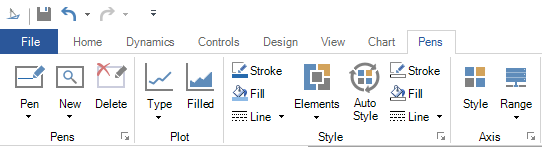
From here, the user has access to 4 different sections that feature 15 total buttons, each with a separate configuration purpose. See TrendWorX64 Viewer Configuration Ribbon (Pens) for more information on what purpose each button serves.
Once the user has adequately configured their TrendWorX64 Viewer Pens using the buttons on the Pens tab, they can enter Runtime mode.
Click the Runtime mode button located at the top right of the GraphWorX64 window, as shown below.
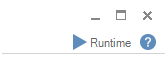
Once in Runtime mode, the TrendWorX64 Viewer Chart begins to display data. The standard Runtime ribbon is open, as shown below.

-
Click on the TrendWorX64 Viewer Chart. The Ribbon becomes the TrendWorX64 Runtime Ribbon as shown below.

From here, the user has access to 5 fields with 21 total buttons, each with a separate Runtime configuration purpose. See TrendWorX64 Runtime Ribbon for more information on what purpose each button serves. The greyed out buttons are available only in Freeze mode.
Within Runtime mode, a smaller version of the TrendWorX64 Runtime Ribbon appears above the TrendWorX64 Viewer Chart as shown below.

Freeze mode plays a key role in the available Small Ribbon options. When not in Freeze mode (shown above) the smaller ribbon provides the user with a similar group of options as the original TrendWorX64 Runtime Ribbon. The primary difference is the lack of the Freeze mode button on the Small Ribbon, which is only available on the Ribbon located at the top of the window.
Click the Freeze mode button to activate it. The previously greyed out options are now available on the original TrendWorX64 Runtime Ribbon.

They are also available on the Small Ribbon above your TrendWorX64 Viewer Chart, as shown below.
See TrendWorX64 Runtime Data Analysis for more information on what purpose each button serves.
See Also: