Device Level Options
The following options are available for devices, selected within a group within an IoT project in the Project Explorer in the Workbench. [Note: For info on how to create an IoT Project in the Workbench, click HERE.].
Note that the same options can also be accessed by right-clicking a device within a group within an IoT Project within the Project Explorer in the Workbench via a dropdown menu.
Device Level Options
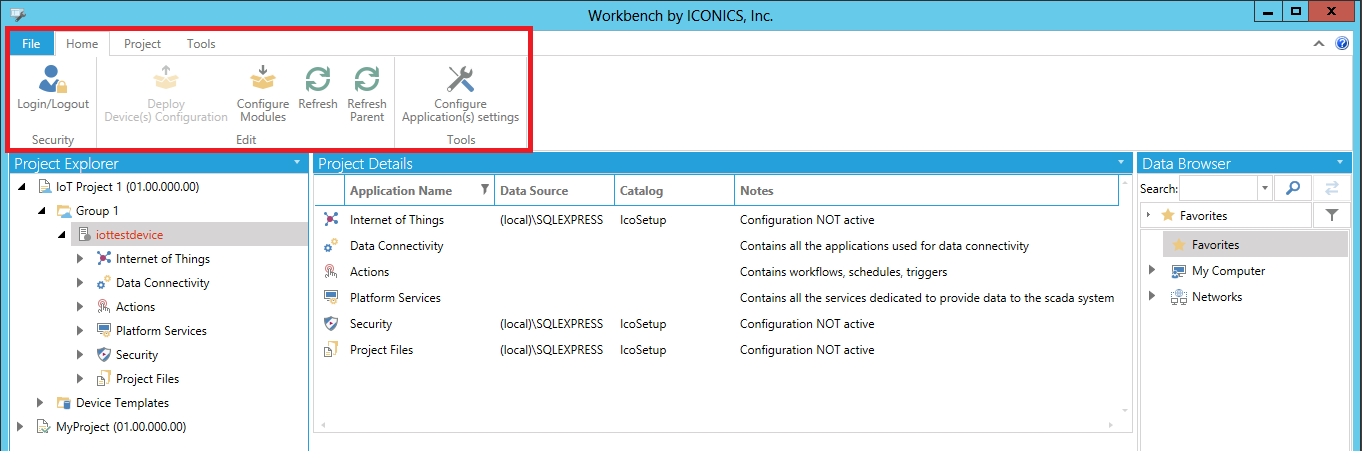
Security
-
Login/Logout - Opens the Security Login window, where you can enter your User Name and Password credentials or change your password.
Edit
-
Deploy Device Configuration– Deploys the configuration for the given Device. Clicking this button creates a new task to: generate configuration packages for the selected device; upload the package to Azure storage; and update the device's twin. The device will then download and apply the new configuration.
-
Configure Modules -Configures the modules for an IoT Edge device. Clicking this button opens the 'Configure Modules for IoT Edge Device' window. You can also opt to Remotely Deploy and Update Modules.
-
Clear Device Cache - Clears the cached data (A/E types, Metadata, Browsed data) for a specific device.
-
Repair Device - Repairs the status of a device that was previously publishing messages on the same hub with other devices. Please make sure to repair the status only once the conflicts are resolved.
-
Restart all modules - Restart the containers on the gateway. This might be required when the gateway is upgraded, or for maintenance reasons.
-
Refresh - Refreshes the selected item. If the item is a folder, it also clears the list of subitems of the folder.
-
Refresh Parent - Refreshes the parent of the selected item and clears the list of siblings of the selected item.
Tools
-
Configure Application(s) settings -Configures the configuration associated with the application. Clicking this button opens the Device Settings.
See Also: