Map Type Section on the EarthWorX Configuration Ribbon
The Map Type section on the EarthWorX ribbon lets you determine how the map displays. Options are described below. This option can also be set using the EarthWorX Viewer's Type property. (For more about the EarthWorX Viewer's properties, see EarthWorX Viewer Properties.)
Bing Map Types
Bing maps supports 6 types of maps:
-
Road - Displays the selected region with roads, with or without terrain elevations. Options are:
-
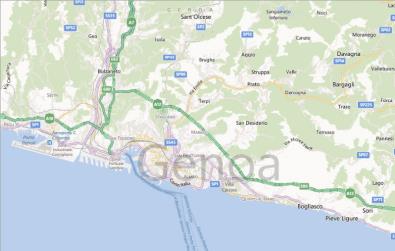
No Shade (Default) - Shows a flat, drawn map of roads.
-
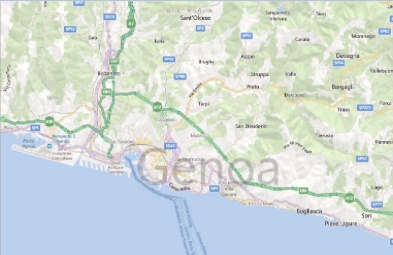
Hills Shade - Shows a drawn map of roads, and elevations are indicated using shadowing.
The Road option can also be set using the EarthWorX Viewer's Shading property.
-
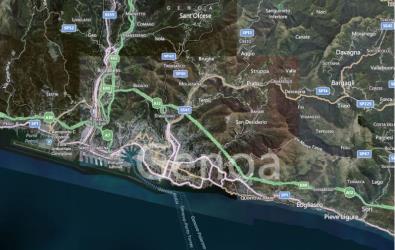
Hybrid - Displays the selected region in the form of a satellite photograph; streets and features are labeled.
-
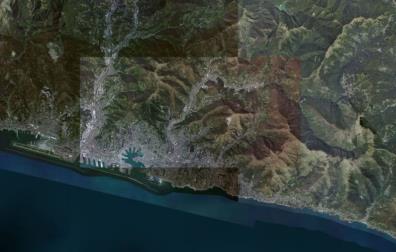
Aerial - Displays the selected region in the form of a satellite photograph with no labels.
-
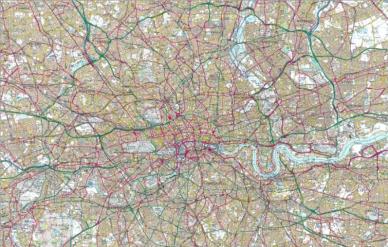
Ordnance Survey GB - A map style unique to Great Britain that displays selected region in an Ordnance Survey style street map.
-
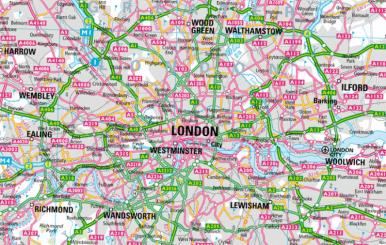
Collins Bartholomew Style - A digital map style unique to the UK that displays selected region as a digital street map.
|
Road, No Shade (Default) |
Road, Shade |
|
|
|
|
Hybrid |
Aerial |
|
|
|
|
Ordnance Survey GB |
Collins Bartholomew Style |
|
|
|
In addition, Bing maps also supports an option to Show Traffic Information. This can be overlaid on a Bing map to display traffic times and congestion.
Esri Map Types
Esri supports 7 types of maps, as well as the supporting the ability to download Custom tile sources from ArcGIS:
-
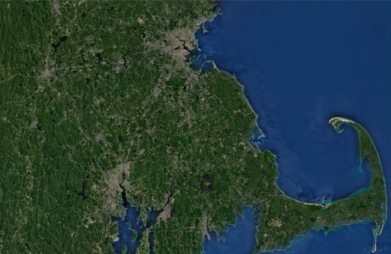
Imagery (Default) - Displays the selected region as a satellite image without any labels or political boundaries.
-
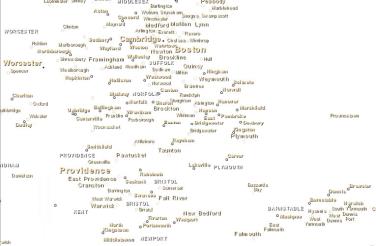
World Boundaries and Places - Displays the selected region with political boundaries and locations, without any geographic features.
-
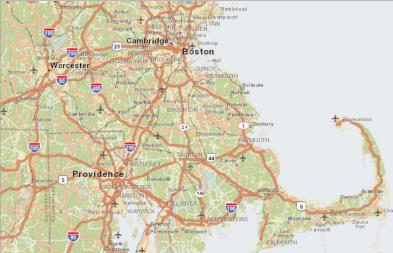
Streets - Displays the selected region with streets and limited geographic features and locations.
-
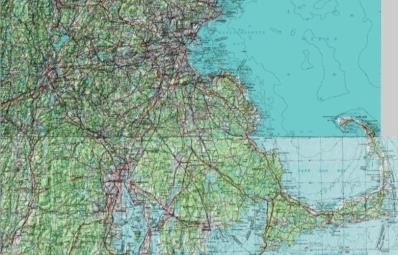
Topographic - Displays the terrain and elevation of a selected region without any labels or political boundaries at zoom level 8 and below. At zoom level 9 and above, roads, locations, and political boundaries are featured.
-
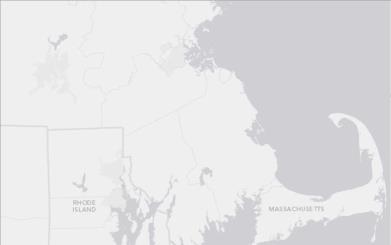
Light Gray Canvas - Displays the selected region with political boundaries, regional locations, and limited geographic features on a drawn, light gray canvas.
-
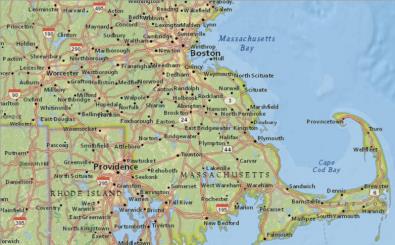
National Geographic - Displays the selected region as a political map with roads as well as limited topography and geographic features.
-
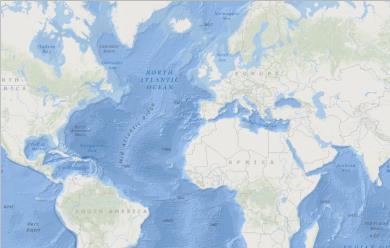
Oceans - Displays the topography and locations of bodies of water of the selected region.
-
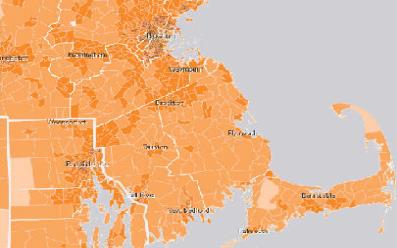
Custom tile source - Displays the selected region with tile overlays available through the Esri and ArcGIS networks. The user must be logged into the Esri network either by Setting Credentials or by logging into the Esri website.
The following examples show southeastern New England at zoom level 9.
|
Imagery (Default) |
World Boundaries and Places |
|
|
|
|
Streets |
Topographic |
|
|
|
|
Light Gray Canvas |
National Geographic |
|
|
|
|
Oceans |
Custom |
|
|
|
When proper credentials are set, Esri provides two additional map types under the Map Type scroll down menu, as well as countless other map types available through the Esri website. The two additional map types are:
- Imagery with Labels
- Terrain with Labels
Google Map Types
Google maps supports 4 map types:
-
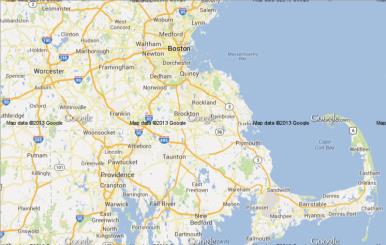
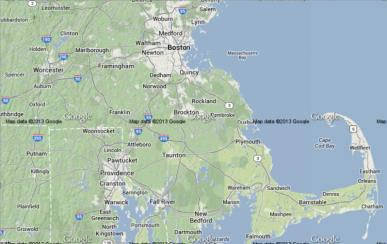
Roadmap (Default) - Displays the streets and roads of a selected region with some political boundaries.
-
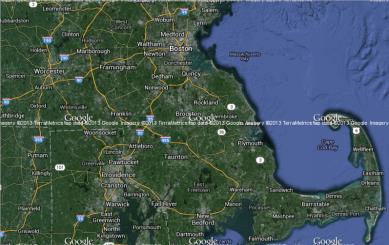
Satellite - Displays the selected region in the form of a satellite photograph.
-
Terrain - Displays the elevation and terrain of the selected region with streets and roads overlaid.
-
Hybrid- Displays the selected region as a satellite image with streets and roads overlaid.
|
Roadmap (Default) |
Satellite |
|
|
|
|
Terrain |
Hybrid |
|
|
|