Setting Up the Historian Logger in BACnet
You can use Historian Logger for BACnet to capture time-series data from BACnet devices and store it in a historical database. The default settings are useful for most common use cases, but you can customize them according to the needs and requirements of your project.
To set up the Historian logger for BACnet:
- Open Workbench and in Project Explorer, expand your project > Data Connectivity > BACnet > Logger Settings.
-
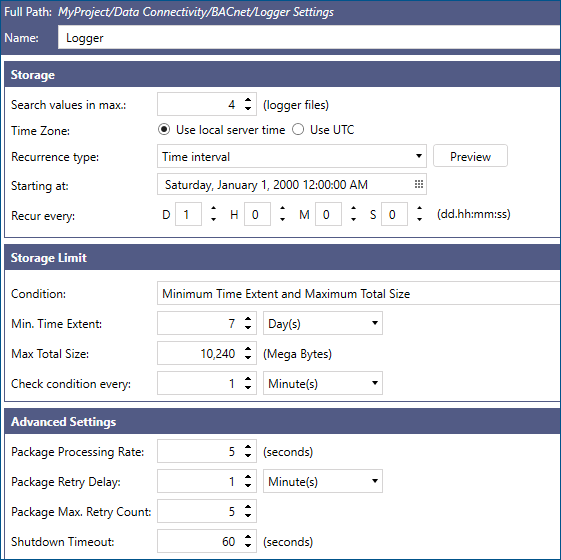
Double-click Logger to open the logger settings with the default values. You can edit the logger name in the dialog heading.
-
In the Storage section, set up the following time and recurrence options.
Setting
Description
Search values in max
Specifies the maximum number of log files to search for the last value(s) of a tag.
This setting is used by points requesting real-time Data Historian values and functions that search past data. Clients displaying logged data, such as the Trend Viewer, are not affected by this limitation.Time Zone
Specifies the time zone (the local server time or UTC) that the logger uses to determine when to create a new data log file.
Recurrence type
Determines whether a new data log file is created after a constant time interval, or at specific dates and times.
Starting at
Specifies the date and time when the logger creates the first data log file. Click
 to select the date and time. The default value is January 1, 2000, 12:00:00 AM.
Recur every
Depends on the Recurrence type setting.
- When you select Time interval, it displays the options to specify the regular time interval after which a new data log file is created (for example, two days and six hours).
- When Specific dates and times is selected, it displays the options to set up the frequency of creating new data log files (for example, every week or every three days). The exact time is then specified in the next settings. For example, if you select Week as the time unit, you need to specify the day or days of the week.
Pick specific times
Displayed when you select Specific dates and times in Recurrence type. When selected, you can set the exact hour(s), minute(s), and second(s) when the new file is created.
Click Preview to display the times at which the logger creates a new data log file according to your specifications. -
In the Storage Limit section, set up the limits and conditions.
Setting
Description
Condition
Specifies under what condition the logger archives a data log file. If you set the condition to None, the files with logged data are not archived. When you select the combined condition of Minimum Time Extent and Max Total Size, a file is archived when either condition is met, with Max Total Size taking precedence over Minimum Time Extent.
Min. Time Extent
The logger archives a data log file after the specified time passes.
Max Total Size
The logger archives a data log file when the file reaches the specified size.
Check condition every
Specifies the time in days, hours, minutes, or seconds before the system assesses whether a file is large or old enough to require action.
-
In the Advanced Settings section, you can specify the following advanced options.
Setting
Description
Package Processing Rate
Specifies the speed at which packages are processed and passed into the file logger.
Package Retry Delay
Specifies the delay before retrying to pass a package to the file logger when the it has not been accepted and processed.
Package Max. Retry Count
Specifies the maximum number of retries when the package is not accepted and processed by the file logger.
Shutdown Timeout
Specifies maximum shutdown timeout to process all pending packages when the BACnet point manager is stopped or restarted.
- When finished, click Apply & Close. You can access the BACnet data log files in C:\ProgramData\ICONICS\11\BACnet.