Safeguard Your Security Server Access
Whether you use locally-configured Users and Groups or you integrate to a 3rd party identity provider, maintaining Administrator access to the Security Server and project configuration is a crucial part of any GENESIS64 project. Getting "locked out" of the application where no user has administrative privileges to log in and make changes can become a major inconvenience, so it is advisable to take precautions against this.
Here are some steps you can take to help prevent lockouts and to mitigate their effect:
-
Perform regular backups of your system, including the project configurations. Automate these backups if possible.
-
If you are changing the project application settings on a Workbench project and are adjusting the security configuration database, stop and think. Be sure that you know the destination database has user accounts with appropriate permissions to access the project after the change is made.
-
When deleting a user or changing permissions for a user with Administrative roles, stop and think. Be sure that this is not the only user with access to vital permissions.
-
If appropriate to your project, have multiple users with Administrative roles so that there is not a single point of failure.
-
Use a password management tool to manage the GENESIS64 passwords, if such tools are allowed by corporate policy.
If you find yourself in a situation where you are locked out of your GENESIS64 project, you may be able to follow these steps to regain access. Note: these actions will allow for unrestricted access to the application by all users during the process. It is only recommended for non-production, development or testing environments:
Put a GENESIS64 project into Testing mode to reset security
-
Launch SQL Server Management Studio.
-
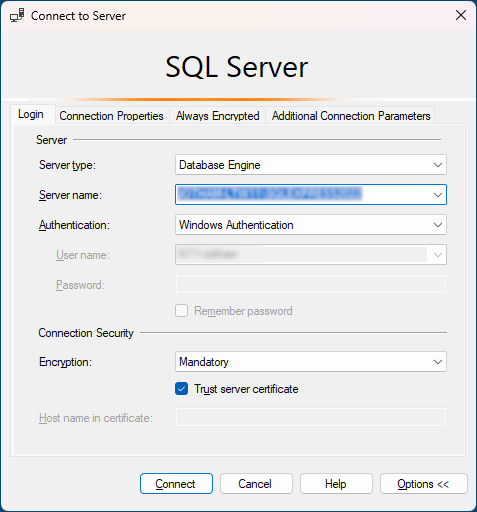
Log in to the SQL Server.
-
Open up a new query window. Be sure that the context is set to the database containing your project configuration.
-
Run this script:
UPDATE [dbo].[SEC_GlobalSettings] SET [SecurityTestingMode] = 1This will update the security configuration to be in "Testing" mode, which allows unrestricted access to the Workbench configuration.
-
Open the Workbench. Take the steps necessary to allow a user to have Administrative privileges once again to the project. Typically, this will involve creating a new user with permissions, resetting the password of a user, or changing the permissions granted to an existing user.
-
Re-enable security. In the Project Explorer, navigate to Security > Global Settings. Set the Security active radio button to Active and Apply. This will re-enable the security on the server.