Setting up Azure Communication Services (ACS)
To set up Azure Communication Services (ACS), you need to have:
-
An Azure account with an active subscription.
-
An active Communication Services resource. (Create Azure Communication Resource). Get the connection string from here to use in your Workbench ACS configuration.
Now you need to provision a phone number from Azure. For that you can follow the steps here (Provision your ACS phone number). Choose a number with outgoing SMS capabilities. We will use this number as the ‘From’ number in our ACS configuration.
-
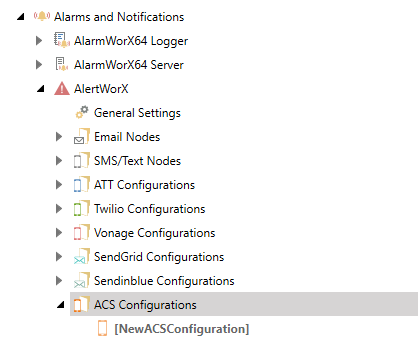
Go to Alarms and Notifications > AlertWorX > ACS Configurations. Right Click and choose Add ACS Configuration.
-
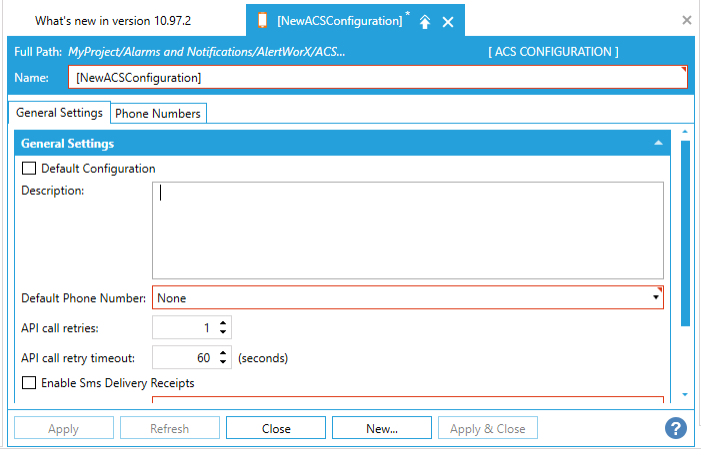
Check the “Is Default Configuration” box at the top to set the configuration as default.
-
Add a Description (Optional).
-
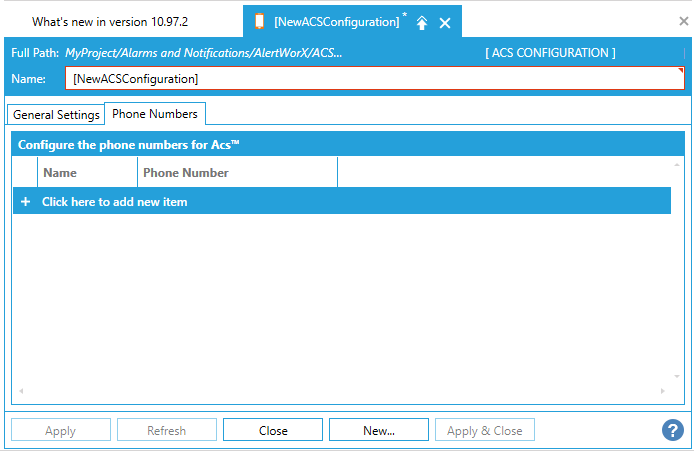
Add the phone number obtained from Azure portal in the phone numbers tab.
-
Choose the desired number as the Default one.
-
Copy the initially copied connection string to the ACS Connection string field.
-
Once these are set up you can test this configuration in the Test this Configuration section.

-
Ensure that the configuration is set to default and AlertRest service is running.
-
Enter a number to which you want to send message (format +15555555555) in the ‘To Number’ field.
-
Use ‘Test Sms’, button to send a message and test that it is working.
-
-
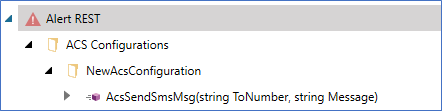
Apply the changes. Now in the Data Browser you can see the methods supported by ACS.
-
Check ‘Enable Sms Delivery Receipts’ to enable delivery receipts for outgoing messages and follow steps to ‘Enable Delivery Receipts and Incoming SMS for Acknowledging Alarms’.