Commanding
Commanding options in GraphWorX™64 and AssetWorX™ help users perform wide and varied tasks throughout the GENESIS64 suite, reducing the need for specialized scripting to achieve the same actions. For an example of commanding in AssetWorX, see Enabling Commands Through the Asset Navigator Control in GraphWorX64.
Security Authorization in GENESIS64 and GraphWorX64 defines what applications and subordinate functions a user or group of users have permission to access. This layer of security is on top of the ICONICS standard security login. Running reports, recipe management, configuration and run-time modes require single or double authorization. See Password Authorization in GraphWorX64.
Commanding in GraphWorX64
The GraphWorX64 ribbon menu allows you to interact with Controls and Dynamics features to create a new display or work with an in-progress display (.gdfx file).

Applying a Command to a GraphWorX64 Dynamic Element
After adding your control elements in your GraphWorX64 display, you can enable commanding on a specific Dynamic element. The following example shows how to create a button label to acknowledge the alarms in an AlarmWorX64 control.
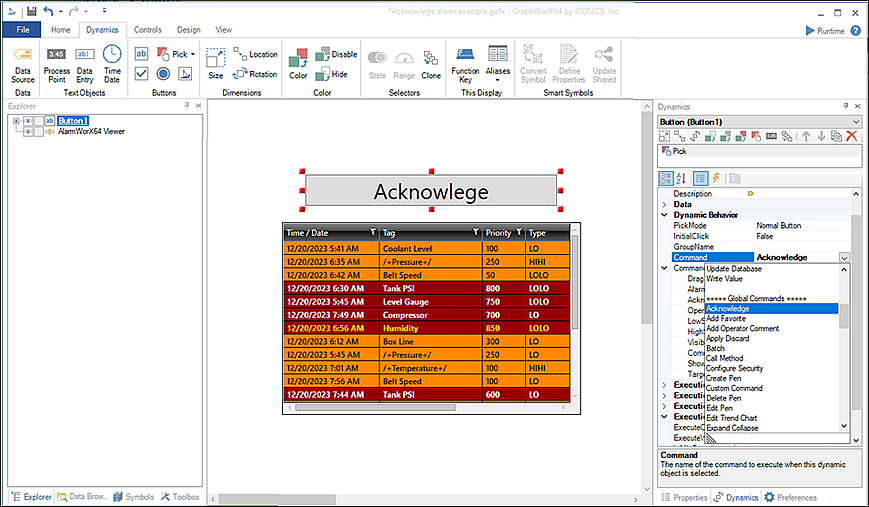
To apply a command using the Dynamics Buttons controls:
The following steps assume you have created an AlarmWorX64 configuration display.
-
Click the Dynamics tab and select the ab button from the Buttons section.
-
Name the button Acknowledge. The Dynamics properties pane appears (right side).
-
Select the Acknowledge command from the Dynamic Behavior >Command drop-down list. The command parameters appear below your selection.
-
Select Runtime Preview (located on the View tab) or click Runtime (upper right) to test the command button.
-
Make appropriate changes if needed and Save the display.
Available Dynamic Behavior Commands
When you select a command or setting from the Properties, Dynamics and Preferences pane, a functional description appears in the bottom text pane.
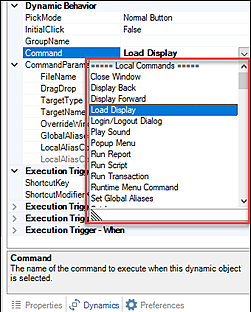
-
 Close Window
The Close Window command closes the GraphWorX64 display window when a pick action occurs during run-time mode. Command parameters are:
-
Target Type The type of window to be opened. Window types can be hierarchy (relative paths), absolute (such as the Root window). Current Display is the default target type selection. For a description of other target type windows, see Windows Dynamics for information.
-
Target Name The name for actual window to be opened. Select the Data Browser to identify the target.
-
-
Display Back and Display Forward
GraphWorX64 remembers display file history the last 50 displays. Use the commands Display Back and Display Forward to navigate back and forward through the display history. These commands also reset the alias to a display in the file history. These commands work similarly to Microsoft's web browser back / forward feature. Command parameters are:
-
Steps An option to indicate the number of steps to go forward or back in display history. If not defined, the default step number is one (1).
-
Target Type The type of window to be opened. Window types can be hierarchy (relative paths), absolute (such as the Root window). Current Display is the default target type selection. For a description of other target type windows, see Windows Dynamics for information.
-
Target Name The name for actual window to be opened. Select the Data Browser to identify the target.
-
-
Load Display
The Load Display command opens a GraphWorX64 display window type you define in properties. The window can be dependent or independent, modal or non-modal, independent or embedded, or it can even refer to the current display (which is a refresh operation). You can specify other parameters, such as what loads in the display. See Windows Dynamics to understand window types, and Aliasing and Pick Actions for information about using Aliases with the Load Display command.
-
FileName is the file name of the target window loaded during runtime. You can browse files or use the Data Browser.
-
DragDrop When parameter is set to True, this allows dragging the window to another location on the display. Setting the parameter to False makes the window stationery.
-
Target Type The type of window to be opened. Window types can be hierarchy (relative paths), absolute (such as the Root window). Current Display is the default target type selection.
-
Target Name The name for actual window to be opened. Select the Data Browser to identify the target.
The TargetType parameter is used in conjunction with the TargetName parameter to designate which type of display window to open. See Windows Dynamics for an explanation of these parameters.
-
OverrideWindowProperties Overrides the properties of the window if set to True. If False leaves the window properties in place.
-
GlobalAliases The ellipsis button [...] opens the Set Global Themes and Aliases dialog box, where you can set any global aliases that are needed for the window.
-
LocalAliasCommandType Allows you to specify the local aliases to load into the display . Default is None meaning there is no local alias.
-
LocalAliasCommandData Allows you to specify the file of local aliases and its values, or open the Data Browser to select the data source.
-
-
Login/Logout Dialog
The Login / Logout Dialog -There are no command parameters for this command—enables a dialog appears allowing the run-time user to log in or log out. For more information, refer to Logging in and out of GraphWorX64.
-
Play Sound
The Play Sound command allows for a selected sound to be played upon triggering of a dynamic. The parameters for this command are:
-
SoundSource Enter the file name or URL of the sound file to be played.
-
LoopSound True Plays the sound in a loop. False plays the sound only once.
-
StopSoundOnUnclick Select True to stop the currently playing sound when the checkbox is unchecked. The ExecuteOnUnchecked Property must also be set to True.
-
StopSoundOnMouse Set to True to stop the currently playing sound when the pointer is no longer over the associated visual object. The ExecuteOnMouseLeave property must also be set to True.
-
-
Popup Menu
The Pop-up Menu command opens a pop-up menu. Pop-up menus allow runtime users to switch aliases or languages, or to open one display out of a set. They are a great way of providing user interaction so that your display can have situational logic. You can configure the size, font, and position of the pop-up. The menu has one command parameter.
MenuPosition determines the position of the pop-up menu in relation to the parent object. Select MousePoint to have the menu pop up at the current mouse position during runtime. Specify Left, Right, Top, or Bottom to have the menu pop up to the left or right, top or bottom of the parent graphical object.
-
Run Report
The Run Report command executes a ReportWorX™ report during run-time. For more information about ReportWorX, refer to the ReportWorX documentation. Run Report command parameters are:
-
ServiceURL Specify the URL address of the ReportWorX Web Service.
-
AccessKey Enter the password needed to access the ReportWorX Web Service.
-
ReportName Specify the report to be executed. Click the ellipsis button [...] to select the report to be activated by the pick dynamic. In the Report Name dialog box that opens, refresh the list by the clicking the Get Reports button. Then select the report and click OK.
-
Parameters Specify the parameters, if any, to be used with the selected report. For each parameter use the
"@parameter" syntax (for example,@Parameter1=34). If you are using multiple parameters, separate each parameter using the pipe character " (for example,@). Clicking the ellipsis button [...] opens the Data Browser. -
Identity If a user name and password are required to access the ReportWorX server, specify the user login to be used for the report. Choose either InteractiveUser (to log in using the ID of the runtime user who is logged in to GraphWorX) or ThisUser then provide the ID and password to gain access.
-
User If the Identity is ThisUser, specify the ID for gaining access to the ReportWorX server. The ID is case sensitive.
-
Password If the Identity is ThisUser, specify the password for gaining access to the ReportWorX server. Passwords are case sensitive.
-
OutputTo Optionally, type the name of the text object the report output is to be sent to. If necessary, add the label object to the GraphWorX64 display, then return to this property and type its name here. For more information, refer to Labels.
-
-
Run Script
The Run Script command has no command parameters for this command. Bind the script via the Events tab.
-
Run Transaction
The Run Transaction command executes a BridgeWorX™64 transaction during runtime. Refer to the BridgeWorX64 documentation .Command parameters are:
-
ServiceURL Specify the URL address of the BridgeWorX64 Web Service.
-
AccessKey Enter the password needed to access the BridgeWorX64 Web Service.
-
Transaction Click the ellipsis button [...] to select the transaction to be activated by the pick dynamic. In the Transaction Name dialog box that opens, refresh the list by the clicking the Get Transactions button. Then select the transaction and click OK.
-
GlobalAliases Option to assign a alias or select from the Data Browser.
-
Identity If a user name and password are required to access the BridgeWorX64 server, specify the user log in to be used for the report. Choose either the InteractiveUser (to log in using the ID of the run-time user who is logged in to GraphWorX64) or the ThisUser, and then provide the ID and password to gain access.
-
User If the Identity is ThisUser, specify the ID for gaining access to the BridgeWorX64 server. The ID is case sensitive.
-
Password If the Identity is ThisUser, specify the password for gaining access to the BridgeWorX64 server. Passwords are case sensitive.
-
OutputTo Optionally, type the name of the text object the transaction output is to be sent to. If necessary, add the label object to the GraphWorX64 display, then return to this property and type its name here. For more information, refer to Labels.
-
-
Runtime Menu Command
The Runtime Menu Command executes a command that is currently available on the GraphWorX64 Runtime menu. Command parameters are:
-
Command There are various options (File, View, Tools, Help, and Configuration Mode).
-
TargetType The type of window to be opened by the command. Some of these selections are window types, some are windows hierarchy (relative paths), and some are absolute settings (such as the Root window). For more information about windows, refer to Windows Dynamics.
-
TargetName Tthe actual window to be opened. Click the ellipsis button [...] to open the Data Browser so you can identify the target.
-
-
Set Global Aliases
The Set Global Aliases command sets a global alias theme at run time for the display object when the pick dynamic is triggered. Global aliases are stored and maintained in a SQL Server database. This setting has one command parameter:
-
GlobalAliases Allows you to select a theme (a collection of aliases with similar properties—links a global alias to one or more data values (e.g. tags). Refer to Global Aliasing for more information. For additional information, refer to Aliasing and Pick Actions.
-
-
Set Language
The Set Language command sets the run-time language to a language of your choosing. At Runtime, string substitutions (which the Language Alias System SQL database manages) translate items in the runtime display to the specified language. For example, use this command in a button that Spanish-speakers can click in order to see the runtime display in Spanish. Refer to the topic Language Aliases for more details. For additional information, refer to Aliasing and Pick Actions. This setting has one command parameter:
-
Set Language Click the ellipsis button and select the language from the Language Selector dialog, and click OK.
-
-
Set Local Aliases
The Set Local Aliases command sets the value of one or more local aliases for the This Display object or for a specific object in the display. The local aliases are used for connecting to data in run-time mode. Local aliases are stored with the display in memory. Aliasing and Pick Actions describes the use of local aliases (including object-specific local aliases) with pick actions. Command parameters are:
-
LocalAliasCommandType Specify how the alias value is to be set. The default is None(no alias values will be set). You can choose From Data (the local alias is entered directly into the LocalAliasCommandData property) or From File (the local alias is stored in a CSV or TSV delimited file). Selecting one of these options enables the LocalAliasCommandData parameter.
-
LocalAliasCommandData Choose the data that sets the alias value or the file that contains alias values.
-
If the type is from Data, enter the local alias in the format
{{<<localAliasName>>}}or click the ellipsis button [...] to open the Data Browser. Go to the Local Alias Table tab to select or create local aliases and then assign their values. -
If the type is from File, select Browse Files to select a delimited file or Data Browser to use CSV or TSV delimited files, text values, or other sources for local aliases.
-
-
TargetType The type of window as the target for value changes. Some of these selections are window types, some are windows hierarchy (relative paths), and some are absolute settings (such as the Root window). For more information about windows, refer to Windows Dynamics.
-
TargetName The actual window to be target of the value changes. Click the ellipsis button [...] to open the Data Browser so you can identify the target.
-
ObjectName (optional) The name of the visual object for which to set the local alias. Using this parameter sets values for local aliases for only the specified object. Type the name of the object as it appears in the Explorer. Object names are case sensitive. Also, be aware that object names can change—you must change the dynamic name if a change occurs.
-
-
Set Object Visibility
The Set Object Visibility command applies a hide or show dynamic to an object based on a condition and using the trigger you specify. Command parameters are:
-
VisibilityCommand Specifies the type of visibility command to be executed—Hide to hide the object, Show to show the object, or Toggle to switch back and forth between hiding and showing the object.
-
ObjectName Specifies the name of the object to be hidden or shown. Type the name of the object as it appears in the Explorer. Object names are case sensitive. Also, be aware that object names can change—you must change the dynamic name if a change occurs.
-
-
Set View
The Set View command is useful if the display has views defined for it. For more information refer to Creating 2D Views for Runtime Users and Controlling the Runtime Behavior of 3D Views. Command parameters are:
-
Target Type The type of window to be target of the value changes. Some of these selections are window types, some are windows hierarchy (relative paths), and some are absolute settings (such as the Root window). For more information about windows, refer to Windows Dynamics.
-
TargetName Identifies target window for value changes. Click the ellipsis button [...] to open the Data Browser so you can identify the target.
-
TargetName3D The destination name of the 3D view port, if any. The name can include wild cards. Or click the ellipsis [...] button to open the Data Browser and select the file.
-
ZoomType Specifies how you are identifying the view:
-
ZoomToNamed goes to the view specified in the ViewName property.
-
ZoomToCustom goes to the view specified in the ViewRectangle property.
-
ZoomToObject zooms to the object specified in the ObjectName property.
-
ZoomByValue zooms to the object specified in the ObjectName property and multiplies the current magnification by the percentage specified in the ZoomValue property.
-
-
ViewName (ZoomToNamed only) The name of the view as it is defined in the display.
-
ViewRectangle (ZoomToCustom only) The 2D coordinates of the rectangle that will display as the view. Coordinates are four numbers separated by commas (,) that delimit the left, top, right, and bottom of the view. Specify the number of pixels from the left (for the left and right) and from the top (for the top and bottom) of the display.
-
ZoomValue (ZoomByValue only) Specifies the percentage by which the view is to zoom to the object.
-
ObjectName (ZoomToObject and ZoomByValue only) Specifies the name of the visual object the button will zoom to. Type the name of the object as it appears in the Explorer. Note that object names are case sensitive. Also, be aware that object names can change; if they do, you must return to this dynamic to change its name here.
-
TransitionDuration Specifies, in milliseconds, how long you want it to take for the view to transition. The default, 0 (zero), provides no transition—the view changes abruptly. For the transition to take 2 seconds, enter 2000.
-
-
Start Application
The Start Application command launches a file or URL and opens the specified application or document in run-time mode. In addition to launching an executable, you can launch various documents, including Microsoft Word documents, Microsoft Excel spreadsheets, HTML files, and text files. The registered application is automatically started when the file is launched.
The command action requires you specify the FileName of the executable or document, as well as any command line Arguments to be passed when the application starts.
You could pass the command processor CMD.exe to the Start Application command, and by doing so provide a batch file as the input or use a command as an argument. This is a powerful method for controlling devices, setting environmental variables, and performing any system or management function (WMI for example) from a command line.
-
Toggle Value
The Toggle Value command toggles between two or more values or states during runtime using an action that you specify. Make sure you specify a DataSource property (the data source the toggled value is written to) and specify True for the Data Write Confirm property. Command parameters are:
-
ValueOne The first value of the first toggle state .
-
ValueTwo The second value of the second toggle state.
-
MoreValues Allows you to define a list of values through which the toggle action can cycle. Click the ellipsis [...] button to open the Edit Toggle Values dialog where you can enter additional values. The first two lines are the properties in ValueOne and ValueTwo. The toggle button toggles sequentially through this list, from top to bottom.
-
-
Update Database
The Update Database command queries the database attached to the OPC UA data source with the current values of tags that you specify based on the run-time condition or action that triggers the pick action. It updates the data mining server by writing any value to a data mining tag exposed by this server. There are no command parameters.
-
Write Value
The Toggle Value command toggles between two or more values or states during Runtime using an action that you specify. Make sure you specify a DataSource property (the data source the toggled value is written to) and specify True for the Data Write Confirm property. Command parameters are:
-
OnDownValue Specify the value(s) to be written when the mouse is down-clicked (MouseDown event). Normal button only. (Available only if ExecuteOnDown is True).
-
WhileDownValue Specify the value(s) to be written while the mouse is down. Normal button only. (Available only if ExecuteWhileDown is True.)
-
OnUpValue Specify the value(s) to be written when mouse button is released (MouseUp). Normal button only. (Available only if ExecuteOnUp is True.)
-
OnDoubleClickValue Specify the value(s) to be written when the button is double-clicked. (Available only if ExecuteOnDoubleClick is True.)
-
-
Acknowledge
The Acknowledge command allows a user to acknowledge alarms in an associated AlarmWorX64 Viewer. The following are typical steps when an alarm requires an acknowledgment:
-
An alarm is triggered and is added to the alarm grid on which it is used. Only enabled alarms are triggered. An alarm that is not enabled is considered to be an alarm that is not ready for use or an alarm that is being decommissioned. Alarms are enabled when they are added to the alarm server, using the AlarmWorX64 General tab.
-
A run-time operator acknowledges the alarm puts the alarm into an Acknowledged state.
-
When the alarm condition no longer exists, the alarm leaves the grid as long as its acknowledgment requirements have been met.
Acknowledge command parameters are:
-
DragDrop Determines whether applying a drag-and-drop action on this dynamic causes the command to be associated with the object where the dynamic is dropped.
-
Alarm Indicates whether the alarm represents a standard alarm (condition), an operator commend (Simple), a tracking event (Tracking) or an unspecified type of alarm (None).
-
Acknowledge Determines whether alarms on all objects (All), objects satisfying a certain condition (Comparison), objects satisfying a certain set of criteria (Filter), selected object only (Selection), or inactive objects only (Inactive) are acknowledged.
-
LowSeverity Alarms with a severity less than the provided value are not acknowledged.
-
HighSeverity Alarms with a severity greater than the provided value are not acknowledged.
-
VisibleOnly Determines whether the command applies to visible elements only (the default is False).
-
Comment Associate the provided operator comment with each alarm that is acknowledged.
-
ShowDialog Enables a run-time dialog for all properties. (the default is False).
-
Target The commanding target name that will handles this command. Commanding names are case sensitive. See the CommandingName property on target control. You can also use wildcards.
-
-
Add Favorite
The Add Favorite command inserts a new favorite asset in the target Asset Navigator's favorites folder. Command parameters options are:
-
DragDrop Applyies a drag and drop action associated with the object.
-
Favorite Name Favorite name identifier.
-
FolderType Selected or add specific folder.
-
FolderName Specific folder name.
-
ItemType Add selected or specific item to favorites.
-
ItemName Specific item name.
-
Target The commanding name of target control that handles this command. Commanding names are case sensitive. You can use wildcards.
-
-
Add Operator Comment
The Add Favorite command inserts a new favorite asset in the target Asset Navigator's favorites folder. Command parameters options are:
-
DragDrop Apply a drag and drop action associated with the object.
-
Comment Enter text or click on the
 button to open the Data Browser and navigate to your selected comment.
-
Show Dialog False is the default setting. Select True to show the dialog, or click on the
button to open the Data Browser. -
Target The commanding name of target control that handles this command. Commanding names are case sensitive. See the CommandingName property on target control. You can also use wildcards.
-
-
Apply Discard
The Apply Discard command parameters options are:
-
DragDrop Apply a drag and drop action associated with the object.
-
Action Allows you to either apply or discard an object.
-
Target The commanding name of target control that handles this command. Commanding names are case sensitive. See the CommandingName property on target control. You can also use wildcards.
-
-
Batch
The Batch command enables you to execute multiple commands using conditions and jumps, which can be based on step results. Refer to the Batch Commands topic for additional information.
-
Steps Enable a collection of commands on the Batch Configuration window. In the Configuration window, click on the plus button [+] to add a step to the Batch command. The minus [-] button removes a step, and the up and down arrows reorder items a list. The
 button to duplicates a selected step.
-
-
Call Method
The Call Method command calls a method or task from within Platform Services. Methods can be parametrized or not and range from simple data writing to complex calculations or actions. Due to this, parameters can identify whatever is necessary to pass to the custom method. Methods must be coded in C# and can be used in combination with the Jscript.NET scripting engine of GraphWorX64. Command parameters are:
-
Name Enter the full name of the call method, including the point path.
-
Parameters Enter Values and ValueTypes to pass via the Call Method.
See Call Method Command topic for additional information.
-
-
Configure Security
The Configure Security command is used to create custom GraphWorX64 interfaces and perform common security administrative functions, such as creating a new user, adding a user, removing a user, or changing the user password—it accepts both a plain text password and a password hash and is not related to standard login or password authorization dialogs. Command parameters are:
-
Action: Configure security based on the selected user type parameter (Create User, Add User, Remove User, or Change Password).
-
UserName: Set the property to a dynamic data source (tag), or enter the name associated with the user account.
-
Group Name: Set the property to a dynamic data source (tag), or identity the Group name associated with the current user.
-
Policy: Identify the account policy.
-
Password: Set to True, or you enter the actual password property.
-
IsPasswordHash is a boolean property value.
-
When IsPasswordHash is set to True and the Password is set to True, the Password property is put through a hashing algorithm to turn plain text into a hash value generated by the GraphWorX64 display's data entry field (Password Hashing is set to Password-Based Key Derivation Function 2). The policy associated with a given user is not used.
-
If False, the password property must contain the actual password in plain text—the password is encrypted before execution. If the policy associated with a given user fails, the system returns an invalid password status code.
-
See Configure Security in Runtime topic for additional information.
-
-
Create Pen
The Create Pen command adds a new pen into a target TrendWorX64 Viewer using the following parameters. You can create this command within the GraphWorX64 Viewer and Asset Navigator controls. You can apply this command to a TrendWorX64 Viewer control. Command parameters are extensive. The following reflect commonly used parameters:
-
DragDrop Determines whether applying a drag and drop action on this dynamic causes the command to be associated with the object where the dynamic is dropped.
-
PenName Unique string identifier for the pen.
-
SelectedProperties There are two values (Browse/Edit and Runtime Data Value).
-
Clicking Browse/Edit... opens the Configuration window allowing you to select multiple listed values. When you have completed your selections, click on the OK button. Your selections appear in the SelectedProperties text field and further properties for each selected values appear within the command properties.
-
Clicking Runtime Data Value.. opens the Data Browser, allowing you to navigate to your selected run-time data value(s).
-
-
Line Indicate whether the pen appears as a line graph (Line), a curved line (Spline), a step chart (Step), or a bar chart (Bars) in the containing trend viewer.
-
IsFilled Determines whether the area beneath the pen is shaded within the containing trend viewer.
-
PointName The data source, such as localsim:sine, that is associated with the pen.
-
Description The pen description which appears as the title tag. It can also be a data source.
-
Parameters A semicolon-separated series of name or value pairs that represent connection settings for the pen. It can also be a data source.
-
IsEnabled Determines whether the pen connects to its data source when the trend viewer enters run-time mode. A Blank/Empty value can indicate False or it can also be a data source.
-
Units The engineering units associated with the pen's sample values. It can also be a data source.
-
Format The Microsoft numeric format string indicating how the pen's sample values are displayed.
-
TimeZone Time zone of data source. Examples: Eastern Standard Time, Central Europe Standard Time, UTC+01, UTC-0330, UTC+04:30, -06.
-
PreserveStringValues Indicates whether the pen's text-based data source values should retain the string data type. Default setting is False.
-
ShowInSummary Indicates whether the pen appears in the containing trend viewer's summary pane. Default setting is True.
-
ShowAnnotations Indicates whether operator comments associated with the pen are visible. Default setting is True.
-
ShowPenMarker Determines whether the pen's indicator on the side of the plot should appear within the containing trend viewer. Default setting is True.
-
PenMarkerStyle Indicate whether the pen's indicator on the side of the plot should appear as a circle (Circle), a square (Square), a triangle (Triangle), or text information (Text). A setting of None hides the pen's indicator. Default setting is Triangle.
-
Opacity Pen opacity (0% = fully transparent, 100% = fully opaque). Default setting is 1.
-
RandomColor Pen stroke and fill colors are selected randomly from a predefined palette. Default setting is True.
-
Stroke and StrokeThickness The thickness of the line or bar outlines that intersect the pen's markers. Stroke setting is black (0,0,0) and Stroke Thickness default setting is 1.
-
StrokeStyle The line style of the line or bar outlines that intersect the pen's sample markers.
-
SampleMarkerStyle Pen's markers style can be circles (Circles), squares (Squares), triangles (Triangles), or text information (Text), and None hides the pen's markers. Default setting is None.
-
BadQualityAutoStyle Indicates whether the pen is used to show samples with a bad or uncertain quality should inherit from the general pen style. Default setting is True.
-
InheritPlotMode The pen inherits quality plot modes from the containing trend viewer. Default setting is True.
-
UseRealtimeInterpolation Determines whether intermediate samples are generated automatically when real-time data does not update during a sampling interval. Default setting is True.
-
LastSampleStretch Indicates whether the trend line ends at the most recent data point for the pen (None), the most recent data point extends to the current time (ToNow), or the most recent data point extends indefinitely along the time axis (IntoFuture). Default setting is IntoFuture.
-
SampleDecluttering If the pen's samples appear visually close to one another within the containing trend viewer, indicates whether to hide some of the samples. It is strongly recommended to use the default value of True.
-
MinimumMode and Minimum. Minimum mode is the pen's minimum value shown calculated on the server (Default setting). Other settings are AutoScale (shows all data points) and Manual (is a user-specified value). The minimum is the sample value to show in the trend viewer (Default is 0).
-
MaximumMode and Maximum. The pen's maximum mode value shown within the trend viewer is calculated on the server (Default). Other settings are AutoScale (shows all data points) and Manual (is a user-specified value). The maximum is the sample value to show in the trend viewer (default is 100).
-
AutoScaleMargin The pen's percentage margins added to the top and bottom edges of the display. The default is zero (0).
-
AxisBackground The background color for the value axis that you select from the color picker. The default setting is None.
-
Target The commanding name of target control that will handle this command. Commanding names are case sensitive. See the CommandingName property on target control. You can also use wildcards.
-
-
Custom Command
You can create this command within the GraphWorX64 Viewer and Asset Navigator controls. You can apply this command to third-party controls that implement the ICONICS commanding interface. Custom Command parameters are:
-
DragDrop Determines whether applying a drag-and-drop action on this dynamic causes the command to be associated with the object where the dynamic is dropped.
-
Parameters A string representing some input to the Custom Command representing details necessary to facilitate the desired outcome.
-
Target The commanding name of target control that will handle this command. Commanding names are case sensitive. See the CommandingName property on target control. You can also use wildcards.
-
-
Delete Pen
The Delete Pen command removes a pen from a TrendWorX64 Viewer. This command requires a target which can be a TrendWorX64 Viewer in GraphWorX64. The name of the pen and the target viewer are the parameters for this command. You can create this command within the GraphWorX64 Viewer and Asset Navigator controls. You can apply this command to the TrendWorX64 Viewer control. Command parameters are:
-
DragDrop Determines whether applying a drag and-drop action on this dynamic causes the command to be associated with the object where the dynamic is dropped.
-
Delete Indicate whether to delete a certain pen (Specific), each pen in a chart (All), or each selected pen in the containing trend viewer's legend (Selected).
-
PenName Unique string identifier for the pen.
-
Index The index into the list of pens for the chart containing the pen to modify. This setting is needed only when PenName is empty.
-
Target The commanding name of target control that will handle this command. Commanding names are case sensitive. See the CommandingName property on target control. You can use wildcards.
-
-
Edit Pen
The Edit Pen command edits a pen within a TrendWorX64 Viewer. This command requires a target which can be a TrendWorX64 Viewer in GraphWorX64. The name of the pen and the target viewer are the parameters for this command. You can create this command within the GraphWorX64 Viewer and Asset Navigator controls. You can apply this command to the TrendWorX64 Viewer control. Command parameters are:
-
DragDrop Determines whether applying a drag and drop action on this dynamic causes the command to be associated with the object where the dynamic is dropped.
-
PenName Unique string identifier for the pen.
-
Index The index into the list of all pens for the chart containing the pen to modify. This setting is needed only when PenName is empty.
-
NewPenName Assign a new unique string identifier for the pen. May be a data source. Leave this setting Blank/Empty to preserve the pen's current name.
-
SelectedProperties A comma-separated list of pen properties to edit.
-
PointName The data source associated with the pen.
-
Description Description for the pen, which appears as its title tag. This can be a data source.
-
Parameters A semicolon-separated series of name or value pairs that represent connection settings for the pen. May be a data source.
-
Target The commanding name of target control that handles this command. Commanding names are case sensitive. See the CommandingName property on target control. You can also use wildcards.
-
-
Edit Trend Chart
The Edit Trend Chart command can be used to change a wide variety of properties on an existing TrendWorX64 Viewer chart and legend, such as sampling interval and whether the legend is visible. When configuring the Edit Trend Chart command, first edit the SelectedProperties parameter, and select the properties of the chart you would like to change. Properties that are selected show up as additional parameters of the command.
This command can be used along with the new batch commands and the command event support to configure your TrendWorX64 Viewer with drill-down actions. Command parameters are:
-
DragDrop Determines whether applying a drag and drop action on this dynamic causes the command to be associated with the object where the dynamic is dropped.
-
SelectedProperties There are two values (Browse/Edit and Runtime Data Value).
-
Selecting Browse/Edit... opens the Configuration window allowing you to select multiple listed values. When you have completed your selections, click on the OK button. Your selections appear in the SelectedProperties text field and further properties for each selected values appear within the command properties.
-
Selecting Runtime Data Value.. opens the Data Browser, allowing you to navigate to your selected run-time data value(s).
-
-
Target The commanding name of target control that will handle this command. Commanding names are case sensitive. See the CommandingName property on target control. You can also use wildcards.
-
-
Expand Collapse
The Expand Collapse command allow users to change the levels shown in the Asset Navigator by expanding or collapsing the assets to a desired level. You can create this command within the GraphWorX64 Viewer and Asset Navigator controls. You can apply this command to the AlarmWorX64 Viewer, GridWorX64 Viewer, and Asset Navigator controls. Command parameters are:
-
DragDrop Determines whether applying a drag and drop action on this dynamic causes the command to be associated with the object where the dynamic is dropped.
-
ExpandCollapseType Determines whether the item specified in the ItemName or Index setting open (Expand), closes (Collapse), opens itself and the elements it contains (ExpandAll), or closes itself and the elements it contains (CollapseAll). Some controls always perform the ExpandAll or CollapseAll operation.
-
ItemName The name of the element that this command modifies.
-
Index The index into a collection of values containing the element that this command modifies.
-
Target The commanding name of target control that will handle this command. Commanding names are case sensitive. See CommandingName property on target control. You can use wildcards.
-
-
Export Data
Export Data command parameters are:
-
DragDrop Determines whether applying a drag and drop action on this dynamic causes the command to be associated with the object where the dynamic is dropped.
-
File Name The file name or URL to which the exported image is saved.
-
Format Indicates the output file format (CSV, HTML, XML). The default is CSV .
-
Target The commanding name of target control that will handle this command. Commanding names are case sensitive. See the CommandingName property on target control. You can also use wildcards.
-
-
Export Image
Export Data command parameters are:
-
DragDrop Determines whether applying a drag and drop action on this dynamic causes the command to be associated with the object where the dynamic is dropped.
-
File Name The file name or URL to which the exported image is saved.
-
Area Specify whether this command affects the portion of the target control is currently visible (CurrentView) or the whole control (EntireControl).
-
Unit Determines whether the Zoom settings is interpreted as a percentage (Percentage), a positive scaling factor (Scale), or a zoom level between 1 and 21 (Level). The Zoom setting is ignored if this setting has a value of None.
-
Zoom The zoom percentage, scaling factor, or level to apply to the target control.
-
Target The commanding name of target control that will handle this command. Commanding names are case sensitive. See CommandingName property on target control. You can use wildcards.
-
-
Export Statistic
The Export Statistic command shows the Export Statistics dialog using default options (no intermediate dialog is displayed). You can create this command within the GraphWorX64 Viewer and Asset Navigator controls and apply this command to the TrendWorX64 Viewer control. The report generated by the Export Statistic command with a TrendWorX64 Viewer target has been enhanced to be more customizable.
The action taken by the command depends on the TrendWorX64 Viewer configuration. The command itself has no new parameters, but in the target TrendWorX64 Viewer, you can select the chart, go to the Data tab, and select the Configure button next to Statistics Export.
The statistics export configuration presents various configurable settings for the statistics report, including which columns to include in the report and whether to export visible pens. By default, the Export Statistic command now immediately saves the report to a CSV file, but the user can return to the legacy behavior of opening the report page by selecting Use legacy export in the statistics export settings. The Export Statistic command functionality is currently only supported in desktop (WPF) and Universal Windows Platform (UWP). Equivalent functionality for the HTML5 trend viewer is planned for a future version. Command parameters are:
-
DragDrop Determines whether applying a drag and drop action on this dynamic causes the command to be associated with the object where the dynamic is dropped.
-
Target The commanding name of target control that will handle this command. Commanding names are case sensitive. See the CommandingName property on target control. You can also use wildcards.
-
-
Go to Location
Create the Go To Location command within the GraphWorX64 Viewer and Asset Navigator controls and you can apply this command to the EarthWorX Viewer control. Command parameters are:
-
DragDrop Determines whether applying a drag and drop action on this dynamic causes the command to be associated with the object where the dynamic is dropped.
-
Latitude The North-South coordinate that appears in the vertical center of the redrawn map control.
-
Longitude The East-West coordinate that appears in the horizontal center of the redrawn map control.
-
Unit Determines whether the Zoom settings is interpreted as a percentage (Percentage), a positive scaling factor (Scale), or a zoom level between 1 and 21 (Level). The Zoom setting is ignored if this setting has a value of None.
-
Zoom The zoom percentage, scaling factor, or level to apply to the target control.
-
Target The commanding name of target control that will handle this command. Commanding names are case sensitive. See CommandingName property on target control. You can use wildcards.
-
-
Group
Create the Group command in the GraphWorX64 Viewer and Asset Navigator controls. You can apply this command to the AlarmWorX64 Viewer and GridWorX64 Viewer controls. Command parameters are:
-
DragDrop Determines whether applying a drag and drop action on this dynamic causes the command to be associated with the object where the dynamic is dropped. Default is False.
-
Action Select a configuration action (New, Add, or Reset). The default setting is New.
-
ItemName The name of the element that this command modifies.
-
Index The index into a collection of values containing the element that this command modifies.
-
Target The commanding name of target control that will handle this command. Commanding names are case sensitive. See the CommandingName property on target control. You can also use wildcards.
-
-
Load Alarm Configuration
The Load Alarm Configuration command opens an alarm file in AlarmWorX Viewer when you select the menu option in runtime. You can create this command in the GraphWorX64 Viewer and Asset Navigator controls and apply this command to the AlarmWorX64 Viewer control. Command parameters are:
-
DragDrop Determines whether applying a drag and drop action on this dynamic causes the command to be associated with the object where the dynamic is dropped. Default setting is False.
-
File Name The file name or URL associated with the command.
-
Target The commanding name of target control that will handle this command. Commanding names are case sensitive. See CommandingName property on target control. You can use wildcards.
-
-
Load DataGrid Configuration
The Load Alarm Configuration command opens an alarm file in AlarmWorX Viewer when you select the menu option in run-time. You can create this command in the GraphWorX64 Viewer and Asset Navigator controls and apply this command to the AlarmWorX64 Viewer control. Command parameters are:
-
DragDrop Determines whether applying a drag and drop action on this dynamic causes the command to be associated with the object where the dynamic is dropped. Default setting is False.
-
File Name The file name or URL associated with the command.
-
Target The commanding name of target control that will handle this command. Commanding names are case sensitive. See the CommandingName property on target control. You can also use wildcards.
-
-
Load Executed Reports
The Load Executed Reports command loads a folder of reports for viewing. This command does not execute the reports, it displays executed reports that reside in a folder. For example, you can store energy reports in one folder and use this command to open the folder of reports for display when a run-time user selects it from the equipment's right-click menu. (Alternatively, you can use the Load Report command to open one report.) You can create this command within the GraphWorX64 Viewer and Asset Navigator controls. You can apply this command to the ReportWorX64 Viewer control. Command parameters are:
-
DragDrop Determines whether applying a drag and drop action on this dynamic causes the command to be associated with the object where the dynamic is dropped. Default setting is False.
-
Folder Name The folder name associated with the command.
-
Target The commanding name of target control that will handle this command. Commanding names are case sensitive. See the CommandingName property on target control. You can also use wildcards.
-
-
Load Executed Transactions
The Load Executed Transactions command loads a list of data transaction reports from specific folder into a target BridgeWorX64 Viewer. Command parameters are:
-
DragDrop Determines whether applying a drag and drop action on this dynamic causes the command to be associated with the object where the dynamic is dropped. Default setting is False.
-
Folder Name The folder name associated with the command.
-
Target The commanding name of target control that will handle this command. Commanding names are case sensitive. See the CommandingName property on target control. You can also use wildcards.
-
Load Facility Data
The Load Facility Data command opens an FDDWorX™ configuration file (.fav) created using the FDDWorX web part in the Workbench. You can create this command within the GraphWorX64 Viewer and Asset Navigator controls and apply this command to the FDDWorX Viewer control. Command parameters are:
-
DragDrop Determines whether applying a drag and drop action on this dynamic causes the command to be associated with the object where the dynamic is dropped. Default setting is False.
-
Configuration Name is the name of the FDDWorX configuration file to be loaded for this runtime menu item. Click the down arrow to select a Runtime Data Value from the Data Browser.
-
Start Time indicates, in long format, the date and time to begin the range of facility data to be loaded. This value can be typed or selected via the Date/Time Picker located at the right of the field.
-
End Time indicates, in long format, the date and time to end the range of facility data that is loaded. This value can be typed or selected via the Date/Time Picker located at the right of the field.
-
Asset identifies the Asset browse name. There are two values (Browse/Edit and Runtime Data Value).
-
Selecting Browse/Edit... opens the Configuration window allowing you to select multiple listed values. When you have completed your selections, click on the OK button.
-
Selecting Runtime Data Value.. opens the Data Browser, allowing you to navigate to the selected runtime data value(s).
-
-
Target The commanding name of target control that will handle this command. Commanding names are case sensitive. See the CommandingName property on target control. You can also use wildcards.
Load Graphics Display
The Load Graphics Display command opens a GraphWorX64 display file inside a GraphWorX64 Viewer when a run-time user selects the menu option. You can create this command within the GraphWorX64 Viewer and Asset Navigator controls. You can apply this command to the GraphWorX64 Viewer control. Command parameters are:
-
DragDrop Determines whether applying a drag and drop action on this dynamic causes the command to be associated with the object where the dynamic is dropped.
-
File Name The file name or URL to which the exported image is saved.
-
Local Aliases The local alias settings (if any) that are used for the GraphWorX64 display. Click on the down arrow to Browse/Edit existing local aliases or select a Runtime Data Value from the Data Browser.
-
Global Aliases The global alias settings (if any) that are used in the GraphWorX64 display. Click on the downward arrow to Browse/Edit existing global aliases or select a Runtime Data Value from the Data Browser.
-
Target The commanding name of target control that will handle this command. Commanding names are case sensitive. See the CommandingName property on target control. You can also use wildcards.
Load KPI Dashboard
The KPI Dashboard Command parameters are:
-
DragDrop Determines whether applying a drag and drop action on this dynamic causes the command to be associated with the object where the dynamic is dropped.
-
Dashboard Path Identifies the path without a KPIX extension to load. For example, Public\dashboardName.
-
Parameters Add additional parameters. For example, filters: "Northwind Categories: CategoryName=Confection-Condiments". Use of strings in this property are defined below.
-
The string representing the active filter on a dashboard can be copied. This string can be pasted into the Load KPI Dashboard command's Parameters property. This makes it easy to create a command that can open dashboards with filters already applied.
-
Users can create or open a saved dashboard, apply a desired filter, then, in the dashboard header, select More > Share > Filter String > Clipboard. Users can then paste the string into the Parameters property of the Load KPI Dashboard command. User can also use More > Share > Dashboard Name > Clipboard to get the properly formatted name of a dashboard for the Load KPI Dashboard command.
-
-
Target The commanding name of target control that will handle this command. Commanding names are case sensitive. See the CommandingName property on target control. You can also use wildcards.
Load Mobile Layout
The Load Mobile Layout command parameters are:
-
DragDrop Determines whether applying a drag and drop action on this dynamic causes the command to be associated with the object where the dynamic is dropped. Default setting is False.
-
Layout Path The path to the layout to load (separate using backslashes).
-
Target The commanding name of target control that will handle this command. Commanding names are case sensitive. SSee the CommandingName property on target control. You can also use wildcards.
-
Load Report
The Load Report command displays a report for viewing—this command does not execute the report, it simply displays a report that has already been executed. For example, if a report ran over the weekend, this command can open it for display when a run-time user selects it from the equipment's right-click menu. (Alternatively, you can use the Load Executed Reports command to open an entire folder of reports.) You can create this command within the GraphWorX64 Viewer and Asset Navigator controls. You can apply this command to the ReportWorX64 Viewer control. Command parameter are:
-
DragDrop Determines whether applying a drag and drop action on this dynamic causes the command to be associated with the object where the dynamic is dropped. Default setting is False.
-
Report Name Specifies the report to be opened. Select the server here the executed report resides, and then click the ellipsis button [...] to select the executed report. In the Choose a Report dialog box, select the report and click OK.
-
Target The commanding name of target control that will handle this command. Commanding names are case sensitive. See CommandingName property on target control. You can use wildcards.
-
-
Load Schedule Control Configuration
The Load Schedule Control Configuration command opens a calendar inside a Schedule Control when a run-time user selects the menu option. You can create this command within the GraphWorX64 Viewer and Asset Navigator controls and apply this command to the Schedule Control. Command parameters are:
-
DragDrop Determines whether applying a drag and drop action on this dynamic causes the command to be associated with the object where the dynamic is dropped. The default setting is False.
-
File Name File name or URL to associate with this command.
-
Target The commanding name of target control that will handle this command. Commanding names are case sensitive. See the CommandingName property on target control. You can also use wildcards.
-
-
Load Transaction
The Load Transaction command loads a data transaction report by name into a target BridgeWorX™ Viewer. Command parameters are:
-
DragDrop Determines whether applying a drag and drop action on this dynamic causes the command to be associated with the object where the dynamic is dropped. Default setting is False.
-
TransactionName Enter a transaction name in the text entry field or click on the
button to open the Data Browser and navigate to your selected transaction name. -
Target The commanding name of target control that will handle this command. Commanding names are case sensitive. See the CommandingName property on target control. You can also use wildcards.
-
-
Load Trend Configuration
The Load Trend Configuration command opens a TrendWorX™64 trend file inside a TrendWorX 64 Viewer when a run-time user selects the menu option. You can create this command within the GraphWorX64 Viewer and Asset Navigator controls. You can apply this command to the TrendWorX64 Viewer control. Command parameters are:
-
DragDrop Determines whether applying a drag and drop action on this dynamic causes the command to be associated with the object where the dynamic is dropped. Default setting is False.
-
FileName File name or URL to associate with this command.
-
Target The commanding name of target control that will handle this command. Commanding names are case sensitive. See the CommandingName property on target control. You can also use wildcards.
-
-
Load URL
The Load URL command loads a URL when a runtime user selects the menu option. You can use this command to load a frequently-used online tool, a corporate Web site, a vendor's page for placing an order, or an interactive page for requesting service. Command parameters are:
-
DragDrop Determines whether applying a drag and drop action on this dynamic causes the command to be associated with the object where the dynamic is dropped. Default setting is False.
-
Url Identify the URL address to open.
-
Target The commanding name of target control that will handle this command. Commanding names are case sensitive. See CommandingName property on target control. You can use wildcards.
-
-
Log Event
The Log Event command allows for logging custom simple or tracking events. Command parameters are:
-
MessageType Select either Simple or Tracking as the message type. If Tracking is selected, define the following:
-
Parameter Define the parameter being tracked.
-
Old Value and New Value Identify old value for tracking as compared to a new value.
-
-
Severity Indicates the severity of the event. Default is 500.
-
Message Defines a predefined message to log.
-
Comment Define an additional comment.
-
Source Define the event source name.
-
-
Login Dialog
The Login Dialog command displays the ICONICS Security Login dialog when triggered. There are no parameters to configure for the Login Dialog in GraphWorX64. The user needs to enter credentials to gain assess to the application
-
Navigate
You can create this command within the GraphWorX64 Viewer and Asset Navigator controls. This command also applies to the TrendWorX64 Viewer, AlarmWorX64 Viewer, GridWorX64 Viewer, Energy AnalytiX Viewer, and FDDWorX Viewer controls. Note that you can apply only the Back and Forward navigation types to a GraphWorX64 Viewer control, and you need to apply this command to grids within the Energy AnalytiX Viewer and FDDWorX Viewer controls. Command parameters are:
-
DragDrop Determines whether applying a drag and drop action on this dynamic causes the command to be associated with the object where the dynamic is dropped. Default setting is False.
-
Navigation Set the navigation control (Back, Forward, Home, End, More, and Now)
-
Steps Number of iterations. Default is 1.
-
Target The commanding name of target control that will handle this command. Commanding names are case sensitive. See Commanding Name property on target control. You can also use wildcards.
-
-
Open URL
The Open URL command opens a URL when a run-time user selects the menu option. You can use this command to go to a frequently-used online tool, a corporate Web site, a vendor's page for placing an order, or an interactive page for requesting service. Command parameters are:
-
Url Identify the URL address to open.
-
TargetType The Open URL target (Target Window or New Window).
-
-
Print
You can create this command within the GraphWorX64 Viewer and Asset Navigator controls. You can apply this command to the GraphWorX64 Viewer control. Command parameters are:
-
DragDrop Determines whether applying a drag and drop action on this dynamic causes the command to be associated with the object where the dynamic is dropped. The default setting is False.
-
Area Specify whether this command affects the portion of the target control that is currently visible (CurrentView) or the whole control (EntireControl).
-
WhiteBackground Print with white background. The default setting is False.
-
ShowPrintDialog Set to True to show the print dialog UI prior to printing. Set to False to directly start printing without showing the print dialog.
-
PrinterName The designated printer. If a printer is not specified, the default printer is used.
-
Landscape Designate if print output is landscape. False indicates portrait print output.
-
Target The commanding name of target control that will handle this command. Commanding names are case sensitive. See the CommandingName property on target control. You can also use wildcards.
-
-
Recipe Commands
Recipe items get invoked by right-clicking on the recipe item that appears in the Recipe Navigator in GraphWorX64 during Runtime. The following Recipe commands are available:
-
Recipe: Copy Copy and rename a recipe item into the current recipe tree structure.
-
Recipe: Download Download selected recipe item to a folder or target location.
-
Recipe: Delete Removes the selected recipe item from the current tree structure.
-
Recipe: Upload Reads the current values from hardware or other data sources and stores those values in the database for the selected recipe item.
-
Recipe: Load Loads the recipe item selected in the Recipe Navigator into the Recipe Grid control.
-
Recipe: Save Saves changes to the data set that is loaded into the Recipe Grid control.
-
Recipe: New Creates a new child recipe item for a selected recipe item.
See Recipe Commands and Recipe Navigator Runtime for additional information.
Recipe commands can also be configured as a Pick action command in GraphWorX64. Command Parameters are:
-
DragDrop Determines whether applying a drag and drop action on this dynamic causes the command to be associated with the object where the dynamic is dropped.
-
Target The commanding name of target control that will handle this command. Commanding names are case sensitive. See the CommandingName property on target control. You can also use wildcards.
-
-
Refresh
You can use this command to refresh a display requiring an updated view. You can apply this command to the GraphWorX64 Viewer control. Command parameters are:
-
DragDrop Determines whether applying a drag and drop action on this dynamic causes the command to be associated with the object where the dynamic is dropped.
-
Area Specify whether this command affects the portion of the target control that is currently visible (CurrentView) or the whole control (EntireControl).
-
Target The commanding name of target control that will handle this command. Commanding names are case sensitive. See CommandingName property on target control. You can use wildcards.
-
-
Remove Favorite
The Remove Favorite Command removes a specific or selected favorite in a target Asset Navigator. Remove Command parameters are:
-
DragDrop Determines whether applying a drag and drop action on this dynamic causes the command to be associated with the object where the dynamic is dropped.
-
ItemType Remove selected or specific item from favorites.
-
ItemName Specific item name.
-
Target The commanding name of target control that will handle this command. Commanding names are case sensitive. See CommandingName property on target control. You can use wildcards.
-
-
Run Report
The Run Report command executes a report using ReportWorX™64 when a runtime user selects the menu option. Command parameters are:
-
ServiceUrl Enter the URL where the report to execute resides.
-
AccessKey Enter the password needed to access the service.
-
Report Name Specify the report to be executed. After you have chosen a server, click the ellipsis button [...] to select the report to execute. In the Choose a Report dialog box, select the report and click OK.
-
Parameters Reports often require parameters like a start and end time or date. These parameters can be entered in the web interface normally, but commands must be pre-populated. Dynamic data sources like Unified Data Manager Registers or GraphWorX64 Local Simulations can be used to store this data temporarily if users are prompted to enter it elsewhere in order to run the report. Each report is different, but using string concatenation in GraphWorX64 can allow the parameters to be generated from user input.
-
GlobalAliases Select Browse/Edit to set the local global aliases or select a run-time data value from the Data Browser.
-
SpecificUser Use different user name and password.
-
-
Run Script
The Run Script command parameters are:
-
DragDrop Determines whether applying a drag and drop action on this dynamic causes the command to be associated with the object where the dynamic is dropped. The default setting is False.
-
Name The fully-qualified name of the method to execute.
-
Area Specify whether this command affects the portion of the target control that is currently visible (CurrentView) or the whole control (EntireControl).
-
Parameters Click on ellipsis button [...] to select parameters to associate to this script command.
-
Target The commanding name of target control that will handle this command. Commanding names are case sensitive. See CommandingName property on target control. You can also use wildcards.
-
-
Run Transaction
The Run Transaction command executes an BridgeWorX™ transaction when a run-time user selects the menu option. For example, if you use BridgeWorX to populate a database table for us in reports, you can use this command to launch that service. Command parameters are:
-
Service URL The URL address of the BridgeWorX Web Service.
-
Access Key The password needed to access the BridgeWorX Web Service.
-
Transaction Name Click the ellipsis button [...] to select the transaction to be activated when a run-time user clicks this command. In the Transaction Name dialog box that opens, refresh the list by the clicking the Get Transactions button. Then select the transaction and click OK.
-
Parameters Click the ellipsis button [...] to select parameters for this transaction command.
-
GlobalAliases Click the down arrow to Browse/Edit local global aliases or select a run-time data value from the Data Browser.
-
SpecificUser Use different user name and password.
-
-
Save Configuration
You can create this command within the GraphWorX64 Viewer and Asset Navigator controls. You can apply this command to the TrendWorX64 Viewer, AlarmWorX64 Viewer, GridWorX64 Viewer, Energy AnalytiX Viewer, and FDDWorX Viewer controls. Command parameters are:
-
DragDrop Determines whether applying a drag and drop action on this dynamic causes the command to be associated with the object where the dynamic is dropped. The default setting is False.
-
File Name File name or URL to associate with this command.
-
Overwrite Overwrite existing file.
-
Target The commanding name of target control that will handle this command. Commanding names are case sensitive. See CommandingName property on target control. You can also use wildcards.
-
-
Scan
Parameters for the Scan command are:
-
Action Use the menu to select from On, Off, or Toggle, for the scanning state.
-
-
Schedule Clear Override
The Schedule Clear Override command allows you to clear an override to an existing Schedule, similar to that set using the Runtime Tab in the Schedule Control in GraphWorX64. Command parameters are:
-
DragDrop Determines whether applying a drag and drop action on this dynamic causes the command to be associated with the object where the dynamic is dropped. The default setting is False.
-
Target The commanding name of target control that will handle this command. Commanding names are case sensitive. See CommandingName property on target control. You can also use wildcards.
-
-
Schedule Event
The Schedule Event command allows users to perform common scheduling actions for the ScheduleWorX™64 Viewer control. The command can be used to create, edit, and delete events. Command parameters are:
-
DragDrop Determines whether applying a drag and drop action on this dynamic causes the command to be associated with the object where the dynamic is dropped. The default setting is False.
-
Target The commanding name of target control that will handle this command. Commanding names are case sensitive. See CommandingName property on target control. You can also use wildcards.
-
-
Schedule Override
The Schedule Override command allows you to activate an override for an existing schedule, similar to that set in the Runtime Tab in the Schedule Control in GraphWorX64. Command parameters are:
-
DragDrop Determines whether applying a drag and drop action on this dynamic causes the command to be associated with the object where the dynamic is dropped. The default setting is False.
-
Target The commanding name of target control that will handle this command. Commanding names are case sensitive. See CommandingName property on target control. You can also use wildcards.
-
-
Select Asset
You can create this command within the GraphWorX64 Viewer and Asset Navigator controls. You can apply this command to the Energy AnalytiX® Viewer, FDDWorX™ Viewer, and Asset Navigator controls. Command parameters are:
-
DragDrop Determines whether applying a drag and drop action on this dynamic causes the command to be associated with the object where the dynamic is dropped. The default setting is False.
-
ExecuteCommands Specifies command set to execute.
-
Asset Asset browse name.
-
Target The commanding name of target control that will handle this command. Commanding names are case sensitive. See CommandingName property on target control. You can also use wildcards.
-
-
Select Element
You can create this command within the GraphWorX64 Viewer and Asset Navigator controls, and you can apply this command to the GraphWorX64 Viewer, TrendWorX64 Viewer, AlarmWorX64 Viewer, GridWorX Viewer, Energy AnalytiX Viewer, and FDDWorX Viewer controls. Selectable command element types depend on the control you are working in.
-
GraphWorX64 Viewer - Supports View and Object element types.
-
TrendWorX64 Viewer - Supports Tab and View element types.
-
AlarmWorX64 Viewer - Supports Tab, View, and Row element types.
-
GridWorX64 Viewer - Supports Tab, View, and Row element types.
-
Energy AnalytiX Viewer - Supports the Row element type.
-
FDDWorX Viewer - Supports the Row element type.
The Select Element command parameters are:
-
DragDrop Determines whether applying a drag and drop action on this dynamic causes the command to be associated with the object where the dynamic is dropped. The default setting is False.
-
Element Use the drop-down list to select from Tab, View, Row or Object.
-
ElementName This parameter should reflect which element type is selected. Enter the name of the Tab, View, Row or Object, or click on the ellipsis button [...] to open the Data Browser and navigate to your selected ElementName.
-
Index The index into a collection of values containing the element that this command modifies.
-
Target The commanding name of target control that will handle this command. Commanding names are case sensitive. See CommandingName property on target control. You can also use wildcards.
-
-
Select View
The Select View command parameters are:
-
DragDrop Determines whether applying a drag and drop action on this dynamic causes the command to be associated with the object where the dynamic is dropped. The default setting is False.
-
View The name or identifier for the view.
-
Target The commanding name of target control that will handle this command. Commanding names are case sensitive. See CommandingName property on target control. You can also use wildcards.
-
-
Send Alert Email
The Send Alert Email command parameters are:
-
From The location generating the alert email.
-
Destination The destination for the alert email.
-
Subject The subject for the alert email.
-
Message The message body for the alert email.
-
-
Send Alert Page
The Send Alert Page command parameters are:
-
Destination The destination for the alert page.
-
Subject The subject line for the alert page.
-
Message The message body for the alert page.
-
-
Set Fault Incident State
The Set Fault Incident State command changes the state of selected faults in a target Fault Viewer, and can optionally show a run-time dialog to confirm or fine-tune parameters. Command parameters are:
-
DragDrop Determines whether applying a drag and drop action on this dynamic causes the command to be associated with the object where the dynamic is dropped. The default setting is False.
-
State Identifies the state of the parameter (Acknowledged, Inactive, or Resolved).
-
Incidents Identifies fault state (All, Selected, or Condition).
-
Comment An operator comment associated with selected event.
-
ShowDialog Shows a run-time dialog to set all properties. The default setting is False.
-
Target The commanding name of target control that will handle this command. Commanding names are case sensitive. See CommandingName property on target control. You can also use wildcards.
-
-
Set Filter
You can create this command within the GraphWorX64 Viewer and Asset Navigator controls. You can apply this command to the AlarmWorX64 Viewer and GridWorX64 Viewer controls. Command parameters are:
-
DragDrop Determines whether applying a drag and drop action on this dynamic causes the command to be associated with the object where the dynamic is dropped. The default setting is False.
-
Action Indicates filter action (Set or Reset).
-
Filter Name The name of the filter to execute the action on. For example, Filter name should match configured filters in the AlarmWorX64 Viewer.
-
Filter Expression The filter expression can be a complex combination of dynamic and static values. To better understand and easily build an expression click the Expression tab in the Data Browser.
-
Target The commanding name of target control that will handle this command. Commanding names are case sensitive. See CommandingName property on target control. You can also use wildcards.
-
-
Set Freeze Mode
You can create this command within the GraphWorX64 Viewer and Asset Navigator controls, and apply this command to the TrendWorX64 Viewer control. Command parameters are:
-
DragDrop Determines whether applying a drag and drop action on this dynamic causes the command to be associated with the object where the dynamic is dropped. The default setting is False.
-
Action Freeze mode setting for the target control (Freeze, Unfreeze or Toggle).
-
Target The commanding name of target control that will handle this command. Commanding names are case sensitive. See CommandingName property on target control. You can also use wildcards.
-
-
Set Global Aliases
The Set Global Aliases command sets a global alias theme when a run-time user selects the menu option. This is helpful for run-time users who must review GENESIS64 displays or reports for different locations for which unique global aliases are set. You can create this command within the GraphWorX64 Viewer, GridWorX64 Viewer, and Asset Navigator controls and apply this command to the GraphWorX64 Viewer control. Command parameters are:
-
DragDrop Determines whether applying a drag and drop action on this dynamic causes the command to be associated with the object where the dynamic is dropped. The default setting is False.
-
GlobalAliases Select a global alias by selecting Browse/Edit or the Runtime Data Value from the Data Browser.
-
Target The commanding name of target control that will handle this command. Commanding names are case sensitive. See CommandingName property on target control. You can also use wildcards.
-
-
Set Global Color Theme
The Set Global Color Theme command parameters are:
-
Theme Name The name of the global color theme to set as active.
-
Theme Scope The setting for the active global color theme (Machine or Process).
-
-
Set Language
The Set Language command parameters are:
-
Culture Enter the cultural language. Click on the ellipsis [...] button to open the Data Browser to select a language.
-
-
Set Period
You can create this command within the GraphWorX64 Viewer and Asset Navigator controls and apply this command to the TrendWorX64 Viewer control. The Set Period command parameters are:
-
DragDrop Determines whether applying a drag and drop action on this dynamic causes the command to be associated with the object where the dynamic is dropped. The default setting is False.
-
Alignment Select the aligned time unit (Custom, Second, Minute, Hour, Day, Week, Month, Year). Final time range vary for months and longer units of time .
-
Value Aligned time period as it relates to the Alignment time unit.
-
Target The commanding name of target control that will handle this command. Commanding names are case sensitive. See CommandingName property on target control. You can also use wildcards.
-
-
Set Time Range
You can create this command within the GraphWorX64 Viewer and Asset Navigator controls and apply this command to the TrendWorX64 Viewer control. The Set Time Range command parameters are:
-
DragDrop Determines whether applying a drag and drop action on this dynamic causes the command to be associated with the object where the dynamic is dropped. The default setting is False.
-
TimeRangeType - Select the time range type from the drop-down list.
-
Start Time Based on the TimeRangeType selection, set the start date and start time.
-
End Time Based on the TimeRangeType selection, set the end date and tend time.
-
Target The commanding name of target control that will handle this command. Commanding names are case sensitive. See CommandingName property on target control. You can also use wildcards.
-
-
Set Value
The Set Value works like Write Value command except it takes a target parameter and the target executes the write to a localsim tag on that display, including local variables and properties. Note that the Write Value global command can only write to tags that are visible to all clients on a system—local tags, such as the localsim, are unique to a given GraphWorX64 display and cannot be written to using the Write Value command. The Set Value command parameters are:
-
DragDrop Determines whether applying a drag and drop action on this dynamic causes the command to be associated with the object where the dynamic is dropped. The default setting is False.
-
PointName Select the point name by selecting Browse/Edit or the Runtime Data Value from the Data Browser.
-
ValueType Select the value type from the drop-down list. Int32 is the default setting.
-
ISArray The array can be either True or False. The default setting is False.
-
Value Click on the ellipsis button [...] to open the Data Browser to define the data source of the toggled value being written to.
-
Target The commanding name of target control that will handle this command. Commanding names are case sensitive. See CommandingName property on target control. You can also use wildcards.
-
-
Set Visibility
You can create this command within the GraphWorX64 Viewer and Asset Navigator controls and apply this command to the following viewer controls:
-
GraphWorX64 Viewer (supports the Visual object type)
-
TrendWorX64 Viewer (supports the Pen object type)
-
AlarmWorX64 Viewer (supports the Column object type)
-
GridWorX64 Viewer (supports the Column object type)
-
Energy AnalytiX Viewer (supports the Column object type)
-
FDDWorX Viewer (supports the Column object type)
You can apply this command only to grid elements of the Energy AnalytiX Viewer and FDDWorX Viewer controls and that the object type for which you can toggle the visibility with this command depends on the control to which you are applying the command. Parameters for The Set Visibility command Parameters are:
-
DragDrop Determines whether applying a drag and drop action on this dynamic causes the command to be associated with the object where the dynamic is dropped. The default setting is False.
-
Object Type Select Visual, Pen or Column from the drop-down list.
-
Object Name The name of the Object, Pen or Column to Show, Hide or Toggle the visibility.
-
Index The index into a collection of values containing the element that this command modifies.
-
VisibilityType Select Show, Hide or Toggle from the drop-down list.
-
Target The commanding name of target control that will handle this command. Commanding names are case sensitive. See CommandingName property on target control. You can also use wildcards.
-
-
Show Details
The Show Details command Parameters are:
-
DragDrop Determines whether applying a drag and drop action on this dynamic causes the command to be associated with the object where the dynamic is dropped. The default setting is False.
-
Description Description for the pen, which appears as its title tag. May be a data source.
-
ShowCustomDisplay Load custom display instead of default details display.
-
StartTime Enter a start time.
-
EndTime Enter an end time.
-
Datasources Click the ellipsis button [...] to open the ShowDetailsDatasource Collection Editor window, which allow you to add Members and Properties.
-
FileName - File name or URL to associate with this command.
-
LocalAliases Select Browse/Edit local aliases or select a Runtime Data Value from the Data Browser.
-
GlobalAliases Select Browse/Edit global aliases or select a Browse/Edit from the Data Browser.TargetType If this command should open a new window, specify the type of the window that will be opened.
-
TargetName If this command should open a new window, specify the name of the window. You an use wildcards. If a window with matching name already exists, it is reused when executing this command.
-
Target The commanding name of target control that will handle this command. Commanding names are case sensitive. See CommandingName property on target control. You can also use wildcards.
-
-
Sort
You can create this command within the GraphWorX64 Viewer and Asset Navigator controls and apply this command to the AlarmWorX64 Viewer and GridWorX64 Viewer controls. The Sort command parameters are:
-
DragDrop Determines whether applying a drag and drop action on this dynamic causes the command to be associated with the object where the dynamic is dropped. The default setting is False.
-
Action Defines the configuration action.
-
ColumnName The name of the Column to sort. This can be seen in the header of each data grid or this can be a dynamic value by using the […] to select a value.
-
Index The collection of values containing the element that this command modifies.
-
Direction Select either Ascending or Descending.
-
Target The commanding name of target control that will handle this command. Commanding names are case sensitive. See CommandingName property on target control. You can also use wildcards.
-
-
Write Value
The Write Value command writes a value to another tag, a global alias, a language alias, or a conversion value, when a run-time user selects the menu option. For example, you might use this command to give run-time users the ability to switch a machine off or to set a thermostat to a specified temperature.
The Write Value global command cannot be used to set local tags, like localism values. Use Set Value command instead. Command parameters are:
-
PointName Select the point name by selecting Browse/Edit or the Runtime Data Value from the Data Browser.
-
ValueType Select the value type from the drop-down list. Int32 is the default setting.
-
ISArray The array can be either True or False. The default setting is False.
-
Value Click on the ellipsis button [...] to open the Data Browser to define the data source of the toggled value being written to.
-
-
Zoom
The Zoom command parameters are:
-
DragDrop Determines whether applying a drag and drop action on this dynamic causes the command to be associated with the object where the dynamic is dropped. The default setting is False.
-
Action Select a zoom level. The parameter is typically the Set value. Select Reset causes the viewer to revert to its original zoom level.
-
Unit Select Percentage, Scale, Level or None.Axis Select Time, Value or Both.
-
Zoom Default zoom value is 0.
-
Type Select whether this command should set zoom in absolute or relative values, or it if should perform special data-oriented zoom. Options include Absolute, Relative, AllData, SelectedData, CenterLastData, or CenterCursorData.
-
Target The commanding name of target control that will handle this command. Commanding names are case sensitive. See CommandingName property on target control. You can also use wildcards.
The TrendWorX™64 Viewer control currently supports this command. For a TrendWorX Viewer to accept the command properly in GraphWorX64, you need to:
-
Give the TrendWorX Viewer a Name within the Properties panel and set the Target parameter of the Zoom command to match the TrendWorX viewer's new name.
-
Enable zoom mode within the TrendWorX Viewer (accomplished in Runtime by double-clicking on the trend to show the TrendWorX Runtime menu, and then clicking the magnifying glass button within this menu.
The Unit and Zoom parameters work in tandem to set a desired zoom level. To zoom to a desired percentage relative to the original zoom level…
-
Set Unit to Percentage.
-
Set Zoom to the desired zoom level percentage, such as 100 to revert the viewer to its original zoom level, or 50 causes the viewer to zoom in by a factor of 2.
-
To zoom to a desired scale factor relative to the original zoom level, set Unit parameter to Scale and the Zoom parameter to a positive number, such as 1 to revert the viewer to its original zoom, or 2 causes the viewer to zoom out by a factor of 2. The None and Level values of the Unit parameter currently have no effect on the target TrendWorX Viewer.
It is possible to scale only the time (horizontal) or value (vertical) axis of the TrendWorX Viewer by setting the Axis parameter to Time or Value, respectively. To scale both axes by the same amount, leave the parameter at its default value of Both, Note that it is currently not possible to scale the two axes by different scale factors at the same time with only one pick action (though strategic use of two pick actions should allow you to accomplish this task when needed).
-