Adding Alarm Counters
Counters are real-time process points that expose the number of active alarms or alarm severity from Hyper Alarm Server based on a condition that matches the configured expression. All alarms, single or nested, under the Areas node, are candidates to be counted by a counter. All alarms, single or nested, under the Areas node are candidates to be counted by a counter.
 Alarms must not be in the Inactive Acknowledged state—this state is considered the default state, and the alarm will disappear from the GraphWorX™64 alarm viewer. Additionally, Hyper Alarm Server only processes alarm counters that the client application scans - counters that the client does not read do not consume any resources.
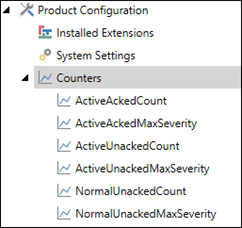
In the default configuration, some counters are already created in the system and can be exposed as process points to clients. Some examples are the count of active and acknowledged alarms (ActiveAckedCount), the maximum severity of active and acknowledged alarms (ActiveAckedMaxSeverity), and so forth.  View Image
To add a custom counter:
- From the Workbench Project Explorer, click Alarms and Notification, and then Hyper Alarm Server.
- Click Product Configuration and right-click on Counters, selecting Add Counter.
- Enter the following information:
- Name: Enter the name of the counter.
- (Optional) Description: Describe the purpose of the counter (for informational purposes only).
- Enabled The counter checkbox is the selected default. Clear the checkbox to keep the counter from being processed by Hyper Alarm Server at runtime.
- Expression:Click S to open the expression editor. The expression should be a Boolean value or converted into a Boolean. Based on the result, the counter determines whether to include the alarm. For example, a simple counter type expression could be x=({{ae:/:/Area1.Source1@NewState}} & 1) == 1, which returns the number of active alarms that match the expression.
- Counter Type: Select the counter parameter from the drop-down list.
- Click Apply. The custom counter name appears under the Counters node.